Have you ever wanted your website to just build itself while you describe what you have in mind?
Wouldn’t it be nice if you could skip the Customizer altogether? No hunting for the color panel. No digging through header settings. Just telling your site what to become.
If you’re like most Sydney users I hear from, you’ve wished for exactly this while staring at a half-finished homepage.
Today, I’m excited to share the launch of AI Abilities in Sydney, built on WordPress 6.9’s new Abilities API, the open standard that lets assistants like Claude, ChatGPT, and Cursor act directly on your site. Sydney is one of the first WordPress themes built on it.
Ask your assistant to “set up a starter site for a bakery,” and a complete, professionally designed layout lands on your site minutes later. No clicking. No panel-hunting. Just the result.
This is like having a co-designer who already knows every setting in Sydney, sitting inside the same chat window you use all day anyway.
And it’s live now, free in the Sydney theme, and works with the assistant you already have open.
Where This Idea Came From
Sydney gives you real control: a full Customizer, a header and footer builder, a pattern library, and starter sites for dozens of industries. That control has a learning curve. Knowing which panel holds which setting takes a while, especially the first few times.
Meanwhile, more of you were already running an AI assistant in a separate tab all day, for copywriting, for planning, for nearly everything except actually touching the site itself. That gap between planning with an assistant and building the actual site started to feel silly.
WordPress 6.9’s Abilities API closes that gap. It gives assistants a structured, permissioned way to read and operate a site’s own tools, not by scraping the dashboard, but through the same paths Sydney already uses.
We built AI Abilities in Sydney to close that gap for good.
Six Things You Can Just Ask For
Because this runs on an open WordPress standard, it works with any MCP-compatible AI client: Claude, ChatGPT, Cursor, or whatever you switch to next.
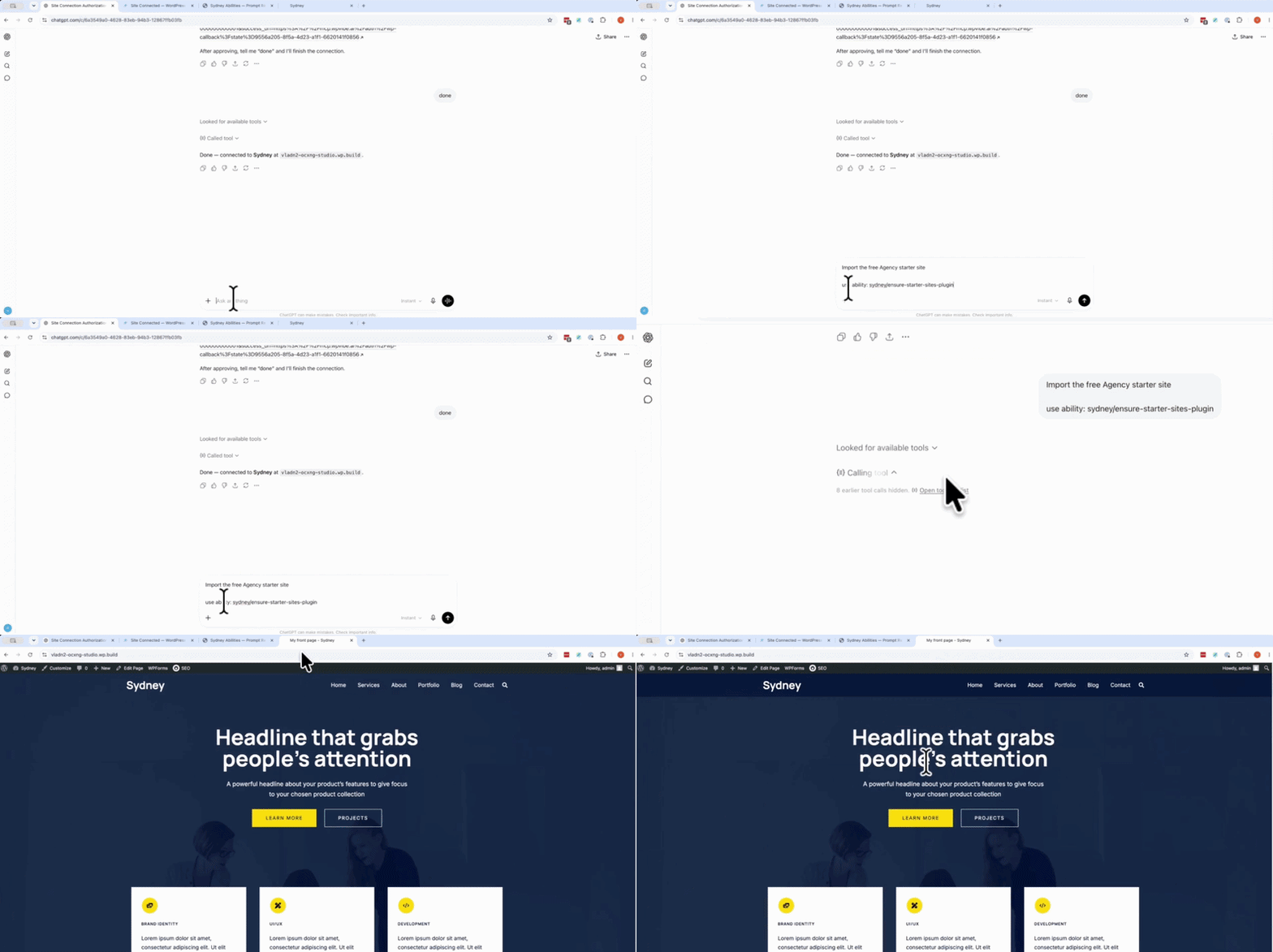
1. Go from blank to branded in one message. Your assistant installs the aThemes Starter Sites plugin, imports a demo that fits your business, and sets your title and contact details on top. “Set up my new site, import a starter site that suits a digital agency, and give it a bold, modern look.”
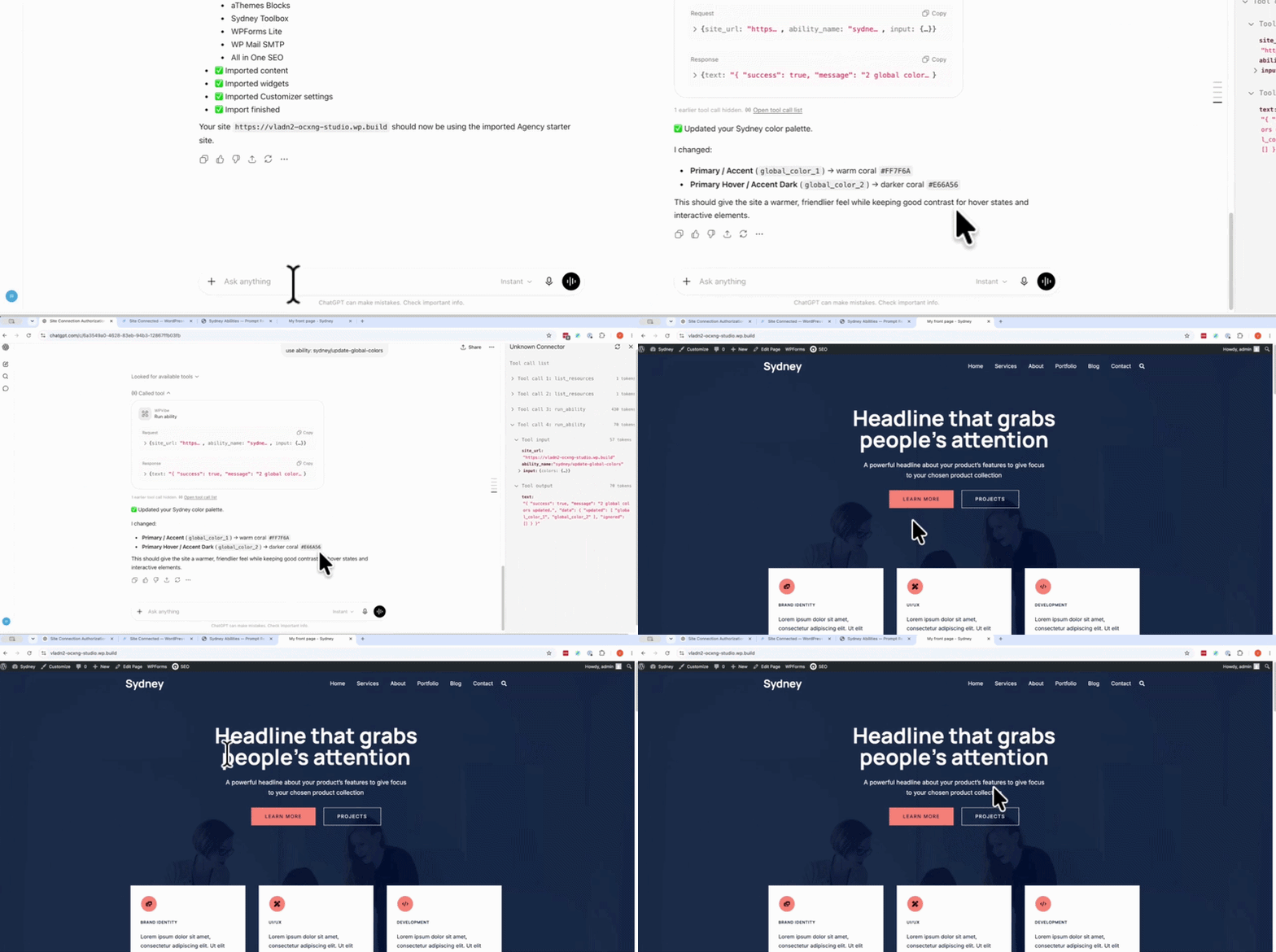
2. Repaint your palette by describing a mood. No color wheel required. “Give the site a calmer palette with a muted sage green accent on an off-white background.”
3. Set your typography without touching a font picker. Fonts, styles, and responsive sizes, set across the whole site at once. “Use Inter for body text and Poppins for headings, and make my headings uppercase with a bit more letter spacing.”
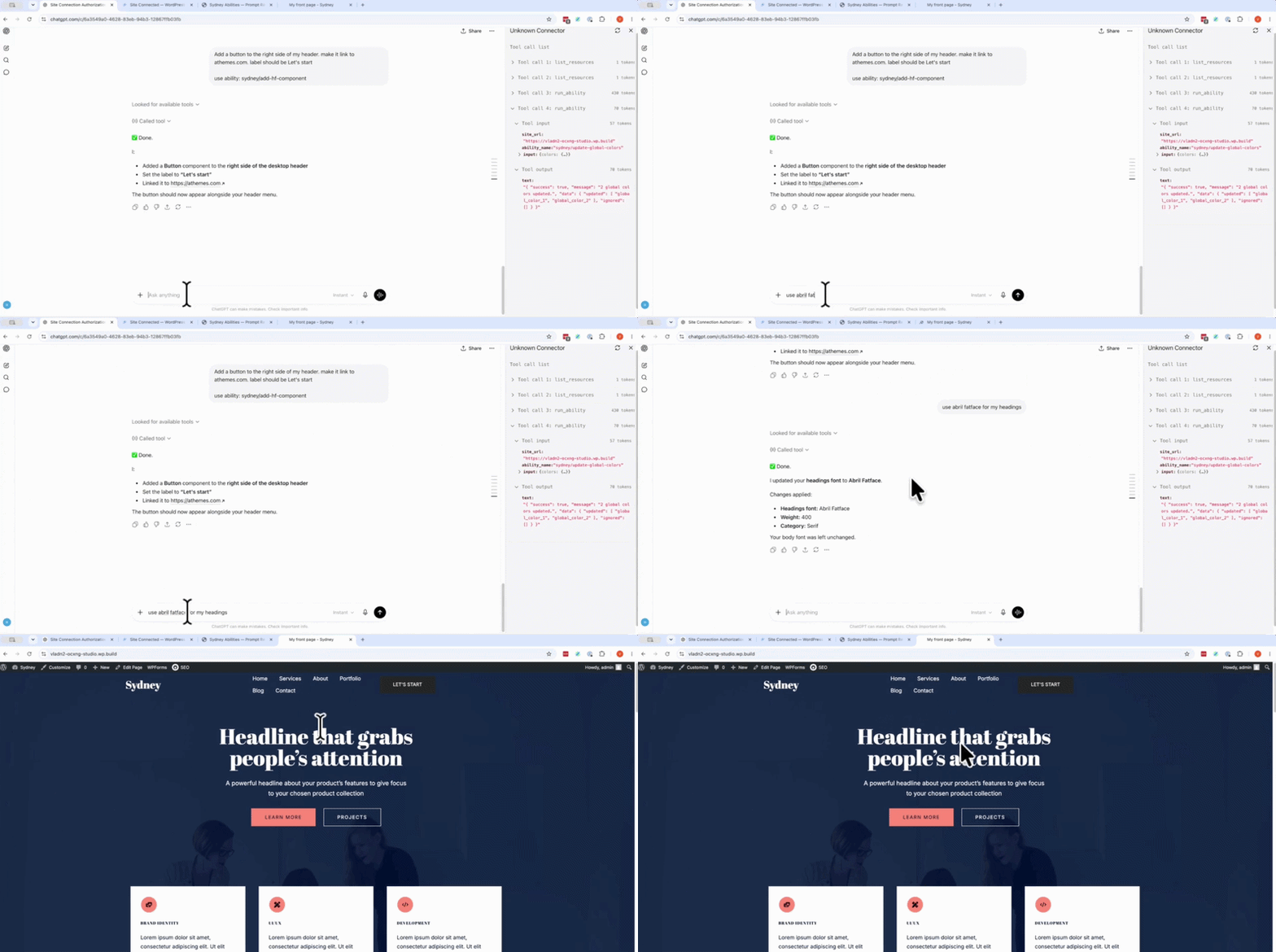
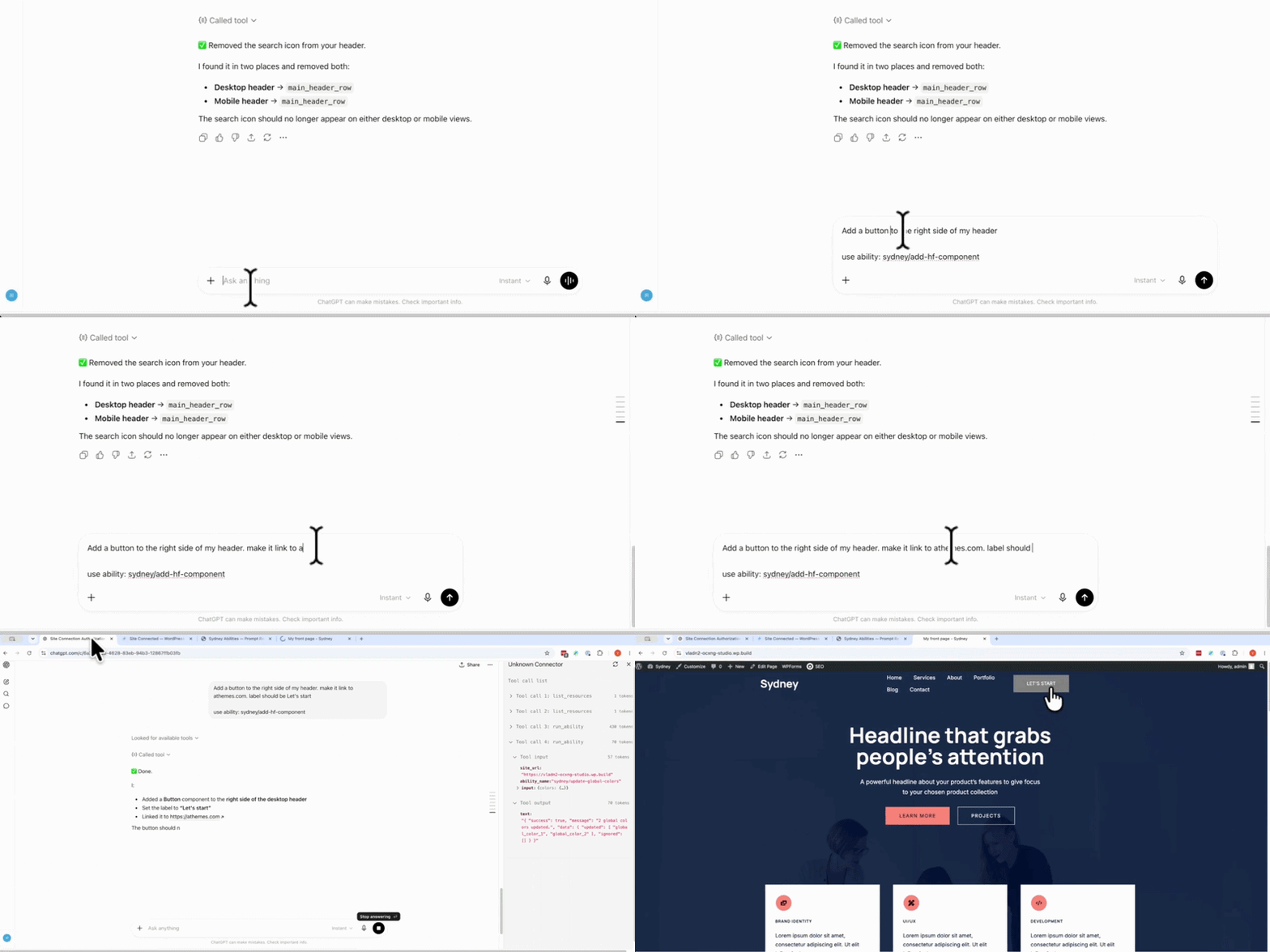
4. Rebuild your header and footer by describing the layout. Your assistant works directly with Sydney’s header and footer builder. “Build me a header with the logo on the left, the menu in the center, and a ‘Let’s Start’ button on the right.”
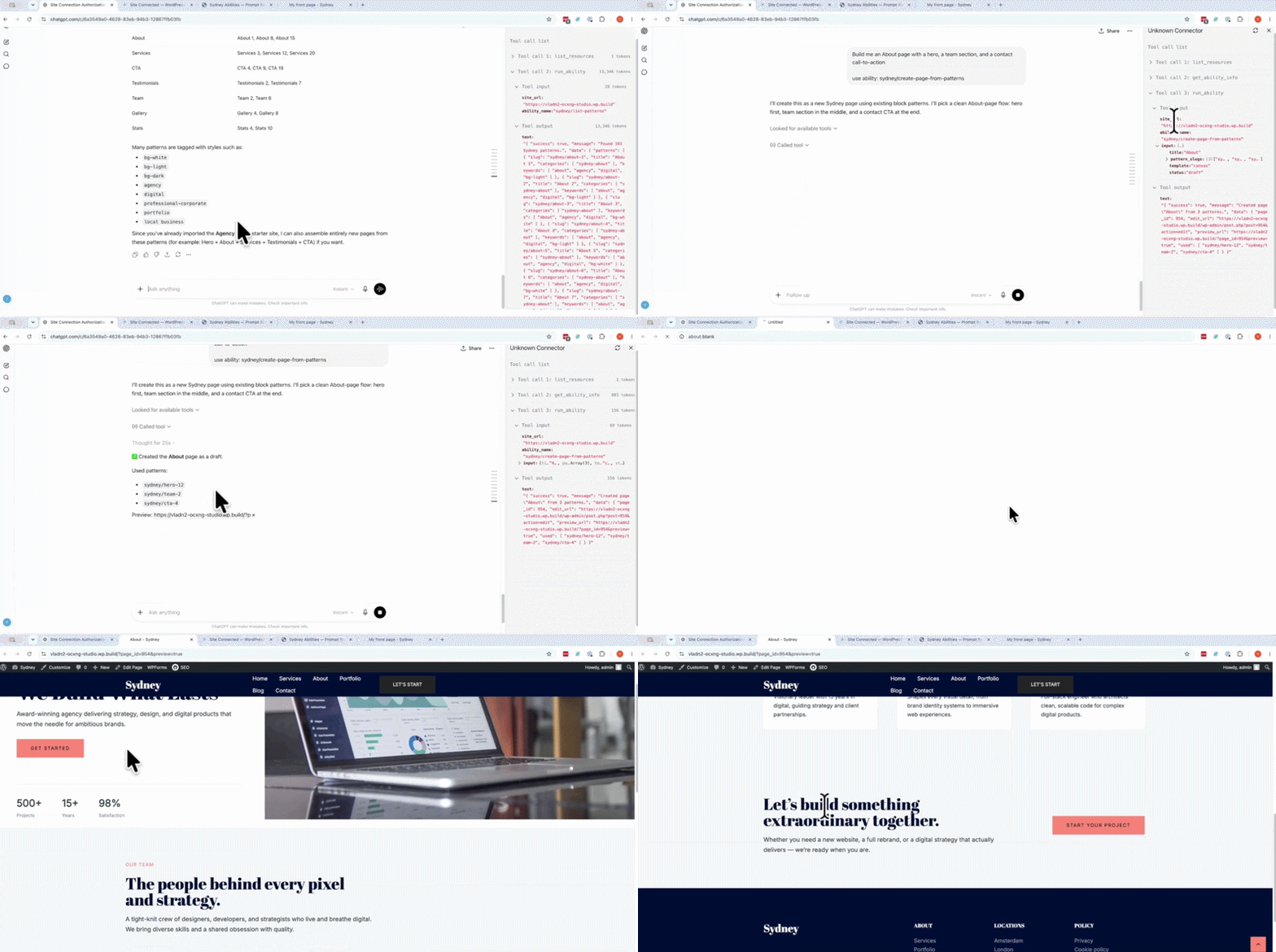
5. Turn a description into a finished page. Built from Sydney’s own block patterns, ready to edit. “Build me an About page with a hero, a team section, and a contact call to action.”
One Conversation, One Finished Site
Say you’re starting a brand-new site for a client, and you’re already chatting with your assistant about the direction.
In that same conversation, you ask it to import a starter site that fits their industry, set the palette to their brand colors, pair a clean heading font with a readable body font, and build an About page from Sydney’s patterns.
A few minutes later, the site is standing, branded, and populated. You spend your time on the copy and the client call, not on finding which panel controls the header.
Made for the Way You Already Build Sites
- Freelancers and agencies spinning up client sites all week, who want the starter site, branding, and first pages handled in one pass.
- Small business owners and DIY builders who want a polished site without learning every Customizer panel first.
- Bloggers and creators who want colors, fonts, and layout to look right without fiddling for hours.
- Developers who’d rather script a site’s setup by asking than by clicking.
Real-world use cases include:
- Standing up a client’s starter site and branding it in one conversation before the kickoff call.
- Building an About or Services page from patterns while you’re still drafting the copy.
- Rebranding colors and fonts across the whole site in seconds when a client changes direction.
Getting Your Assistant Connected
Update to Sydney 2.70 or later (or Sydney Pro 4.3.0 or later), then work through these four steps.
Step 1: Choose Your Access Level
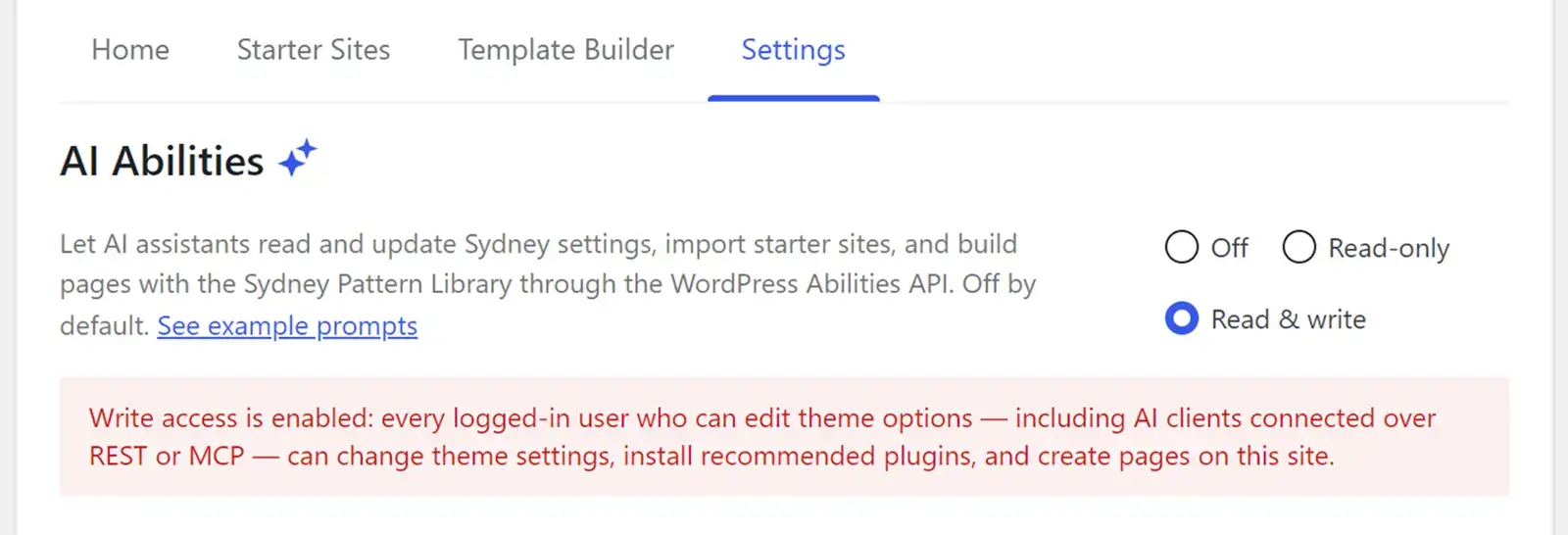
AI Abilities is off by default. Go to Sydney » Theme Dashboard, open the Settings tab, and pick a mode in the AI Abilities section:
- Off: the default. AI assistants can’t see or touch anything.
- Read-only: assistants can look up your settings but can’t change them.
- Read & write: assistants can read, change, build pages, and install recommended plugins.
Switch modes any time.
Step 2: Install WPVibe and Connect Your Assistant
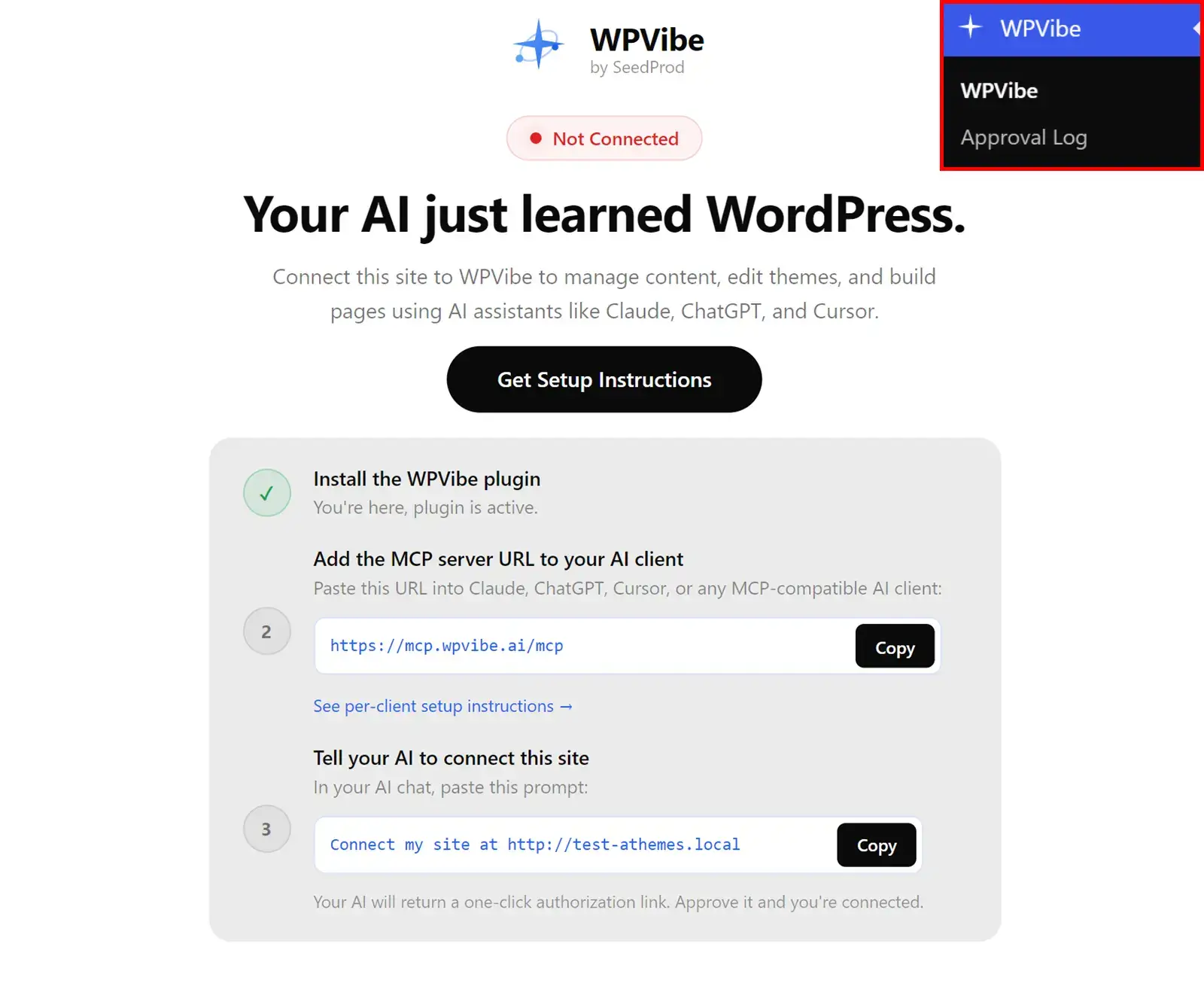
Install WPVibe, this free plugin from SeedProd exposes Sydney’s abilities over MCP, the standard AI assistants use to connect. Open WPVibe, paste the MCP server URL into Claude, ChatGPT, or Cursor, sign in with your email, then copy the connection prompt into your assistant. It’s now ready to work with Sydney.
Step 3: Ask for Something
Ask your assistant to change something, and watch it happen in Sydney, visible in the Customizer immediately. Start small: “Make my accent color a warm coral.”
What Makes This Different
- It’s built on an open standard, so you’re not locked into one assistant, and every change is a real Sydney change, not a shadow copy living somewhere else.
- Every edit is visible. It goes through the same paths the Customizer uses, shows up live, and can be tweaked or undone with the normal controls. No hidden settings your assistant keeps to itself.
- You set the ceiling. The whole system is off until an administrator turns it on, and you choose between look-only and look-and-change from the start.
What’s Coming Next
This is the first release, not the finished picture. As the Abilities API matures, we plan to open up more of Sydney’s design tools to assistant control, and support any MCP-compatible client the community wants to use.
My goal with Sydney has always been to make a genuinely good-looking website possible without hiring a developer or learning fifteen Customizer panels first. AI Abilities is the next step toward that, not a bolt-on.
We’re just getting started, and the best way to build this right is by hearing what you actually want next.
Try AI Abilities in Sydney Now!
If there’s a page type, a layout, or a setting you wish your assistant could handle, send us your suggestions.
If you’ve been putting off a new build because the Customizer felt like one more thing to learn, this is the moment to try it. Update to Sydney 2.70+ (Sydney Pro 4.3.0+ if you’re on Pro), connect WPVibe, and describe the site you want. In coming updates, Sydney Pro will add a bigger pattern library, premium starters, more design controls, and a full set of Pro modules your assistant can build with. See Sydney Pro for the upgrade.
Thank you for being part of the aThemes community.
Let’s build faster, together.
Kamruzzaman and the team of aThemes
P.S. Your assistant is ready to build your next page the moment you describe it. Connect it with WPVibe and try it on your live site. Get Sydney today.