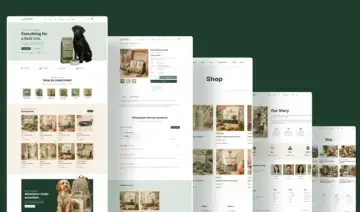
Claude connecting to WordPress through MCP isn't new by itself. Guides already cover connecting Claude to manage posts, plugins, and users on a live site, and the official WordPress MCP adapter handles that layer well.
What those guides don't cover is the theme design layer: your palette, typography, header and footer layout, block patterns. That's what Sydney's AI Abilities feature adds.
It's built specifically into the theme. Claude reads and changes the same settings you'd otherwise click through in the Customizer, not just posts and plugins.
We'll carry one example the whole way through: Hollis & Rowe, a two-person event-planning studio moving onto a Sydney starter site, with a logo in a specific shade of terracotta.
Before you start
You'll need:
- A WordPress site on version 6.9 or later.
- Sydney theme, version 2.70 or later (free).
- The free WPVibe plugin installed on your site.
- Claude Desktop or Claude Code, with custom connector support.
Step 1: Turn on AI Abilities
AI Abilities is off by default, on purpose: nothing outside your site can see or touch your settings until you explicitly turn it on. That's the setting you check first on the site before connecting anything.
For Hollis & Rowe's site, that meant logging into the WordPress admin before touching Claude at all.
Go to Sydney > Theme Dashboard, open the Settings tab, and find the AI Abilities section. There are three modes to choose from:
- Off: The default. AI assistants can't see or touch anything.
- Read-only: Assistants can look up your settings but can't change them.
- Read & write: Assistants can read, change, build pages, and install recommended plugins.
For this guide, we pick Read & write for the session where changes actually get made.
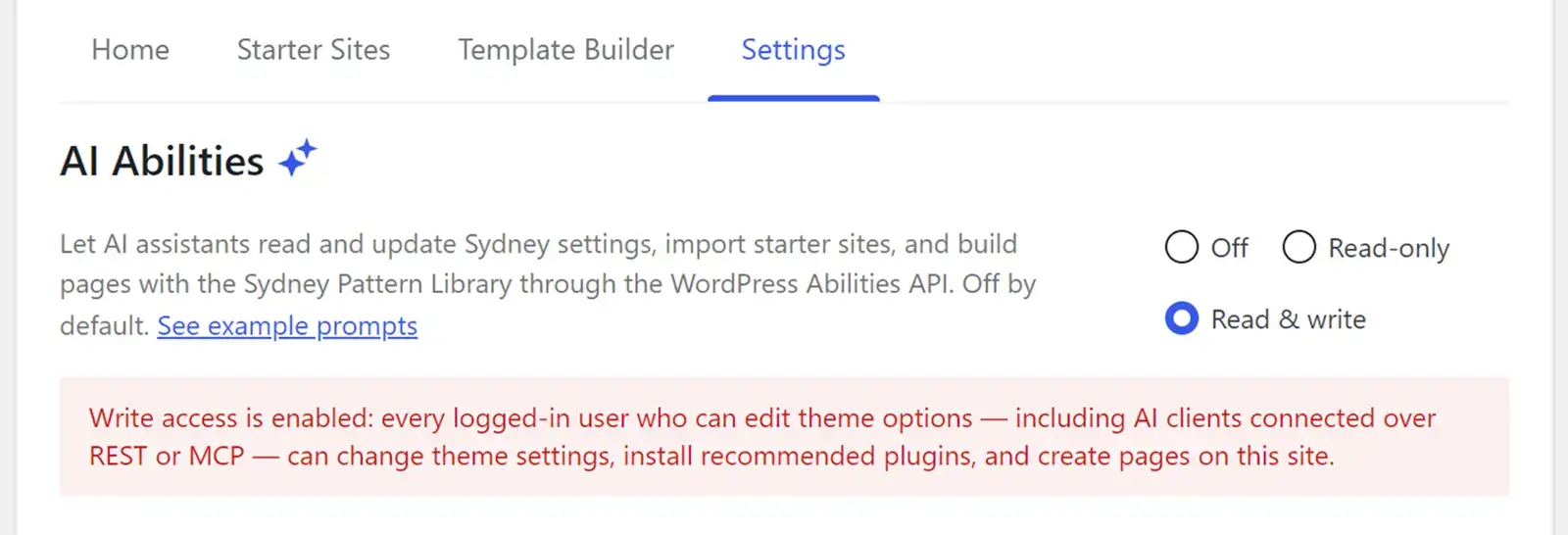
Success signal: the AI Abilities section shows “Read & write” selected and saved.
Step 2: Install the free WPVibe plugin
Turning on AI Abilities only exposes the settings. Something still has to carry the connection between your site and Claude, and that's what WPVibe does. It's a free plugin from SeedProd that exposes Sydney's abilities over MCP, the standard AI assistants use to connect to outside tools.
Install and activate it the way you would any WordPress plugin: Plugins > Add New, search “WPVibe,” install, activate.
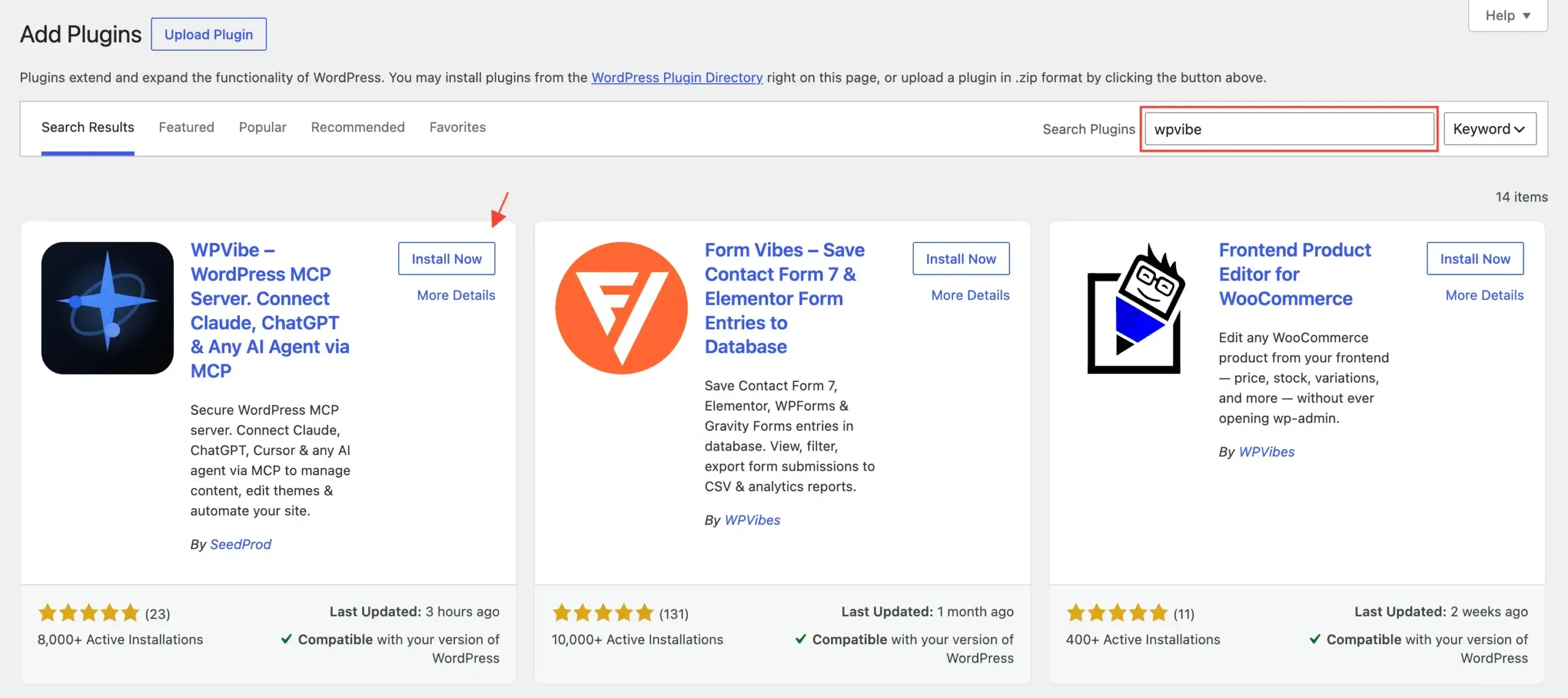
Success signal: a new “WPVibe” item appears in your WordPress admin menu, and its admin page shows an MCP server URL for your site.
Step 3: Connect the URL in Claude
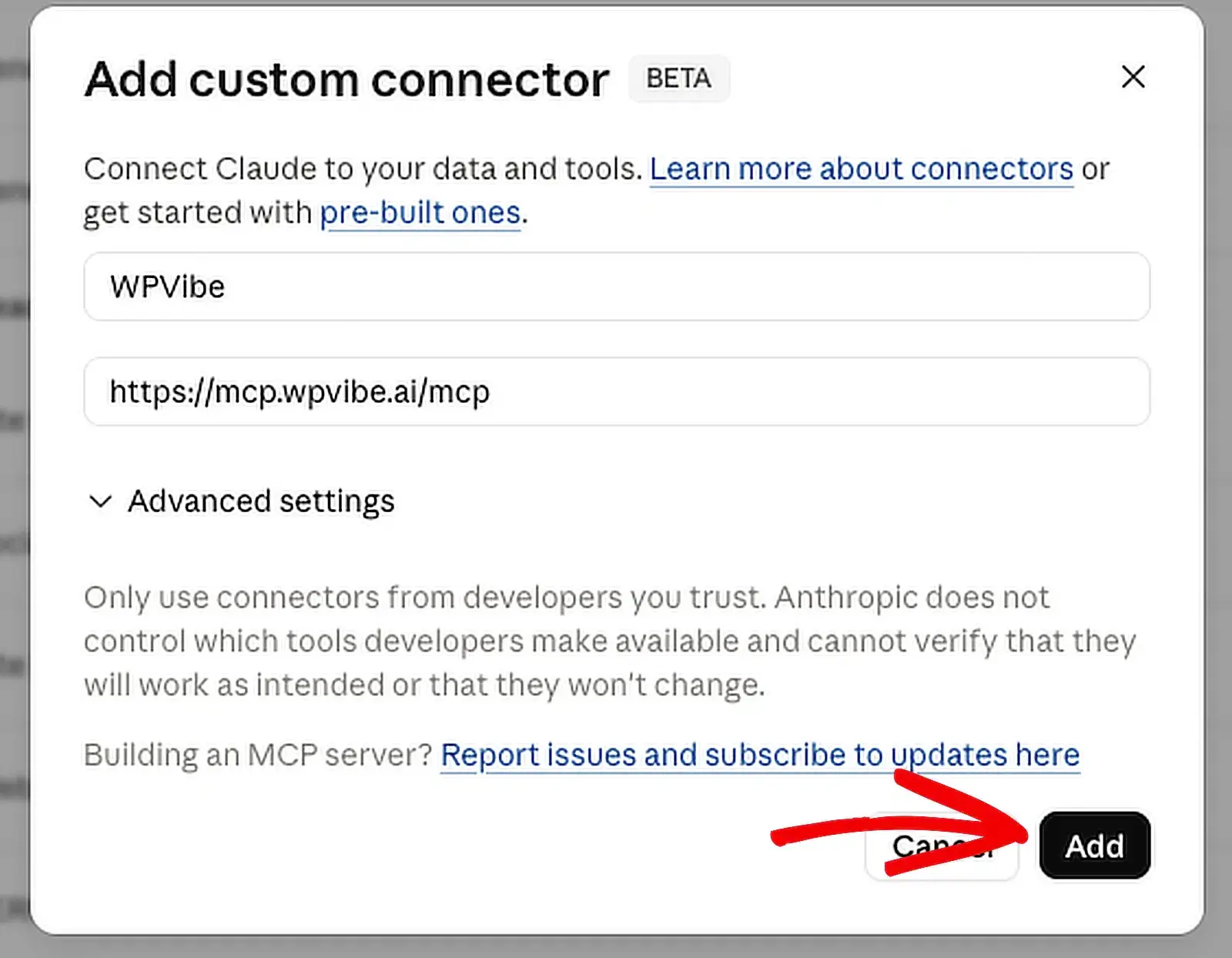
Claude connects to WPVibe as a custom connector, using the MCP server URL directly. The exact path differs slightly between Claude on the Web, Claude Desktop and Claude Code, so all are covered below.
Claude on the Web: use this if you chat with Claude in your browser at claude.ai. Open your settings, go to Connectors, and choose to add a custom connector. Paste the WPVibe server URL and confirm.
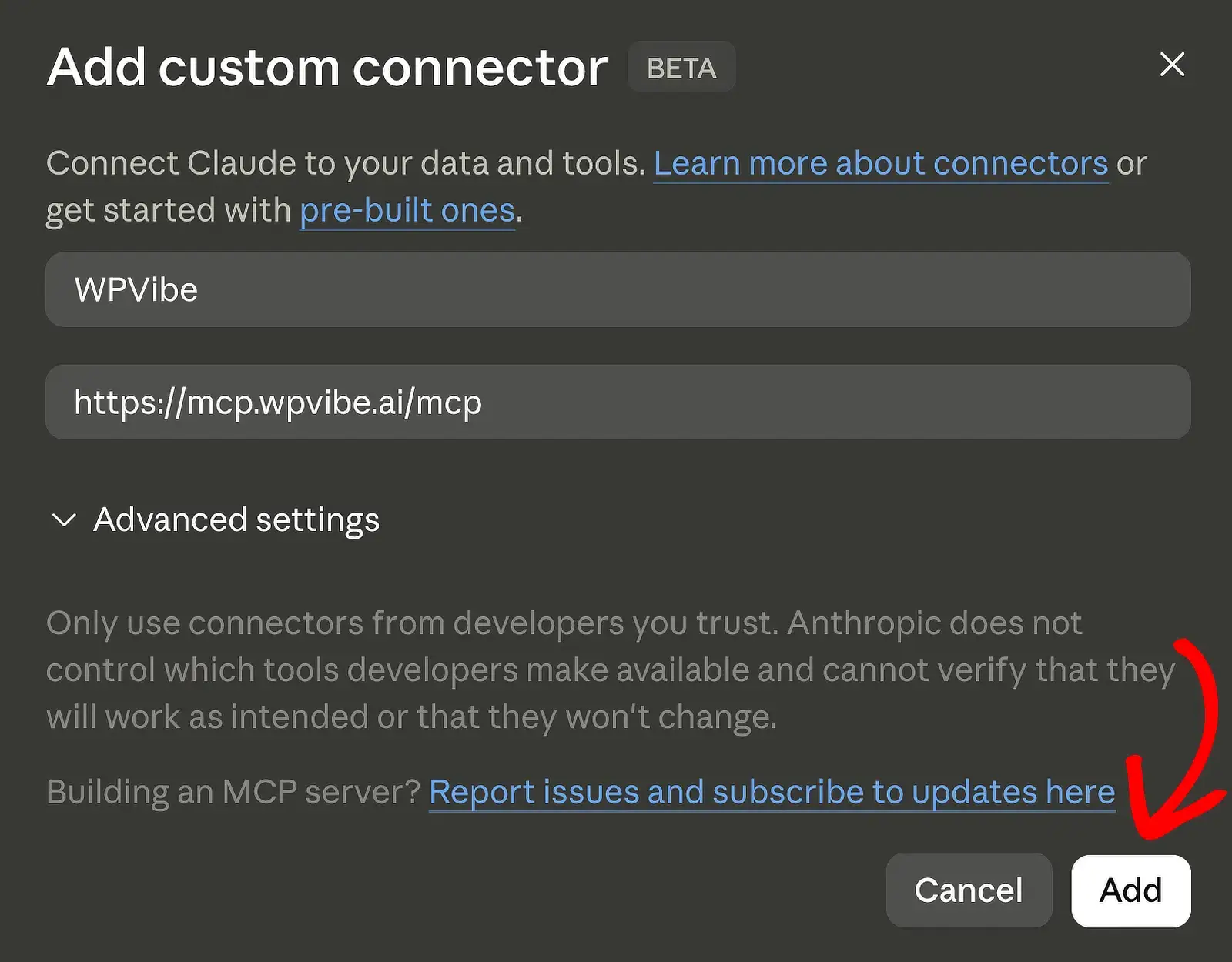
Claude Desktop: open your Claude, go to the Customize section, select Connectors, and choose to add a custom connector. Paste the WPVibe server URL and confirm.
Claude Code: if you’re comfortable in the terminal or Claude Code via the desktop app. Run the command below, and Claude Code registers WPVibe as an MCP server.
claude mcp add --transport http wpvibe https://mcp.wpvibe.ai/mcp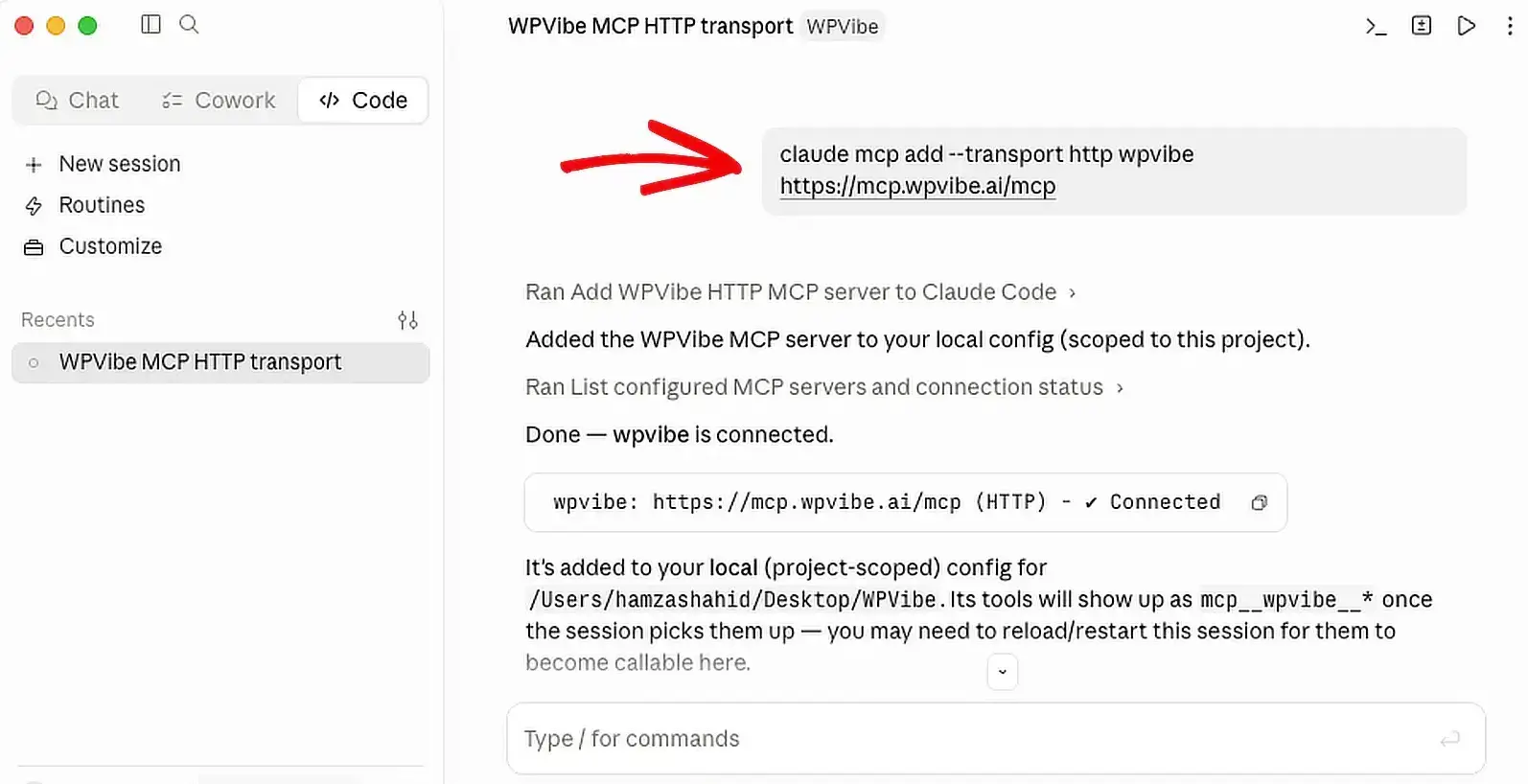
This part is verified against Claude's own documentation rather than a Sydney-specific test. The connector mechanics are the same regardless of which MCP server you're pointing at.
Step 4: Sign in and confirm your site
This is the step people hesitate on, and reasonably so: you're about to let an outside AI assistant touch a live client site. That was true for Hollis & Rowe's site too. It was already live, with an upcoming event on the calendar, and the owner had a specific terracotta to hit.
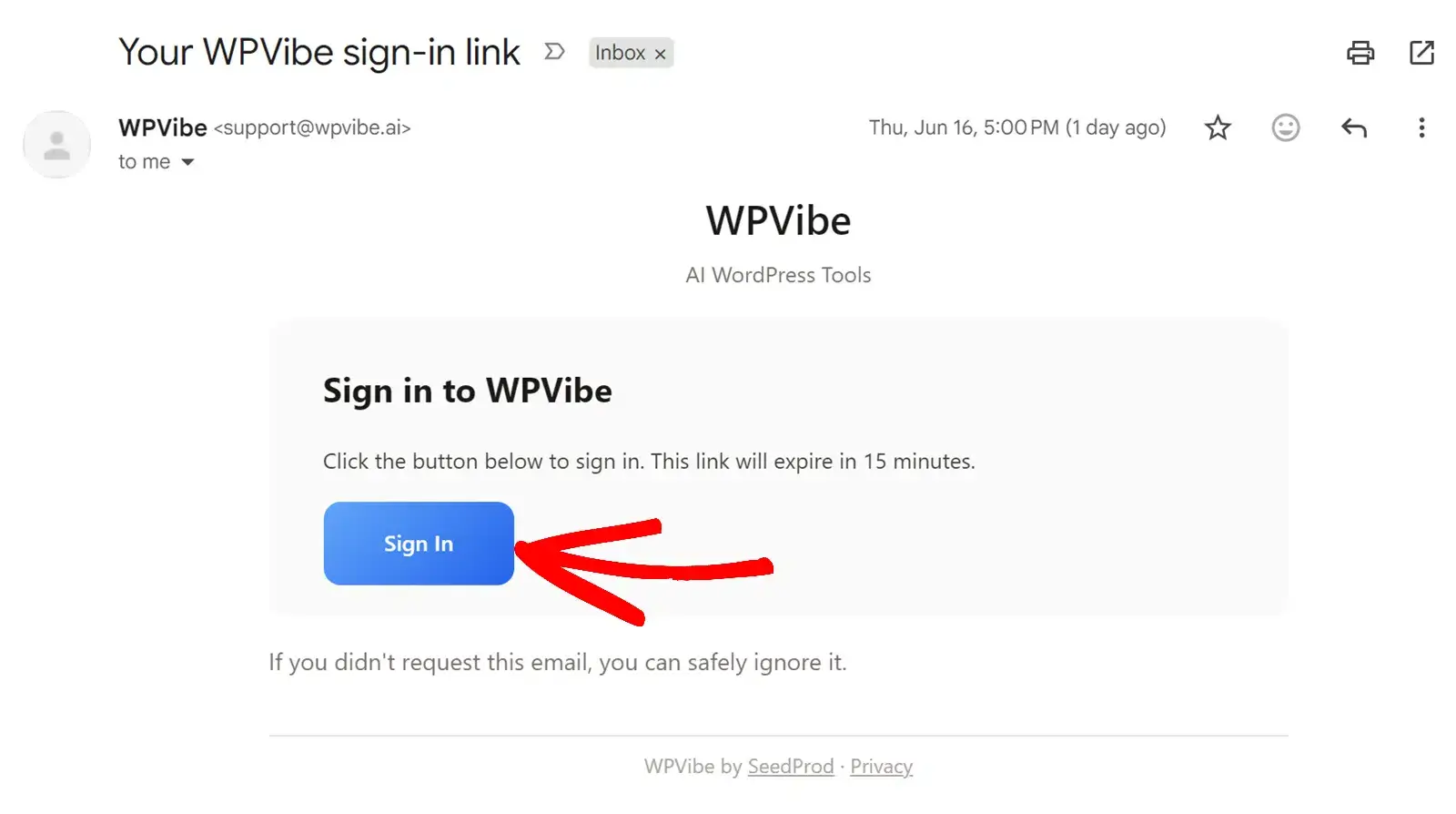
One thing worth knowing before you continue: WPVibe signs you in with a magic link sent to your email, not a password. You never type or share your WordPress login with Claude at any point in this setup.
Follow the sign-in prompt to your email, open the magic link, and confirm. The link expires after 15 minutes, so if it doesn't work, request a fresh one rather than troubleshooting an old link.
Once signed in, confirm the connection in a new Claude conversation by naming your site directly. It works the same way you'd point Claude at any tool for the first time.
Success signal: Claude confirms the connection and can describe your site's current settings back to you.
Before your first live edit: back up Hollis & Rowe's settings
Once Claude is connected with write access, it can change your palette, typography, and header or footer layout directly. Before you ask it to change anything on a real site, back up your current site. That gives you something to restore if a change isn't what you wanted.
What happened when we asked it to match Hollis & Rowe's brand
The site was already built on a Sydney starter site, but the accent color was still the theme default blue. In the Claude chat where the site was connected, we typed:
“Update the accent color to match Hollis & Rowe's brand, a warm terracotta like their logo.”
Claude read the site's current theme settings, picked a terracotta shade close to the logo, and applied it. It took about eight seconds. Refreshing the site showed the new accent color on buttons, links, and hover states, exactly as asked, and the header's hover gradient had also picked up the new shade, which we hadn't specifically asked for.
What else you can ask it to do
Beyond color, AI Abilities covers most of what you'd otherwise do manually in the Sydney Customizer or Site Editor. For Hollis & Rowe, the next requests looked like this:
Typography: “Switch the body font to something warmer than the default, closer to what an event studio would use.”
Header and footer layout: “Move the inquiry button into the header next to the logo, and add our booking hours to the footer.”
Building a page from Sydney's block patterns: “Build a Hollis & Rowe portfolio page using Sydney's block patterns, with a gallery section for our last three events.”
Each of these works the same way: describe the outcome, Claude reads your current settings, applies the change. Check the result on the whole page, not just the section you asked about, since a change like the accent color can surface in places you didn't name.
Before you ask it to import a starter site, back up your whole site. This is a bigger change than a color or font swap, and the earlier export/import step doesn't cover site content.
What Claude still can't do here
AI Abilities gives Claude access to Sydney's own settings surface. It won't write a custom PHP function, install a plugin outside its recommended set, or fix something outside what Sydney and its block patterns expose.
FAQs About Building WordPress Site With Claude
Connecting Claude to WordPress and building website by chat using the Abilities API is relatively new, so a few questions come up a lot.
Is it safe to give Claude write access to a live site?
Yes, with the same caution you'd use for any tool with write access. Write access is off by default, you turn it on for the session, and you can switch it back to read-only or off when you're done. Back up before any change you'd consider hard to reverse, like a starter-site import.
Do I need to know how to code?
No. Every step here is a chat message, whether you're on Claude on the Web, Claude Desktop, or Claude Code. Claude Code is there if you already prefer the terminal, not because it's required.
What happens if I don't like what Claude changed?
Every setting Claude touches is the same setting you'd otherwise change in the Customizer, so it reverses the same way: change it back by hand, or ask Claude to revert it.
Which Sydney settings can Claude actually change?
Palette and accent colors, typography, header and footer layout, and block-pattern pages. It does not reach outside the theme, so custom PHP, or anything outside Sydney's own settings surface stays out of scope.
Can I turn AI Abilities off after I'm done?
Yes. Go back to Sydney > Theme Dashboard > Settings > AI Abilities and switch it to Off or Read-only. Nothing about the connection persists write access once you've turned it off.
Will this work with assistants other than Claude?
WPVibe exposes Sydney's settings over MCP, the same standard other assistants use, so the connection isn't Claude-specific. This guide is written and tested against Claude.
Next step
Starting from scratch rather than an existing Sydney site? Browse Sydney's starter site demos first. Have Claude import and brand one instead of building from a blank page.
Get started today with the easiest WordPress theme. Sydney Pro includes lots of free starter templates and offers a 14-day money-back guarantee.
If this article helped you out, follow us on Facebook and X (Twitter) for more WordPress tutorials and guides.