You set up a category discount in WooCommerce, but products filed under your subcategories aren't getting it. It looks like a bug, but it's actually how category-based discount rules work.
In this tutorial, I'll show you how to apply WooCommerce category discounts to subcategories with a single toggle in the Merchant plugin. You won't need to touch code, reorganize your categories, or edit products one by one. The toggle arrived in Merchant v2.3.1.
By the end, you'll have a bulk discount campaign on one parent category that also covers every product in its subcategories.
- Why WooCommerce category discounts skip subcategories
- Requirements
- 1. Install and activate the Merchant plugin
- 2. Enable the Bulk Discounts module
- 3. Create your discount offer
- 4. Turn on the Include subcategories toggle
- 5. Test your discount
- The same toggle in 14 more Merchant modules
- Troubleshooting common issues
- FAQ
Why WooCommerce category discounts skip subcategories
Discount rules only match the categories directly assigned to a product. If a product is filed under a subcategory alone, a rule pointed at the parent category skips it.
Say your store has a Clothing category with Hoodies and T-Shirts nested under it. You point a discount rule at Clothing, but a hoodie that only lives in Hoodies never qualifies, because Clothing isn't in its category list.
What makes it confusing is that the rule looks correct. You chose the right category; your products just aren't assigned to it directly. Category archive pages add to the confusion, since they do show products from child categories.
Requirements
- A WooCommerce store with products organized into parent and child categories
- The Merchant plugin, version 2.3.1 or later
- Merchant Pro for the Bulk Discounts module used in this tutorial
We'll use the Bulk Discounts module for the walkthrough, but the same Include subcategories toggle is available in 15 Merchant modules. The full list is near the end of this post.
1. Install and activate the Merchant plugin
To begin, you'll need to install and activate the Merchant plugin on your store.
Merchant is a WooCommerce toolkit with 40+ features. Because it's 100% modular, it only loads the modules you activate, so enabling one discount feature won't slow down the rest of your store.
The Bulk Discounts module is part of Merchant Pro. Once you've purchased a license, download the plugin from your aThemes account, then go to Plugins > Add New > Upload Plugin and upload the zip file.
Make sure you're running Merchant 2.3.1 (and Merchant Pro 2.3.1 if you use it) or later. That's the release that introduced the Include subcategories toggle.
2. Enable the Bulk Discounts module
Next, go to Merchant > Modules in your WordPress dashboard and enable the Bulk Discounts module.
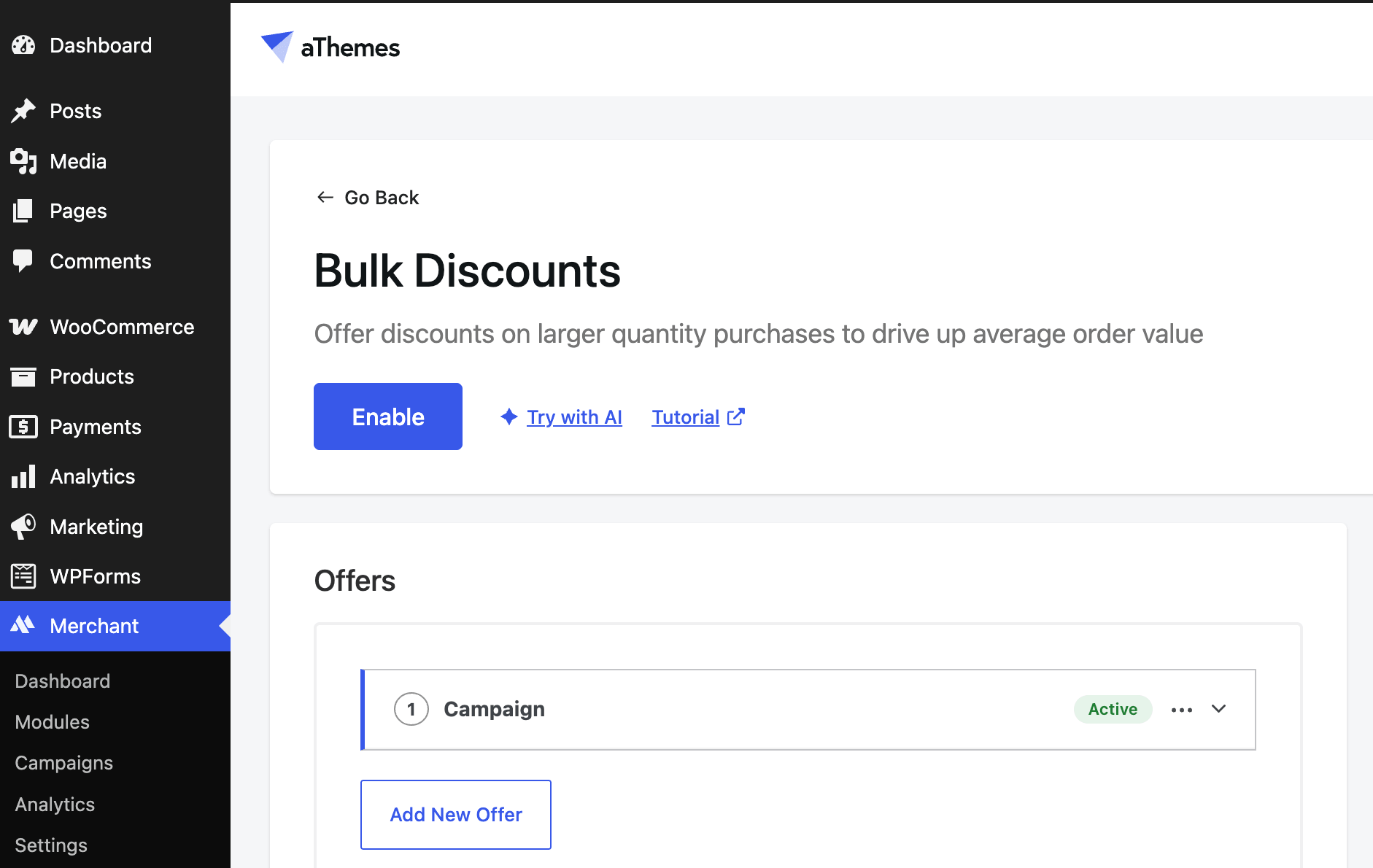
Once it's active, click into the module to open its settings.
3. Create your discount offer
Now, you can set up the actual discount campaign.
In the Offers section, click Add New Offer. Give your offer a name, something like “Clothing volume deal”, so you can find it later.
Under Offered product(s), choose Specific Categories. Then, in the Categories field, select your parent category. That's Clothing, in our example.
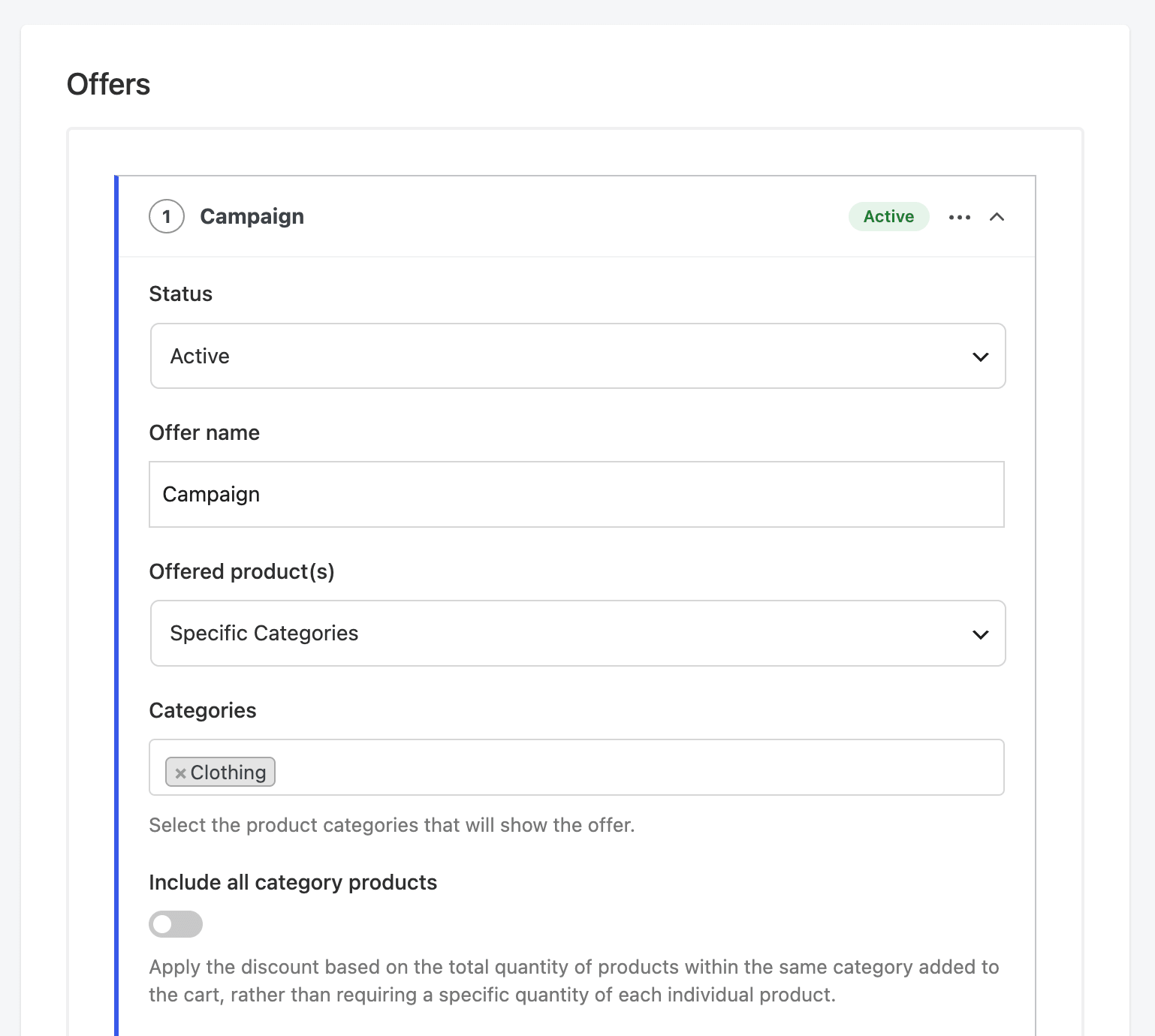
Set up your discount tiers under Create Discount Tiers: the Quantity a customer needs to buy and the Discount they get, either as a Percentage or a Fixed amount. If you want to go deeper on tiered pricing, we also have a full guide to quantity-based discounts in WooCommerce.
Save this as-is and the discount only covers products directly assigned to Clothing, which is exactly the problem we started with.
4. Turn on the Include subcategories toggle
This is the step that fixes the subcategory problem. In the same offer settings, enable the Include subcategories toggle.
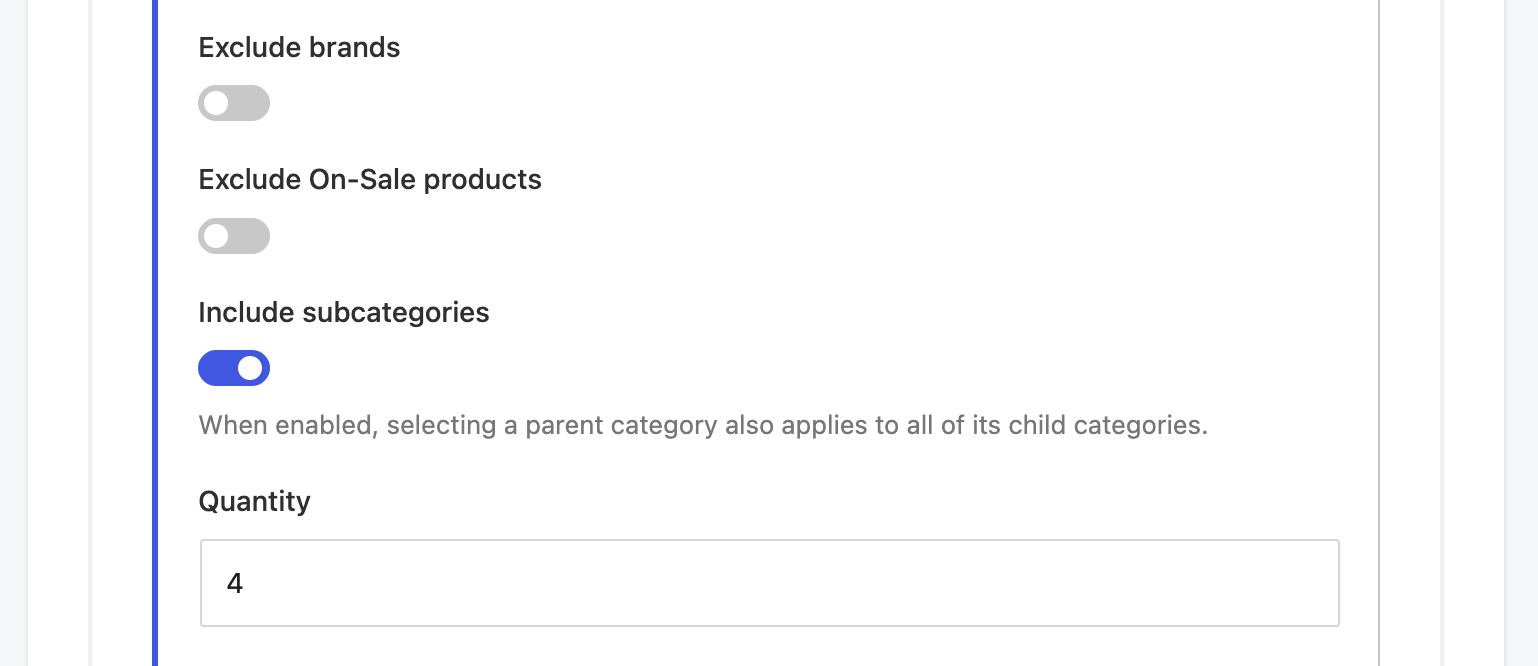
As the setting itself explains: “When enabled, selecting a parent category also applies to all of its child categories.”
With the toggle on, your Clothing rule now matches products filed under Hoodies, T-Shirts, and anything nested deeper. It also picks up subcategories you create in the future, so you won't need to revisit the rule when your category tree grows.
The toggle is off by default, and it's saved per campaign. It won't touch your existing offers unless you turn it on for them.
Click Save when you're done.
5. Test your discount
Finally, let's make sure everything works.
Open a product that's only assigned to a subcategory, like a hoodie filed under Hoodies but not under Clothing. You should see your discount tiers displayed on the product page.
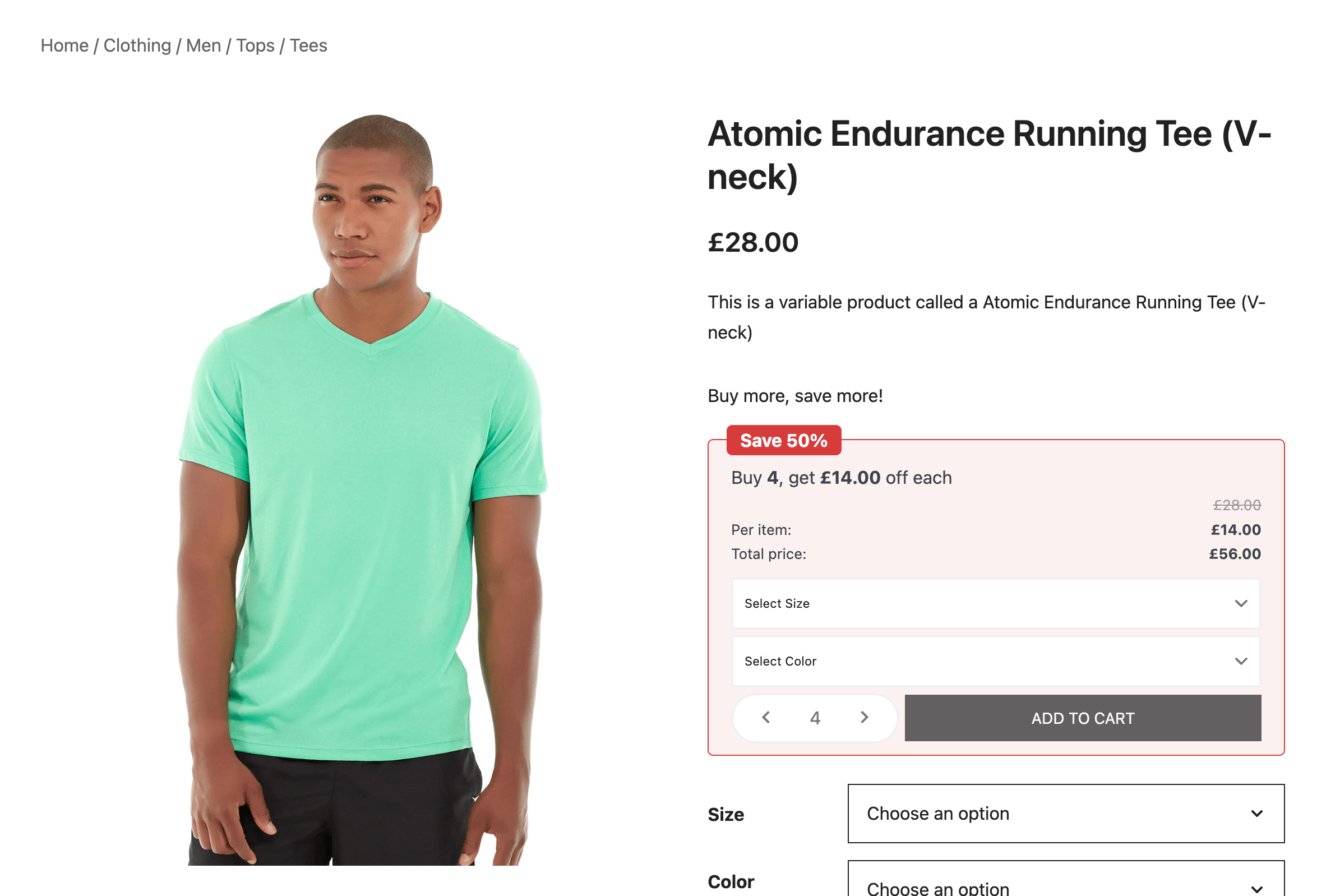
In my test store, a running tee filed only under Tees showed the “Buy 4, get £14.00 off each” tier as soon as the toggle went on.
Then add the qualifying quantity to your cart and confirm the discounted price is applied at checkout.
If you want to double-check the toggle is doing the work, switch it off, refresh the product page, and watch the discount disappear. Then switch it back on.
The same toggle in 14 more Merchant modules
Bulk Discounts isn't the only module that had this problem. Any Merchant feature that targets products by category used to stop at the categories you selected.
As of Merchant 2.3.1, the Include subcategories toggle is available in 15 modules:
- Buy X Get Y
- Bulk Discounts
- Buy Now
- Complementary Products
- Free Gifts
- Frequently Bought Together
- Payment Logos
- Pre-Orders
- Product Labels
- Reasons to Buy
- Side Cart
- Spending Goal
- Sticky Add to Cart
- Storewide Sale
- Wishlist
It works the same way everywhere: point a rule at a parent category and flip the toggle. The rule then covers every subcategory underneath it.
Troubleshooting common issues
- The toggle doesn't appear in your offer settings: It only shows once your campaign targets categories, so select Specific Categories under Offered product(s) first. Also confirm you're on Merchant 2.3.1 and Merchant Pro 2.3.1 or later.
- The discount still isn't applying: Check that the offer's Status is set to Active, then clear any page or object caching and retest.
- Products several levels deep aren't discounted: They should be, since the toggle covers all descendants rather than just direct children. If a deep subcategory is missed, make sure the product's category actually sits under the parent you selected in Products > Categories.
- A product gets the discount that shouldn't: The product is probably assigned to a subcategory of your selected parent. Either move it to a different category or exclude it from the campaign with the Exclude products option.
FAQ
Does WooCommerce apply category discounts to subcategories by default?
No. WooCommerce doesn't include built-in category discount rules at all, and plugins that add them typically match only the categories directly assigned to each product. That's why a parent-category rule skips products filed only under a child category.
Why do subcategory products show on the parent category page but not get the discount?
Category archive pages pull in products from child categories, while discount rules check the categories assigned to the product itself. They're two separate mechanisms. The Include subcategories toggle makes the discount rule behave the way the archive page already does.
Can I include subcategories with code instead?
Yes. A developer can expand category checks with get_term_children() in a custom snippet. It works, but you'd need to patch every feature separately, and you lose the per-campaign control that Merchant's toggle gives you.
Will enabling the toggle change my existing campaigns?
No. It's off by default, so nothing changes after the update until you enable it on a specific campaign.
Is the Include subcategories toggle free?
The toggle ships in the free Merchant plugin for its free modules. Modules like Bulk Discounts, Buy X Get Y, and Free Gifts require Merchant Pro.
Start applying discounts to your subcategories today
That wraps up our guide on how to apply WooCommerce category discounts to subcategories. As a quick recap:
- Install and activate the Merchant plugin (2.3.1 or later)
- Enable the Bulk Discounts module
- Create an offer targeting your parent category
- Turn on the Include subcategories toggle
- Test with a product that only lives in a subcategory
Merchant also does a lot more than discounts. It bundles 40+ WooCommerce features, and since only the modules you activate get loaded, it won't weigh your store down. If you're still comparing tools, our roundup of the best WooCommerce bulk discount plugins shows how Merchant stacks up against the alternatives.
If you have any questions about how to apply category discounts to subcategories in WooCommerce, let us know in the comments section below.

Related Posts