Tired of clicking through five different screens just to launch one promotion?
Often it’s because your store settings, your campaign builder, and your analytics all live in separate corners of WordPress. Getting anything done means hunting through menu after menu before you see a single result.
Now imagine describing what you want in plain English, in the same chat window you already have open. Your assistant reaches in and builds it. No settings to hunt for. No modules to compare side by side. Just the outcome you asked for, live in seconds.
That’s why today, I’m excited to share the launch of AI Abilities in Merchant. This runs on WordPress 6.9’s new Abilities API, the open standard that lets assistants like Claude, ChatGPT, and Cursor act directly on your site. Merchant is one of the first WooCommerce plugins built on it.
We built this so your assistant can read your store and shape it for you, straight from a chat. Ask for a “Buy 2, Get 1 Free” deal on your Summer Tees, and watch the campaign appear in Merchant moments later.
Think of it as handing your WooCommerce dashboard a voice. One that listens, acts, and reports back, without you ever leaving the conversation.
And the best part? It’s live now, it works with the assistants you already use, and the core abilities are completely free.
Why We Built This
Merchant already ships with more than 40 conversion modules: promotions, urgency tools, cross-sells, checkout upgrades. Powerful, but it meant opening one module to configure it, another tab to check how it performed, and a third to decide what to try next.
As AI assistants became something store owners kept open all day anyway, the gap got harder to ignore. You’d already be chatting about your Black Friday plan in one window, then switching over to Merchant to actually build it. That part never sat well with us.
That back-and-forth is exactly what the WordPress Abilities API was built to close. It gives assistants a safe, structured way to read and act on a site’s own tools, without scraping the dashboard or guessing at settings.
That’s exactly what AI Abilities in Merchant delivers.
What Is AI Abilities in Merchant?
AI Abilities in Merchant lets any MCP-compatible AI client (Claude, ChatGPT, Cursor, or others) read your store’s data and manage its settings on your behalf. Because it’s built on an open WordPress standard, you’re never locked into one assistant.
Once connected, your assistant can do things like:
- Launch a promotion in seconds: Buy X Get Y deals, storewide sales, free-gift offers, spending goals, whatever the promotion, just describe it. “Create a Summer Clearance sale taking 20% off everything through the end of the month,” and it’s running.
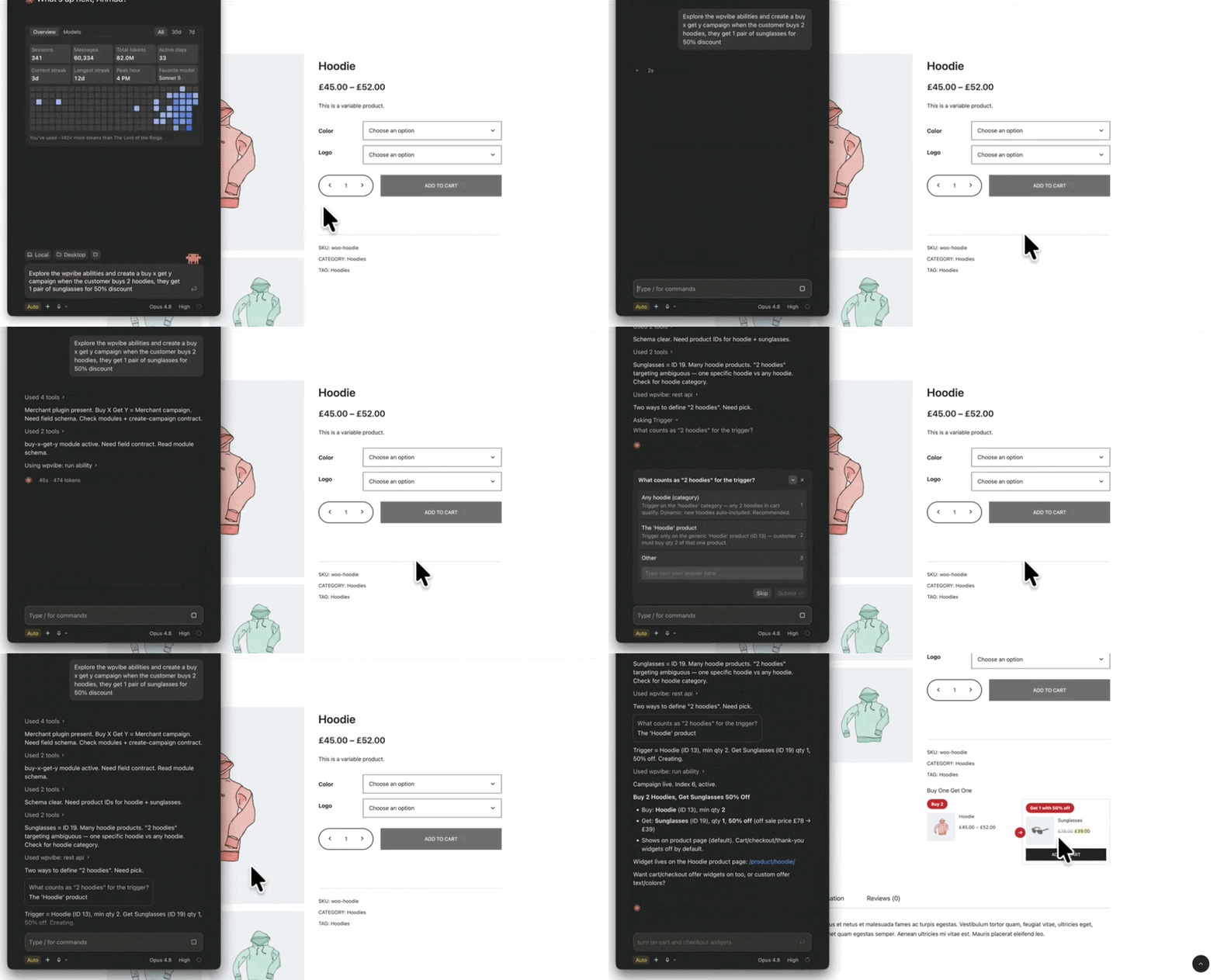
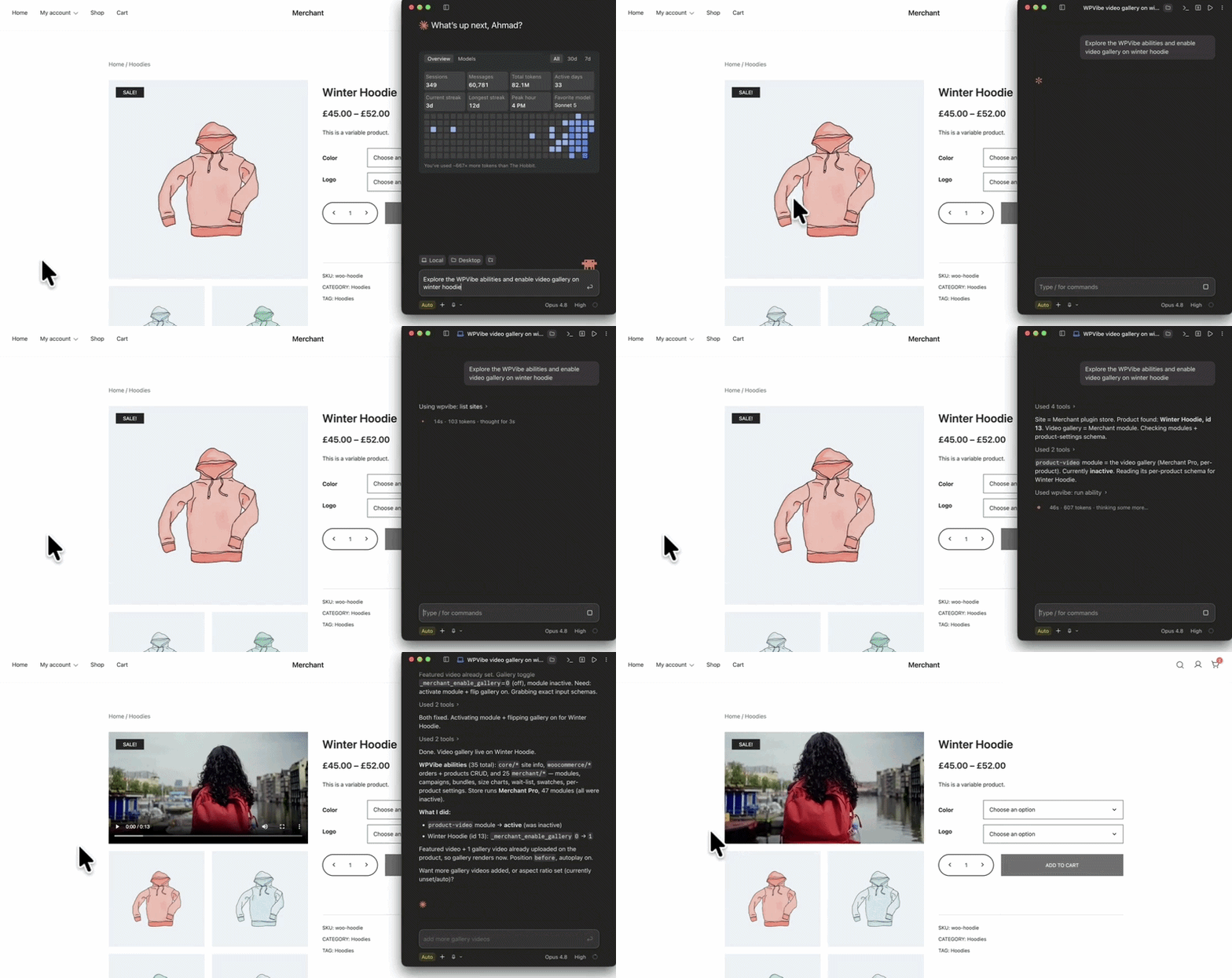
- Turn conversion tools on and configure them: Merchant has dozens of modules, from the Free Shipping Bar to Countdown Timers to Frequently Bought Together. Your assistant can list them, switch them on, and reconfigure them. “Enable the Video Gallery module on all Winter Hoodie products.”
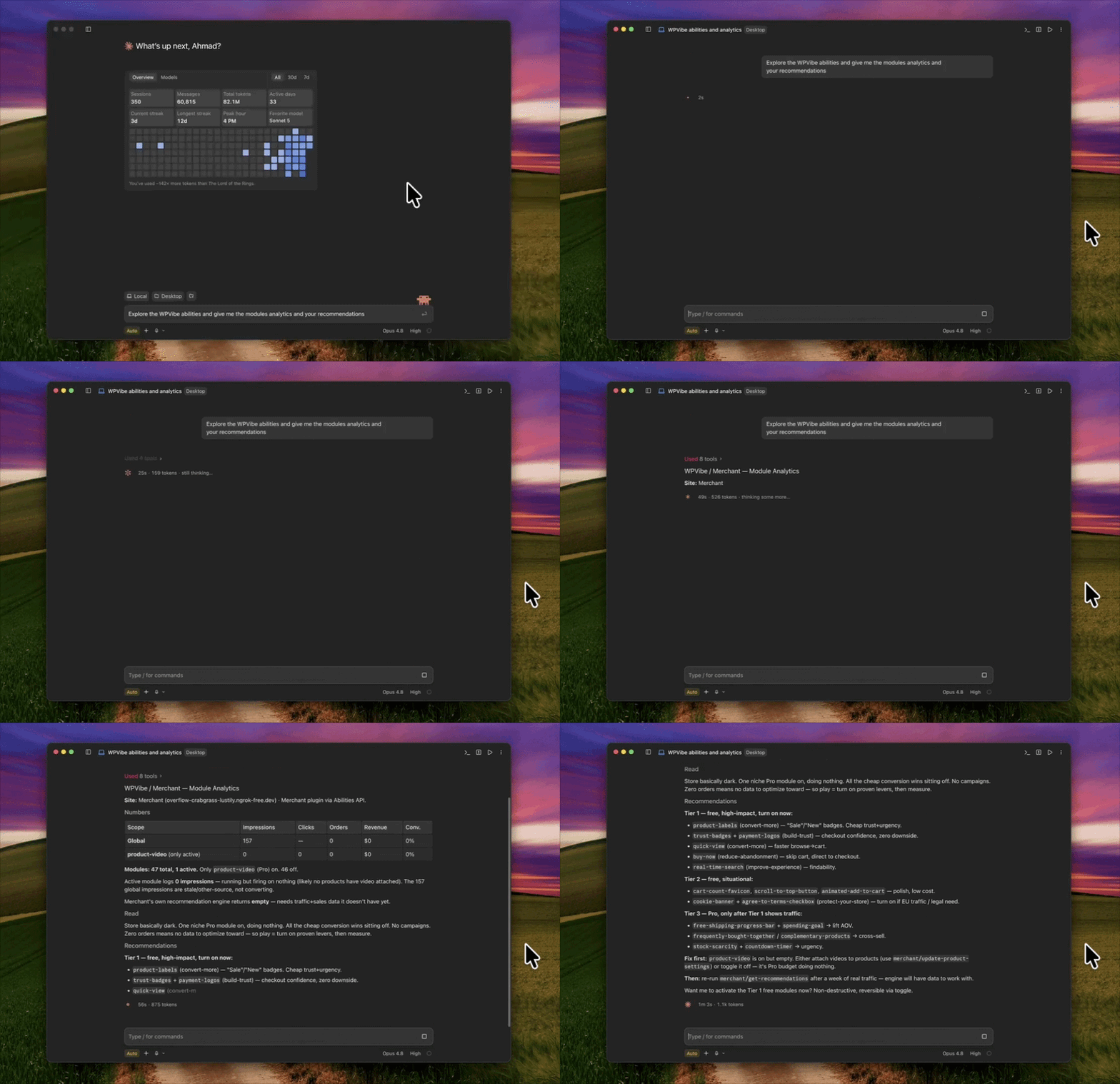
- Read your numbers and get real advice: Ask “What’s my Free Shipping Bar conversion rate this month?” or “Give me optimization recommendations based on my current analytics.” Your assistant pulls the data and tells you where to focus.
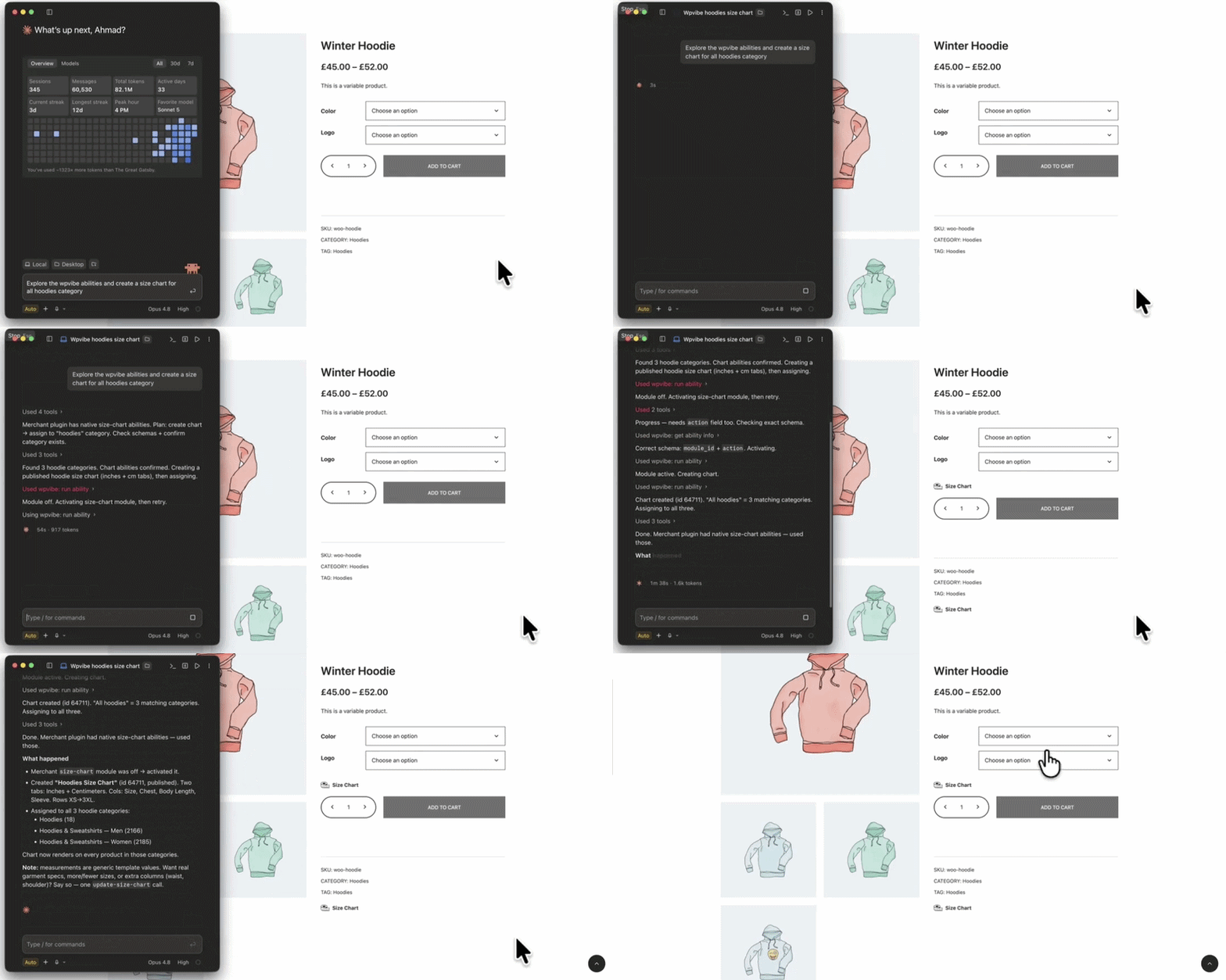
- Build the merchandising extras, hands-free: Your assistant can also create product bundles, build and assign size charts, manage your restock waitlist, and set color and image swatches. “Assign the Footwear size chart to every product in the Shoes category,” and it’s done in one step.
What This Looks Like for Your Business
Imagine you’re already chatting with your assistant about your Black Friday plan. In the same conversation, you ask it to spin up a storewide sale, switch on a countdown timer, and set a free shipping bar for orders over $50.
Then you ask how last year’s campaigns converted, so you know what to repeat. A minute later, it’s all live, and you have the numbers in front of you.
You never left the conversation. The tool you were already working in runs the promotion, while you stay focused on the strategy that moves revenue.
Who Is Going to Love This?
This is for anyone who’d rather describe what they want than click through to build it:
- Store owners who keep an assistant open all day and want their promotions, modules, and product settings handled in the same place as everything else.
- Marketers and growth teams who want a campaign live the moment the idea is approved.
- Agencies and developers who run lots of WooCommerce sites and can connect an assistant once, then manage the conversion stack by asking.
- Busy solo founders who want to check their numbers, get a recommendation, and act on it without switching between five screens.
Real-world use cases include:
- Standing up a full Black Friday promotion mid-conversation, without leaving the chat.
- Asking your assistant to pull this month’s conversion numbers and tell you which campaign to improve first.
- Handing a client store to your assistant to build a batch of bundles and size charts, then refining the details by asking.
See It in Action Today
Want to try this right now? Update to the latest version of Merchant 2.3.0 (and Merchant Pro 2.3.0 if you use it), then follow the steps below.
Step 1: Connect Your Store With WPVibe
To let your assistant work with your site, connect it through a WordPress MCP server. The easiest place to start is WPVibe, a free-to-start server from SeedProd, part of the same team behind aThemes.
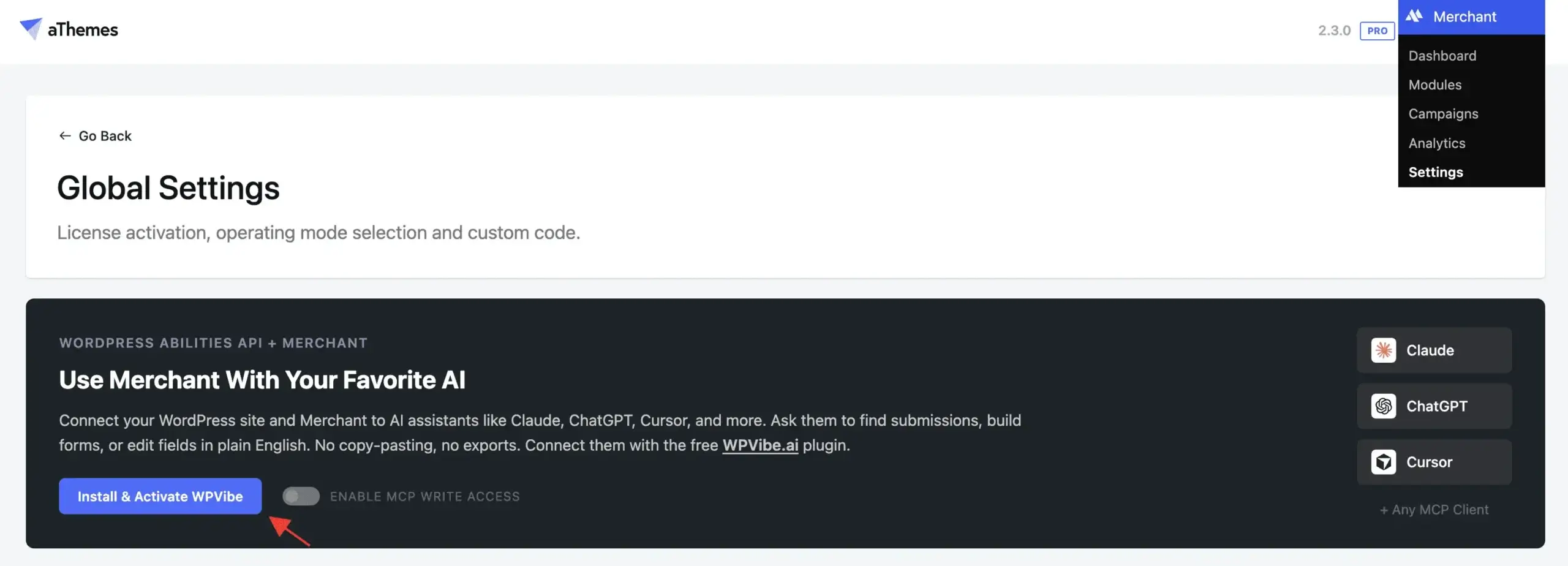
Go to Merchant » Settings, then click Install & Activate WPVibe. Merchant handles the installation for you.
Step 2: Add WPVibe to Your AI Assistant
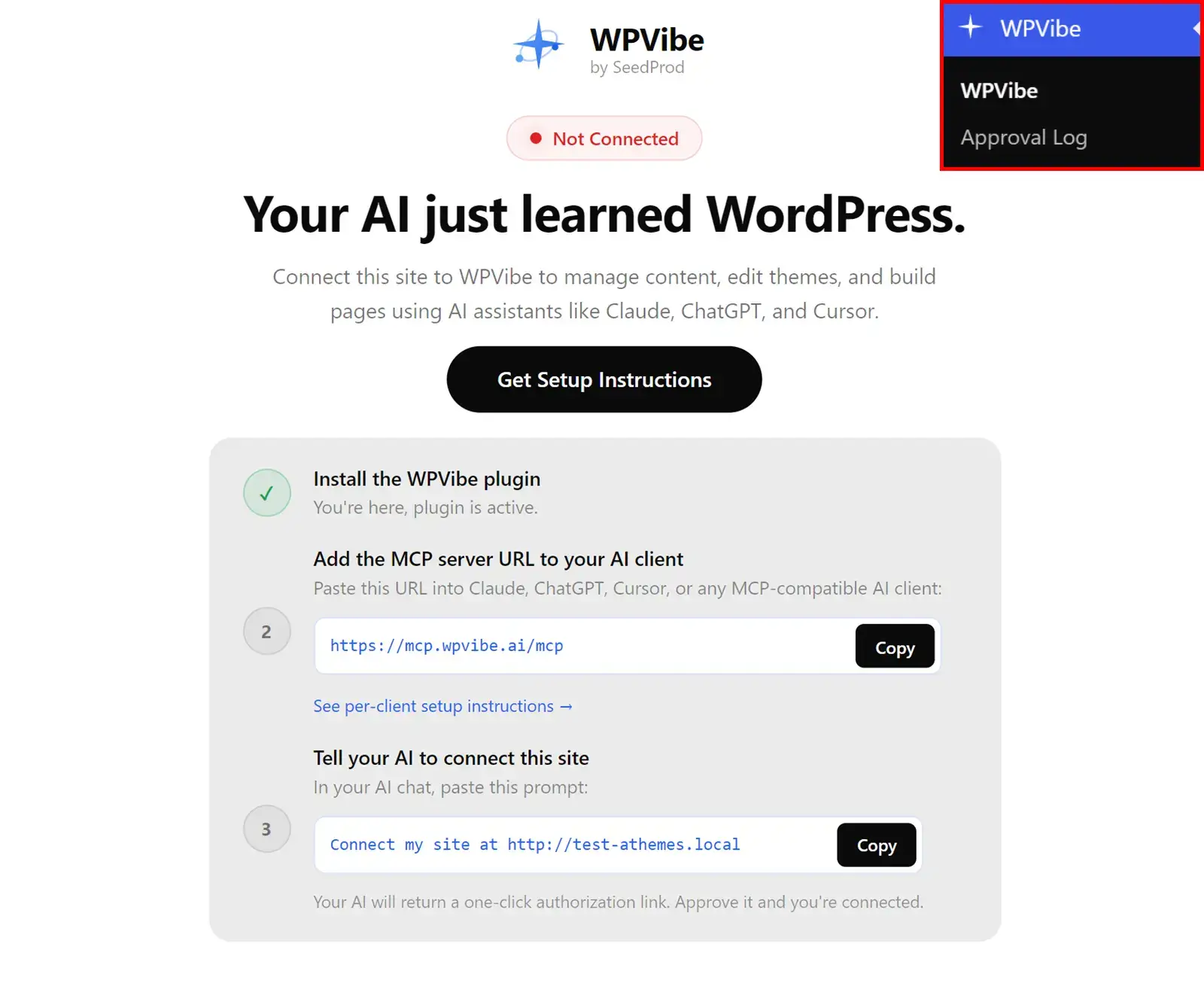
Once WPVibe is installed, open WPVibe in your admin sidebar and connect it to Claude, ChatGPT, or Cursor using the quick setup instructions.
Paste the MCP server URL into any MCP-compatible AI client, then copy the prompt to connect your site. Your assistant is now ready to work with your store.
Step 3: Turn On AI Edits
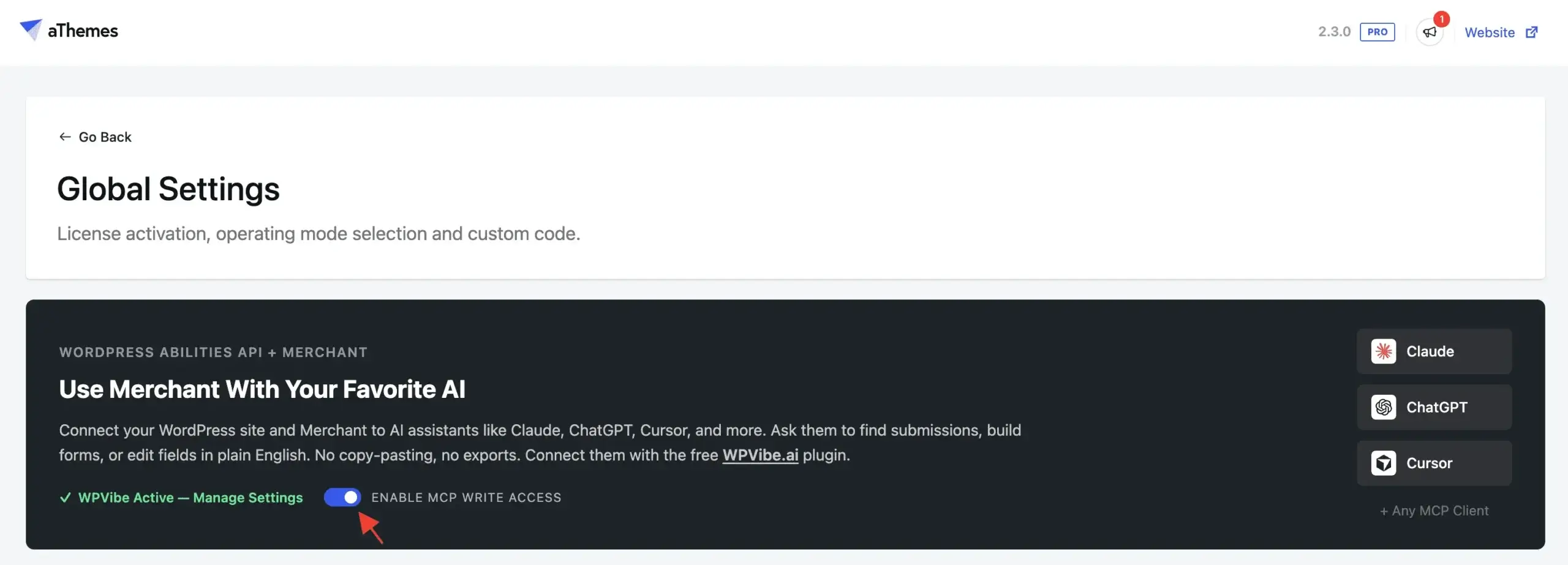
Here’s where you stay in control. The moment you connect, your assistant can already read your store — looking things up can never change anything.
Making changes stays switched off until you decide to turn it on. Flip the write-access toggle in Merchant’s Global Settings whenever you’re ready, and switch it back off any time.
Step 4: Ask for Your First Campaign
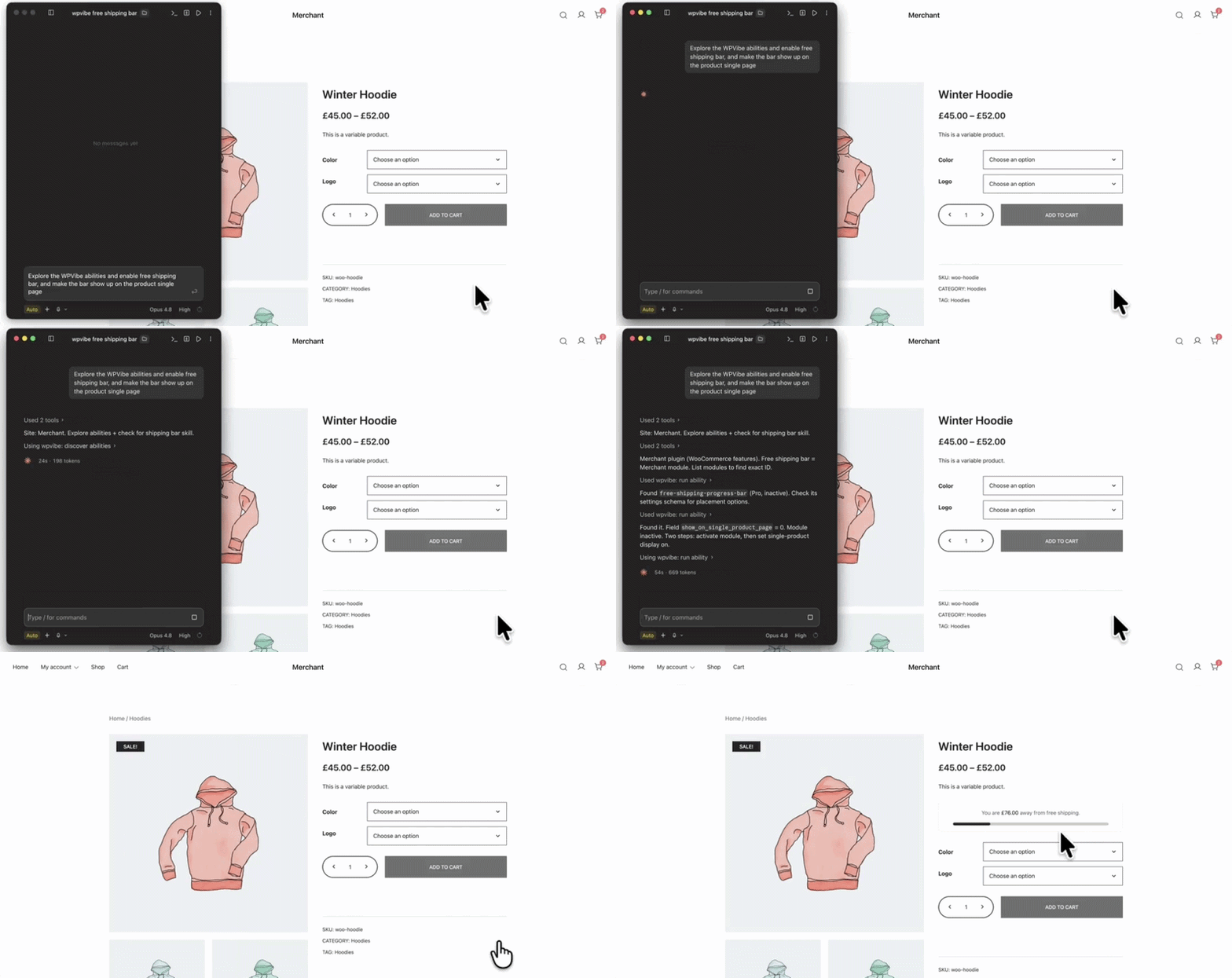
That’s it. Ask your assistant to build something, and it appears in Merchant, ready to review.
Try something simple to start, like “Turn on the Free Shipping Bar and make the bar show up on the product single page” and watch it go live.
What’s Coming Next?
This is the first release, not the finished picture. As the WordPress Abilities API matures, we plan to open up more of Merchant’s modules to assistant control, and to expand support to any MCP-compatible client the community wants to use.
If there’s a workflow you wish your assistant could handle (a module, a report, a bulk edit), send us your suggestions. Your feedback shapes what gets built next.
Ready to Let Your Assistant Run Your Store?
Here’s the best part: the core of this is free.
✅ Update to Merchant 2.3.0 (and Merchant Pro 2.3.0 if you use it)
✅ Connect your store through WPVibe
✅ Add WPVibe to Claude, ChatGPT, or Cursor
✅ Flip on AI write-access whenever you’re ready
Your assistant can manage your modules, build and edit campaigns, read your analytics, get recommendations, and update per-product settings. Want your assistant building product bundles, size charts, waitlists, and swatches too? Get Merchant Pro, which unlocks the full conversion suite.
Thank you for your continued support of Merchant. We’re still figuring out how far this goes, and we’d rather build it alongside you than guess at what you need.
We can’t wait to see what you build.
Kamruzzaman and the aThemes Team
P.S. The assistant you already use is ready to run your next promotion the moment you ask. Connect it to your store with WPVibe, say the word, and watch it happen. Get Merchant and put it to work for you today.


