Walk onto Walmart or Target's product page and you see three options before you even add to cart: Shipping, Pickup, and Delivery. Date shown. Fee shown. Slot chosen.
That experience, the one your customers already expect from the biggest stores, has been out of reach for most eCommerce stores.
Until now.
Introducing the Delivery & Pickup Module: Let Customers Book When and Where They Get Their Order
The Delivery & Pickup module for WooCommerce is now live in Merchant Pro.
It adds delivery dates, time slots, and pickup locations directly to your WooCommerce checkout. Customers pick their service, their location, their day, and their time, all without leaving the page. Fees are added automatically. Booking limits enforce themselves. Reminders go out before the slot.
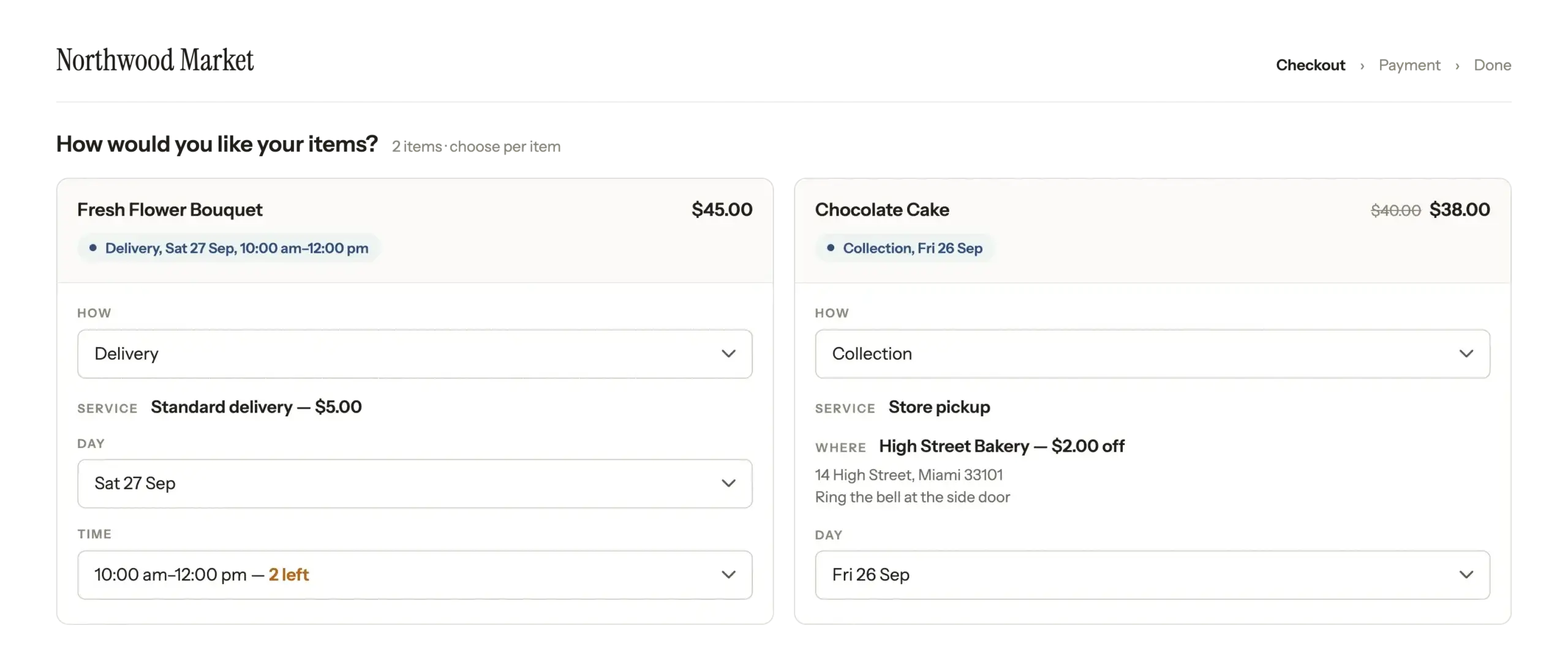
No phone calls. No spreadsheet. No separate subscription.
If you run a bakery, a florist, a furniture shop, or a grocery, your customers can now book a slot in seconds. You get to plan your week around what they picked.
Why We Built This
I kept hearing the same thing from eCommerce store owners. They didn't need a fancy appointment system. They just needed one simple question added to checkout: when, and where?
So we sat down with a clear goal. Build delivery and pickup scheduling that lives inside the checkout, handles the fees and limits automatically, and treats collection as a first-class choice from day one.
That's exactly what the Delivery & Pickup module delivers.
Everything the Delivery & Pickup Module Can Do For You
You control everything from one settings screen under Merchant > Modules. Change a setting and a live preview shows you what customers will see. It works with both the classic WooCommerce checkout and the newer Checkout block, so you don't need to rebuild anything to use it.
Here's what it does:
- Give customers real delivery dates and time slots. Instead of a vague “ships in a few days,” customers pick a day and time window that works for them. You set your hours and slot length (from 15 minutes up to 4 hours) and the module builds the options. Open 9 to 6 with 2-hour slots? Customers see four clean choices. Fewer missed deliveries, fewer “where is my order” messages, and customers who know exactly when to be home.
- Offer in-store pickup as a first-class option. Add each location with its address, opening hours, and collection notes. Set a preparation time so nobody books a pickup before your team is ready. When every product in an order is collected, the module removes the shipping cost automatically.
- Charge for delivery exactly how you want. Flat fee, percentage of cart, or price per item. Your call. Add a weekend surcharge or a same-day surcharge. Waive the fee once the cart hits an amount you set. The fee appears as its own line in the order totals, named after the service, so customers always know what they're paying for.
- Never take a booking you can't fulfill. Set the most orders you'll accept per day or per slot, and once a slot is full, customers can't pick it. Add a lead time, a daily cut-off, and blocked dates for holidays. Show a “2 left” badge on slots that are nearly full to nudge customers to book before it's gone.
- Show the right options to the right customers. Limit a schedule to specific products, categories, tags, or brands. Restrict by shipping zone, payment method, user role, or minimum cart total. A refrigerated delivery for perishables, a white-glove service for furniture, members-only collection: all of it is a few settings away.
- Keep everyone in the loop, automatically. The module adds delivery details to your WooCommerce order emails, sends customers a reminder before their slot, and notifies staff about new collection orders, changes, and cancellations. Every message uses merge tags like the customer's name and slot time, so it reads like you wrote it personally.
- Let customers manage their own bookings. Logged-in customers can reschedule from their account page, up to a deadline you set, and add their slot to their calendar in one click. Less back-and-forth for you, a smoother experience for them.
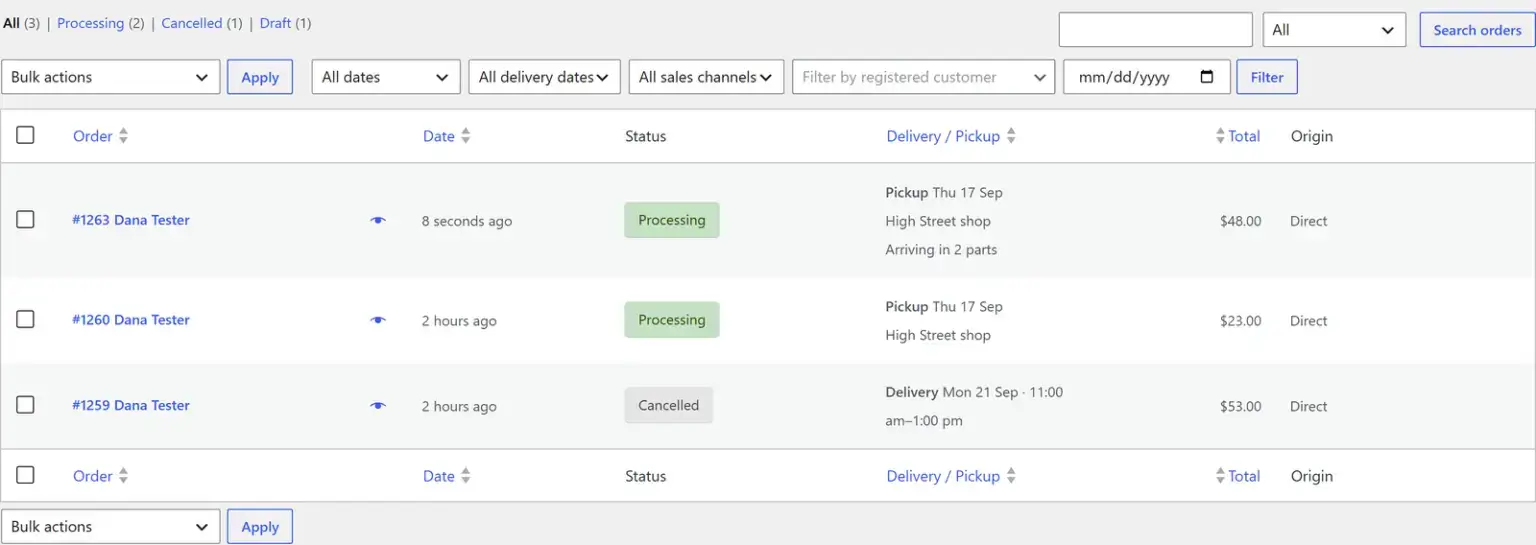
- Plan your days from one calendar. A Delivery Calendar under the WooCommerce menu gives you month, week, and day views. Filter by type, schedule, or pickup location, then export to CSV or print a clean plan for your driver or counter staff. There's also a Delivery / Pickup column on your orders list, with quick filters for today, tomorrow, this week, or the next seven days.
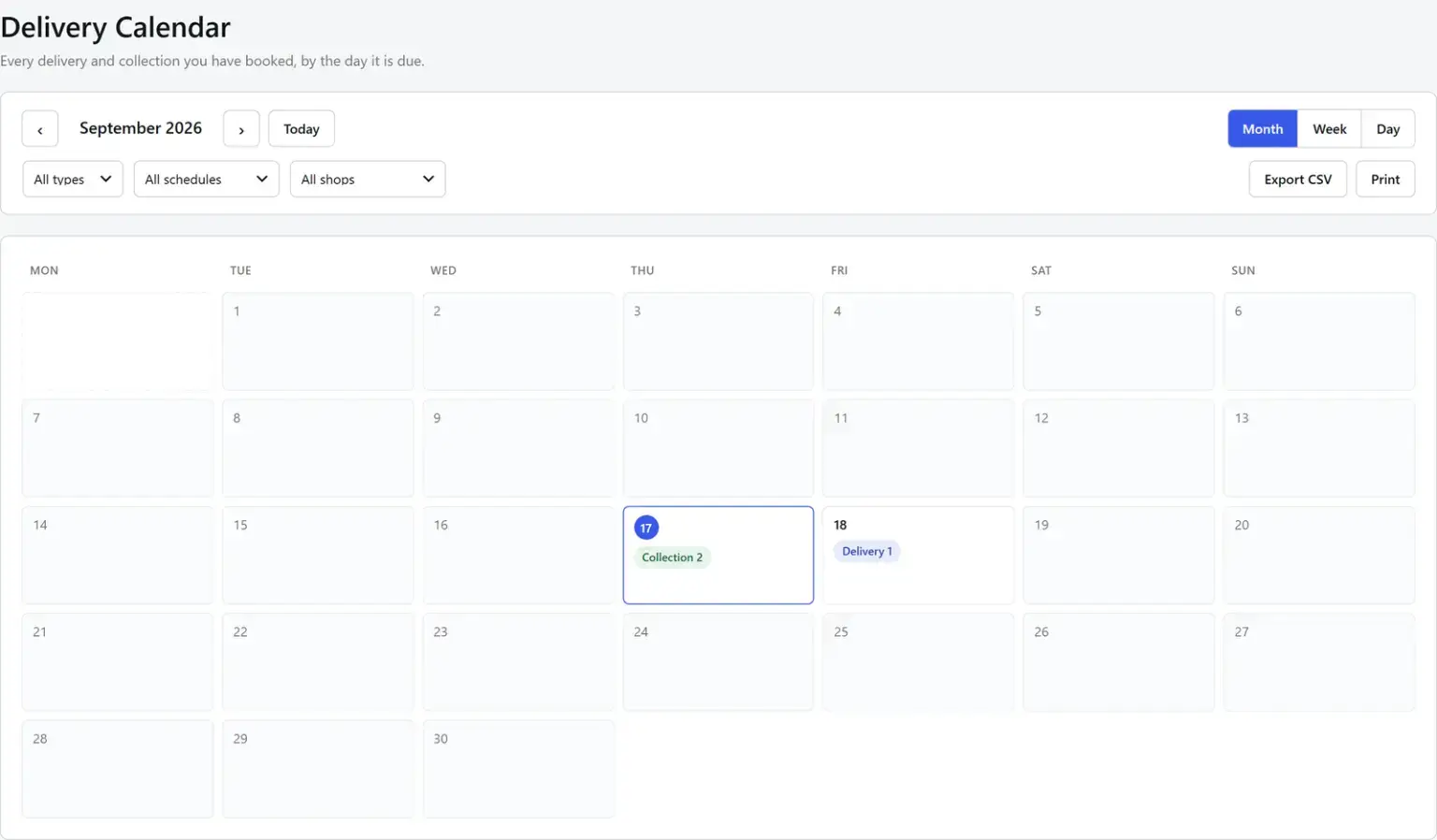
There's also a Delivery / Pickup column on your orders list, with quick filters for today, tomorrow, this week, or the next seven days.
What This Looks Like for Your Business
It's a Saturday morning at your flower shop. Orders started coming in Thursday, and your delivery calendar is already mapped out for the weekend.
A customer checks out Friday evening. She picks Saturday delivery, chooses the 10am to 12pm slot, and sees a $5 weekend surcharge added automatically. The slot had two spots left, and the “2 left” badge nudged her to book before it filled. She confirms, pays, and a reminder lands in her inbox Saturday morning before you've even opened.
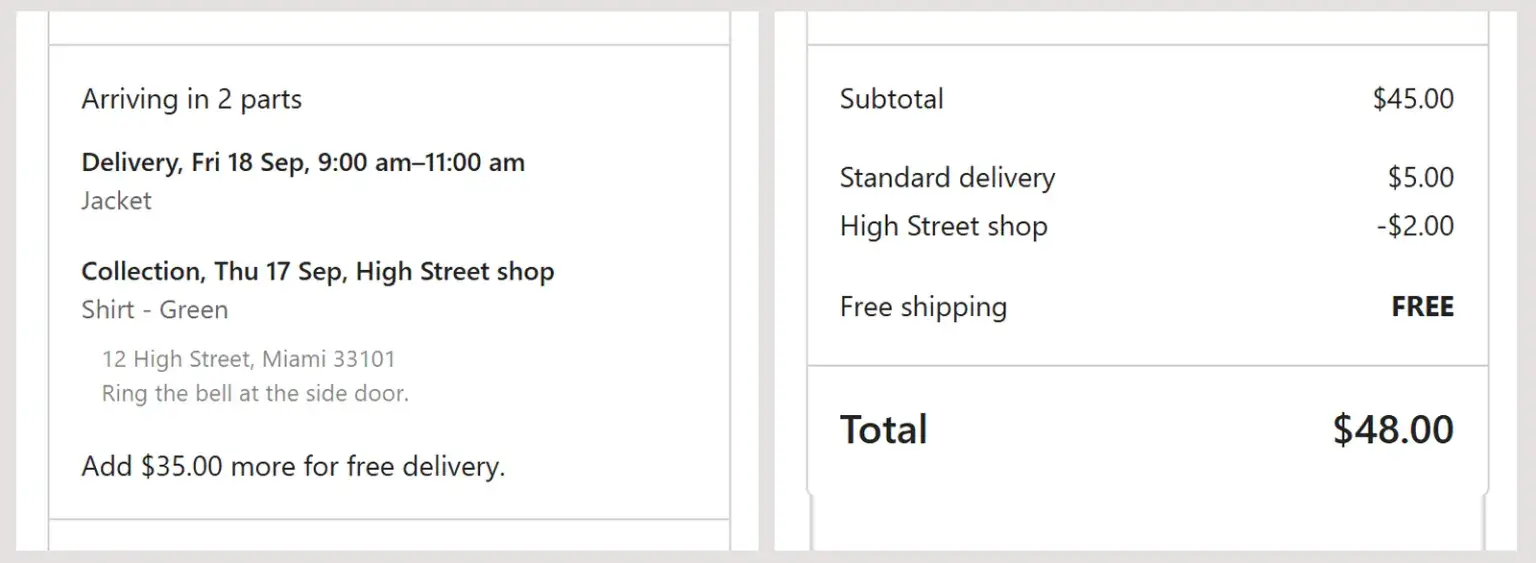
You start the day knowing exactly how many deliveries are going out, in what order, and when. Your driver prints the day's run from the calendar. No one called. No spreadsheet was involved.
That's what the Delivery & Pickup module is for.
Who Is the Delivery & Pickup Module Perfect For?
- Local product stores (bakeries, florists, grocers, butchers) who currently coordinate delivery and collection over the phone or by email and want to move it into checkout.
- Furniture and home goods stores that offer white-glove or scheduled delivery and need slot limits to match their delivery team's actual capacity.
- Specialty food and perishables sellers who need to restrict certain delivery services to specific products, zones, or preparation windows.
- Any WooCommerce store with a physical presence that wants in-store collection to feel like a first-class option, not an afterthought bolted onto the shipping settings.
Getting Started Takes Three Steps
Make sure you're on the latest Merchant and Merchant Pro version with WooCommerce, then follow along.
Step 1: Enable the module. Go to Merchant > Modules, find Delivery & Pickup in the Convert More section, and switch it on. Already on Merchant Pro? You don't need to buy anything. This is part of your existing license.
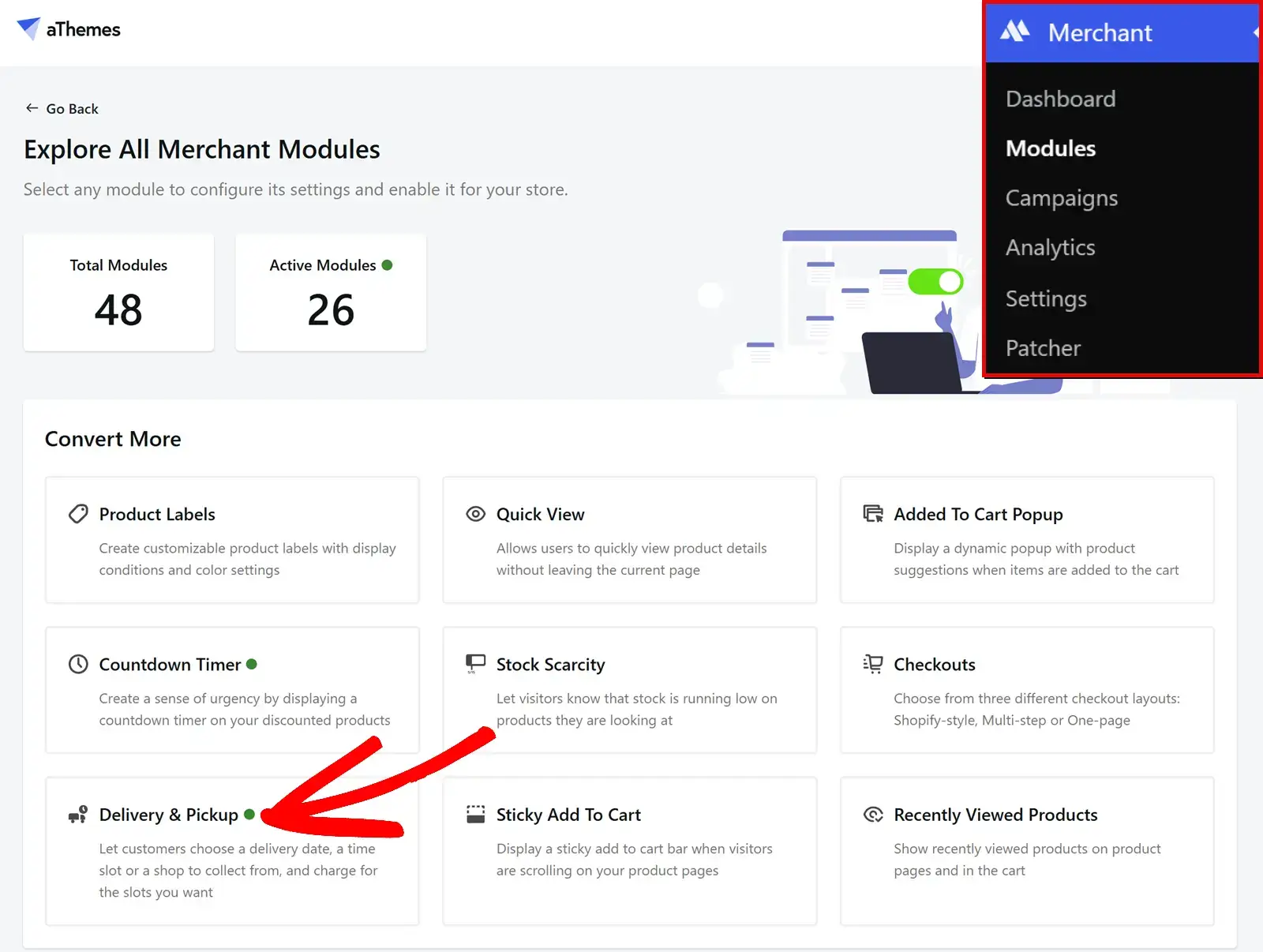
Step 2: Set up your schedules and locations. Add a delivery schedule with your open days, slot length, and any fees. Add your pickup locations if you offer collection. The live preview shows you what customers will see as you build.
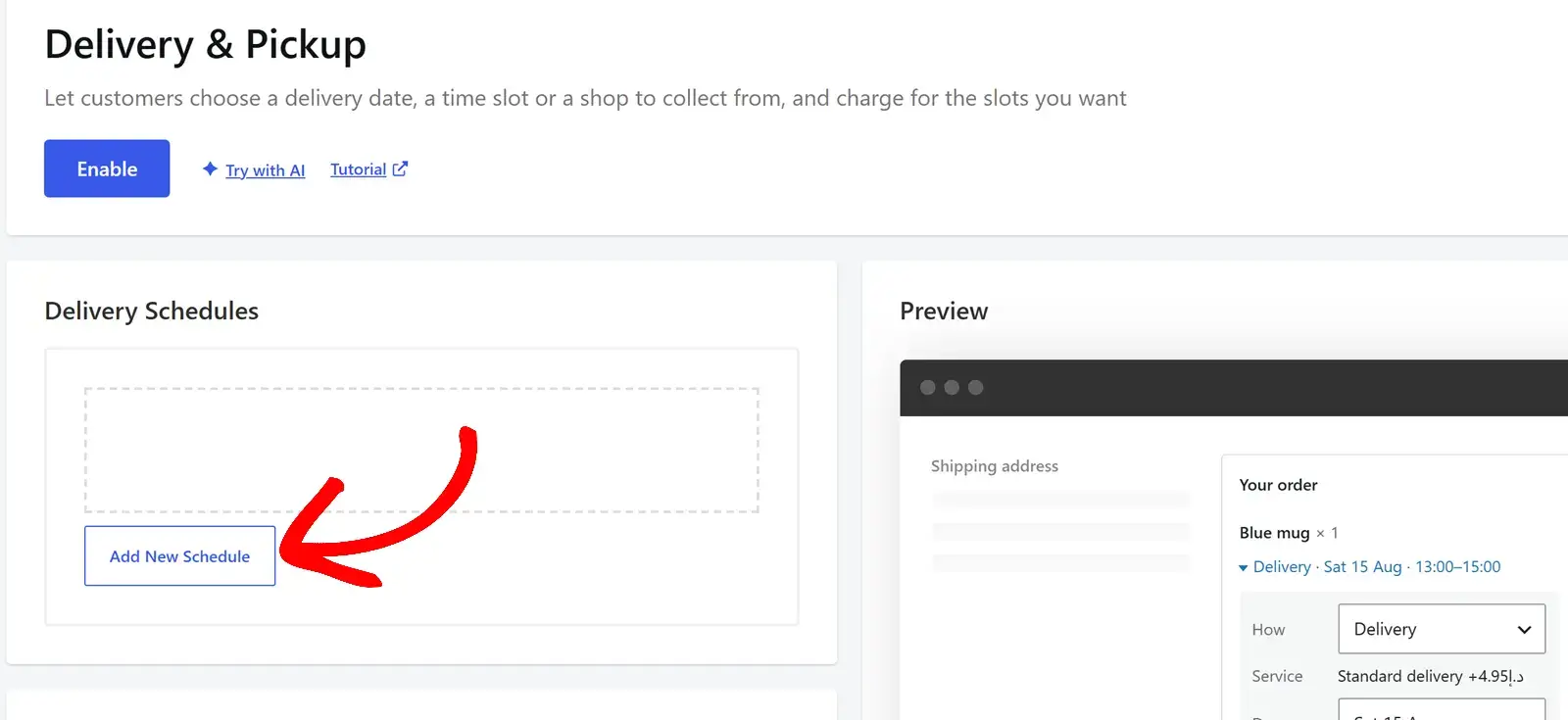
Step 3: Save and go live. Publish your settings and the module is live in your checkout. Your first bookings can come in today. For a full walkthrough of every setting, see the Delivery & Pickup documentation.
New to Merchant? The core plugin is free on WordPress.org. The Delivery & Pickup module is a Merchant Pro feature. Grab a Pro license here to switch it on.
What Makes This Different
Every eCommerce store that delivers or offers collection has been making do with tools that weren't built for them. Appointment plugins that think in person-hours, not order slots. Workarounds that charge you for three plugins to do one job. Pickup options hidden in shipping settings as an afterthought.
The Delivery & Pickup module is built inside Merchant, which means it sits in the same settings panel as every other module you use, works inside the checkout you already have, and adds zero extra plugins to your stack.
Merchant runs on thousands of online stores and our goal has always been to give WooCommerce stores the features big retailers take for granted, without the big-retailer price tag and without a pile of separate plugins slowing your site down.
Delivery and pickup scheduling is exactly that kind of feature. Now it's built right in.
Frequently Asked Questions About Delivery & Pickup in WooCommerce
Does it work with the WooCommerce Checkout block?
Yes, both the classic checkout and the Checkout block. The block just needs to be on the page set as your checkout in WooCommerce > Settings > Advanced.
Will it conflict with my existing shipping settings?
No. It runs alongside WooCommerce shipping. When every product in an order is collected, it removes the shipping cost on its own. You can also limit any schedule to specific shipping zones or methods.
Why might a customer see more than one delivery fee?
Each part of an order carries its own fee. If a customer picks different days, slots, or services for different products, each part is charged separately. When everything shares one choice, they pay a single fee.
What happens to a booked slot if an order is cancelled?
The slot frees up for other customers automatically. Same for refunds, trashed orders, and failed payments. Unpaid orders placed with an online payment method release their slot after one hour.
Ready to Start Taking Bookings?
If you're already on Merchant Pro, the Delivery & Pickup module is waiting for you. Update to version, go to Merchant > Modules > Delivery & Pickup, enable the module, and your first slot can be live today.
Not on Pro yet? Get Merchant Pro and join thousands of WooCommerce stores that use Merchant to run their online store.
We'd love to hear what you think. If you have ideas for new fulfilment options or settings that would make your store run smoother, send them our way. We're always listening.
As always, thank you for being part of the aThemes community.
Kamruzzaman and the team of aThemes
P.S. Every day you coordinate delivery and collection manually is a day you could have spent on your actual business. The Delivery & Pickup module handles the scheduling. Get Merchant Pro and take your first booking today.

Related Posts