A WordPress page ID (or post ID) is a unique number WordPress assigns to every page, post, category, tag, user, and media file on your site. You'll need it for shortcodes, theme template tags, conditional logic, and most plugins that target specific content by ID.
The good news: finding any ID takes about ten seconds, and you don't always need a plugin to do it.
In this guide we'll cover five methods. Method 1 is the URL trick (no plugin needed). Method 2 is the hover trick on the Pages screen. Method 3 uses a free plugin that adds an ID column to your dashboard. Method 4 reads the ID from the front-end HTML (handy when you don't have admin access). Method 5 is for developers grabbing the ID inside theme PHP.
Let's get started.
When You'll Need a Page or Post ID
WordPress assigns a unique ID number to every page, post, category, tag, user, comment, and media file. These IDs live in your database and let WordPress (and any code, plugin, or theme that runs on it) target one specific piece of content.
Common reasons you'll need an ID:
- Adding a form shortcode that pulls in a specific page or post (for example
[contact-form-7 id="123"]) - Excluding or including specific posts in a plugin's settings (related posts, popup plugins, mailing list rules)
- Targeting a single page with custom CSS using its body class (
.page-id-123) - Writing conditional logic in a theme template, like “show this widget only on page 123”
- Creating menu items, redirects, or analytics events that reference a specific post
- Building discount rules that apply only to specific products or categories
Once you know how to find any ID, all of the above takes seconds. Here are the five methods.
Method 1: Check the URL (Easiest, No Plugin Needed)
The fastest way to find a WordPress page ID or post ID is to open the page in the editor and read the address bar. WordPress puts the ID right in the URL.
Step 1: Open the Page or Post in the Editor
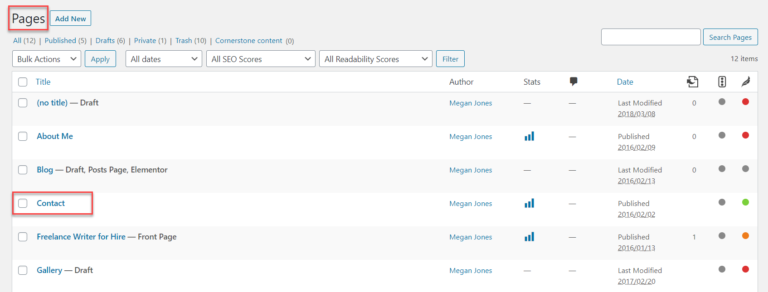
From your WordPress dashboard, go to Pages > All Pages (or Posts > All Posts for a post).

Click the title of the page you want the ID for. We'll use our Contact page as an example.
Step 2: Find the Number in the URL
Once the editor opens, look at the URL in your browser's address bar. You'll see something like:
https://yoursite.com/wp-admin/post.php?post=123&action=editThe number after post= is the page ID. In the example above, the page ID is 123.
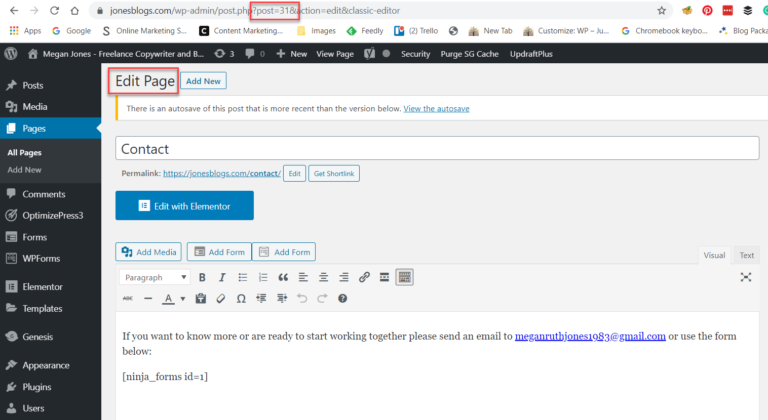
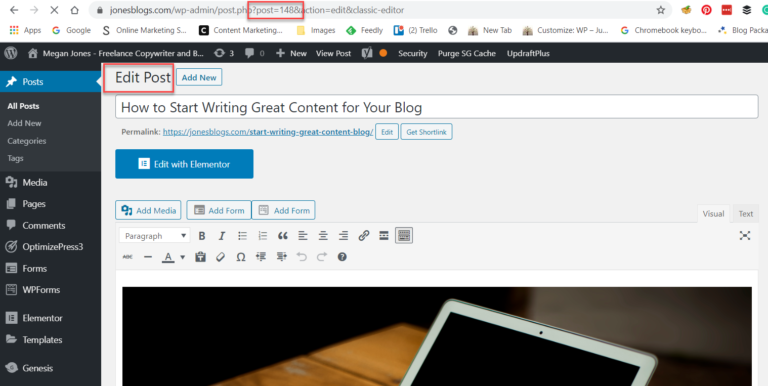
The same trick works for posts. Open Posts > All Posts, click any post, and read the ID from the URL.

Method 2: Use the Hover Trick (No Editor Needed)
If you don't want to open the editor, you can grab a page or post ID by hovering over its title in the admin list. This is the fastest way to grab IDs in bulk.
- Go to Pages > All Pages (or Posts > All Posts).
- Hover your mouse over the title of any page or post.
- Look at the bottom-left corner of your browser. You'll see a preview URL with
post=123in it. - The number after
post=is the ID.
No clicks required. This works for any post type, including WooCommerce products and custom post types.
Method 3: Use a Free Plugin
If you regularly need to look up IDs, a plugin is more efficient than the URL or hover tricks. It adds a dedicated ID column to your Pages, Posts, Media, Categories, Tags, Users, and Comments screens, so the ID is always one glance away.
Reveal IDs is the most popular option. It's free, has 40,000+ active installs, works on the latest WordPress, and shows IDs for posts, pages, tags, categories, comments, users, and other content types right inside your admin menus.

Here's how to set it up.
Step 1: Install Reveal IDs
From your WordPress dashboard, go to Plugins > Add New.

In the search box, type Reveal IDs.
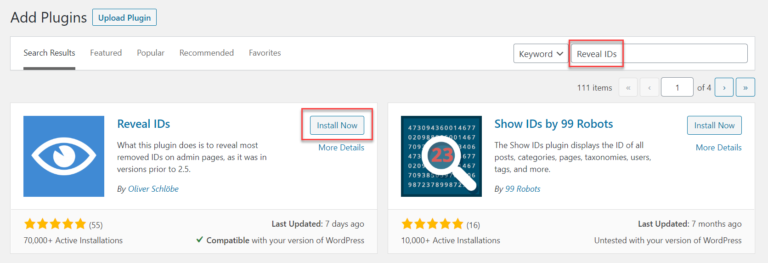
Once the plugin appears, click Install Now, then Activate. That's it. There's no settings page and no configuration step.
Step 2: View Your Page and Post IDs
To view your page IDs, click Pages > All Pages. You'll see a new ID column added to the table.

For posts, click Posts > All Posts. The ID column appears there too.
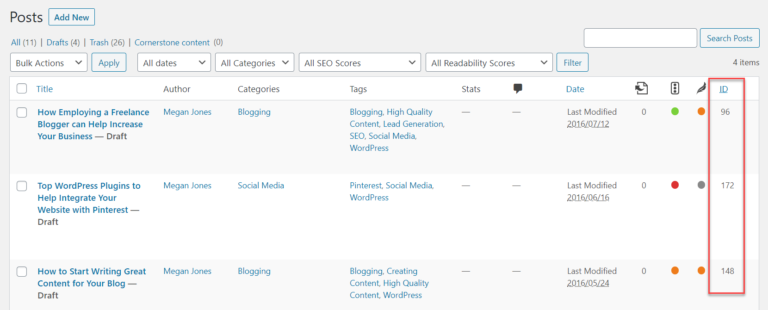
Tag, category, user, and comment IDs all appear the same way in their respective menus.
Step 3: Hide the ID Column
If you don't need the ID column on every screen, you can hide it. Open the menu page, click Screen Options at the top right, and uncheck the ID box.

Alternative: Show Pages IDs
If Reveal IDs doesn't work for you, Show Pages IDs by YYDevelopment is a solid alternative. It does the same thing (adds an ID column to all admin tables), has 10,000+ installs, and includes a small bonus: it can also display the ID in the top admin bar while you browse the front end of your site. Useful for quick reference without leaving the page you're on.
Method 4: Check the Front-End Page Source
Don't have admin access to the site? You can still find the page ID by reading the front-end HTML. WordPress automatically adds a CSS class like page-id-123 to the <body> tag of every page. This is handy when you're consulting on a client site, debugging a theme, or just inspecting how someone else built a page.
- Open the page on the live website.
- Right-click anywhere on the page and select View Page Source (or press
Ctrl+Uon Windows /Cmd+Uon Mac). - Press
Ctrl+F(orCmd+F) and search forpage-id-. - The number after
page-id-is the page ID. You'll see it inside the<body class="...">tag near the top of the source.
For posts, search for postid- instead (the body class is postid-456, not page-id-456). For category and tag archives, look for category- or tag- followed by the slug.
Method 5: Get the Page or Post ID in PHP (For Developers)
If you're working inside a theme template, custom plugin, or page builder like Elementor, WordPress gives you several built-in functions to grab the current ID without leaving your editor.
Get the Current Page or Post ID
Inside the WordPress loop:
<?php
$current_id = get_the_ID();
echo $current_id;
?>
Using the global $post object:
<?php
global $post;
echo $post->ID;
?>
Outside the loop, on archive or template pages:
<?php
$current_id = get_queried_object_id();
?>
When you only have the URL:
<?php
$id = url_to_postid( 'https://yoursite.com/contact/' );
?>
Use the ID in Conditional Logic
WordPress conditional tags accept an ID directly, which is useful when you want code to run only on a specific page or post.
<?php
if ( is_page( 123 ) ) {
    // Runs only on the page with ID 123
}

if ( is_single( 456 ) ) {
    // Runs only on the post with ID 456
}

if ( in_array( get_the_ID(), [ 12, 34, 56 ] ) ) {
    // Runs on any of these three pages or posts
}
?>
How to Find Other WordPress IDs (Categories, Tags, Users, Comments, Media)
The methods above also work for every other ID type WordPress stores. Here's where to find each.
Category and Tag IDs
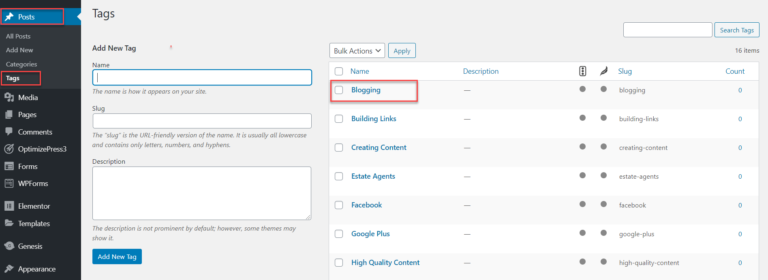
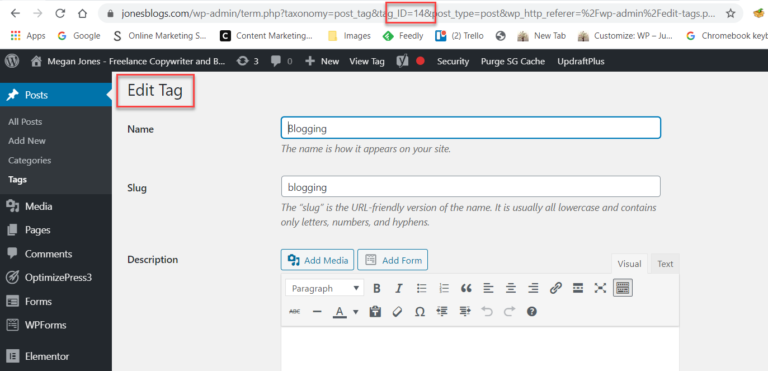
Go to Posts > Categories (or Tags). Click any category or tag, and look at the URL. You'll see tag_ID=42 in the address bar. The number after tag_ID= is the term ID.
User IDs
Go to Users > All Users. Click the user, then check the URL — the number after user_id= is the user ID. To find your own user ID, click your name in the top-right corner of the dashboard.
Comment IDs
Go to Comments. Click Edit on any comment. The URL contains c=89, where 89 is the comment ID.
Media (Attachment) IDs
Go to Media > Library and switch to list view (the icon at the top left). Click any item, and the URL shows item=123. With Reveal IDs or Show Pages IDs installed, the ID column appears directly in the Media library.
Custom Post Type and WooCommerce Product IDs
WooCommerce products and any custom post type use the same post= URL parameter as regular posts and pages. Open the product or item in the editor, and read the ID from the address bar.
Frequently Asked Questions
Open the page in the editor and check the URL in your browser's address bar. The number after post= is your page ID. If you'd rather not open the editor, hover over the page title on the Pages > All Pages screen and look at the bottom-left of your browser. Same number, same place.
You can't change a page or post ID through the admin dashboard, and we don't recommend trying. WordPress assigns IDs automatically when content is created, and they're stored in the wp_posts database table. Changing them manually (through phpMyAdmin or WP-CLI) breaks internal links, shortcodes, menu references, redirects, and any plugin that targets the page by ID. If you want a different URL for the page, change the slug or permalink instead. That's safe and reversible.
Go to Users > All Users in your dashboard, click the user you want, and check the URL. The number after user_id= is the user ID. For your own ID, click your name in the top-right corner or go to Users > Profile.
The ID is a number WordPress assigns automatically (like 123). The slug is the human-readable part of the URL you set yourself (like /about-us). Both identify a page uniquely, but the ID never changes after creation while the slug can be edited any time. Most plugins and code accept either.
In the wp_posts table of your WordPress database, in the ID column. The same table holds posts, pages, attachments, and any custom post types, which is why a page ID and a post ID are never duplicates of each other.
No. WordPress IDs are unique across the entire wp_posts table, including pages, posts, custom post types, and media attachments. The number auto-increments every time you create something new.
Final Thoughts on How to Find Your WordPress Page ID and Post ID
Finding a WordPress page ID or post ID takes seconds once you know where to look. The URL trick covers most cases, the hover trick is fastest for bulk lookups, a plugin makes IDs permanently visible, the page source method works without admin access, and PHP functions handle anything you need to do in code.
Whether you're working in the block editor, building with a page builder, or writing custom theme code, every method above also works for category, tag, user, comment, media, and custom post type IDs.
Any questions on how to find your WordPress page IDs or post IDs? Drop them in the comments below.

Related Posts


