The best WordPress calendar plugin for most users is Sugar Calendar. It's lightweight, easy to set up, and handles everything from simple event listings to bookings without slowing your site down. If you need a feature-heavy option with ticketing and recurring events out of the box, The Events Calendar is the strongest pick.
We've spent the last few weeks testing 9 free and paid WordPress calendar plugins on real sites. Some are great for personal blogs, others for booking-heavy businesses, and a few for full event-management workflows. In this guide, we'll walk you through what each one does well, where it falls short, and which one fits your use case.
Below, you'll find a quick comparison table, then full reviews with pros, cons, pricing, and screenshots.
Table of Contents
- Best WordPress calendar plugins at a glance
- How we picked these plugins
- The calendar plugins by the numbers (measured)
- 1. Sugar Calendar
- 2. The Events Calendar (freemium)
- 3. Modern Events Calendar (freemium)
- 4. Events Manager (freemium)
- 5. EventON (premium)
- 6. Amelia
- 7. My Calendar (freemium)
- 8. Stachethemes Event Calendar (premium)
- 9. Events Schedule (premium)
- FAQs about WordPress calendar plugins
Best WordPress calendar plugins at a glance
| # | Plugin | Best for | Free version | Starting price | Link |
|---|---|---|---|---|---|
| 1 | Sugar Calendar | Lightweight events on any WordPress site | Yes | $49/year | Visit Sugar Calendar |
| 2 | Modern Events Calendar | Multi-vendor and recurring events | Yes | $99/year | Visit Modern Events Calendar |
| 3 | The Events Calendar | Full-featured event management with ticketing | Yes | $149/year | Visit The Events Calendar |
| 4 | Events Manager | Free event management with bookings | Yes | $129/year | Visit Events Manager |
| 5 | My Calendar | Free, accessibility-friendly calendar | Yes | $69/year | Visit My Calendar |
| 6 | EventON | Visual, design-focused event listings | No | $40 one-time | Visit EventON |
| 7 | Stachethemes Event Calendar | Niche premium calendar with timeline view | No | $79 one-time | Visit Stachethemes |
| 8 | Amelia | Appointment booking and class scheduling | Yes | $49/year | Visit Amelia |
| 9 | Events Schedule | Schedule-style listings (timetable layout) | No | $39 one-time | View on CodeCanyon |
How we picked these plugins
WordPress has hundreds of calendar and event plugins, and most of them aren't worth your time. To narrow this list down to 9, we installed each one on a test site and checked it against five things that actually matter when you're running events on a real WordPress site.
- Setup speed. How long it takes to get a working calendar live, from install to first event published. Plugins that needed an hour of setup before showing anything useful got marked down.
- Front-end display. Does the calendar look good out of the box, on both desktop and mobile? Can you change layouts (month, list, day) without writing CSS?
- Event features. Recurring events, categories, locations, organizers, and Google Calendar sync. The basics most sites need.
- Bookings and tickets. Whether the plugin handles registrations, paid tickets, or appointment booking, either built in or through an add-on.
- Pricing and value. What you actually get on the free tier, and whether the paid tier is worth it for the average WordPress site.
Each plugin in this list passes those five checks at minimum. The differences come down to who they're built for, and that's what we'll cover in each review below.
The calendar plugins by the numbers (measured)
Plugin reviews argue about “lightweight” in adjectives, so here is data. On August 17, 2026 we pulled the official WordPress.org statistics for the free plugins in this list and measured their latest-stable packages directly:
| Plugin (free version) | Active installs | Rating | Last update | Download / installed size |
|---|---|---|---|---|
| Sugar Calendar Lite 3.12.1 | 10,000+ | 4.5 (24 reviews) | July 2026 | 6.9 MB / 17.6 MB (1,757 files) |
| The Events Calendar 6.17.2 | 600,000+ | 4.2 (2,449) | August 2026 | 18.6 MB / 45.8 MB (4,811 files) |
| Events Manager 7.4.2 | 70,000+ | 4.2 (547) | August 2026 | 5.4 MB / 19.2 MB (1,671 files) |
| My Calendar 3.7.17 | 20,000+ | 4.7 (158) | July 2026 | 1.2 MB / 4.0 MB (452 files) |
Three honest reads. The Events Calendar is the category's juggernaut: thirty times Sugar Calendar's install base, and a package eleven times heavier than My Calendar's, which is the trade you make for its feature depth. My Calendar is the quiet efficiency pick: the smallest package here by far and the highest rating of the four. And installed footprint is not the same thing as page weight; every plugin loads only a subset of its assets on any given page, so treat these numbers as a proxy for how much software you are adopting, not for front-end speed.
The premium-only plugins in this list (Modern Events Calendar, EventON, Stachethemes, Events Schedule) publish no equivalent public data, which is worth knowing in itself. Amelia’s free version holds a 4.6 rating from 784 reviews on WordPress.org.
1. Sugar Calendar
Sugar Calendar is the plugin we'd hand to most WordPress site owners who want a calendar that just works. It's deliberately lightweight, which is rare in this category. Most event plugins try to do everything and end up bloating your site. Sugar Calendar focuses on the parts that actually matter: clean event display, easy setup, and the ability to scale up to ticketing and bookings when you need them.
You can publish your first event in under five minutes. The block editor and Elementor integrations mean you don't need to fight with shortcodes or custom code to get a calendar on your page. And when you're ready to sell tickets or take payments, Stripe and WooCommerce are both supported out of the box.
One detail that's easy to miss: Sugar Calendar has one-click migration from The Events Calendar. If you're already running another plugin and the bloat is slowing your site down, switching is straightforward.
Key features
- Multiple calendar views: month, week, day, grid, and list
- Recurring events with advanced patterns
- WordPress block and Elementor widget support
- Stripe and WooCommerce integration for ticket sales
- Two-way sync with Google Calendar, iCal, and Outlook
- One-click import from The Events Calendar
- Light and dark themes with customizable accent colors
- RSVP management and Zapier integration on higher tiers
Pricing
Sugar Calendar Lite is free on the WordPress plugin repository and covers the basics. Paid tiers (currently 50% off intro pricing) start at $49.50/year for a single site and scale up to $299.50/year for ten sites with all premium add-ons included. Every paid plan includes a 14-day money-back guarantee.
Pros and cons
- ✅ Genuinely lightweight, won't slow your site down
- ✅ Five-minute setup, even for non-technical users
- ✅ Free version on WordPress.org for basic use
- ✅ Built-in Stripe and WooCommerce ticketing
- ✅ One-click migration from The Events Calendar
- ❌ Fewer free add-ons than older plugins like The Events Calendar
- ❌ Some advanced features (Zapier, RSVP) only on Plus tier and above
Best for
Sugar Calendar is the right pick if you want a fast, modern calendar without the bloat of older event plugins. It's particularly strong for small businesses, course creators, and content sites where calendar performance matters and the event setup needs to stay simple.
2. The Events Calendar (freemium)
The Events Calendar is a popular free plugin that’s currently active on over 800,000 WordPress websites. It also has a positive 4.3 out of 5 stars rating.

The plugin makes it very quick and easy to publish events on WordPress websites.
Thanks to a user interface that seamlessly integrates with the WordPress dashboard, it shouldn’t take you long to get to grips with The Events Calendar.

The plugin lets you create multiple venues and organizers. These entities can then be assigned to the events that you create. You can also create event categories and tags to help you organize your events.
The only real drawback of the user experience is that the plugin uses the old version of the WordPress editor for event creation. It’s not a big deal, but for those used to the new version of the WordPress editor, it does give the plugin a bit of a dated feel. Thankfully, your end users won’t be aware of this.

When it comes to displaying your calendar and events on your website, this plugin makes the process very straightforward.
After installing the plugin, a page is created on your website that displays the published events to your visitors.

Visitors can switch between a few formats, including list, month, and day views. Searching the events calendar is an option, too.
If you need more from your event calendar plugin, either now or in the future, there are paid add-ons available. Some of these paid features and add-ons include an appointment scheduling tool, support for virtual events, and ticketing functionality, plus lots more.
There are also free extensions available for adding more features to the core plugin.
The Events Calendar pros and cons
Pros
- Events are nicely presented on your site
- Well-designed user experience
- Library of free extensions
- Paid extensions for adding even more features
Cons
- The admin user interface uses the old WordPress editor
- Some features are not compatible with Full Site Editor themes
Overall, the free core version of The Events Calendar has a good amount of functionality while also being easy to use. Any extra features you need should be covered by the library of paid add-on.
3. Modern Events Calendar (freemium)
Modern Events Calendar is a powerful freemium events calendar plugin that offers two versions: MEC Lite and MEC Pro.
While the paid option is not as affordable as some alternatives (e.g. EventON, see below), the features it offers may justify the cost for some users.

One of the strongest aspects of Modern Events Calendar is the number of ways you can display the events and calendars on your website. You can browse the online demos to see all of these options upfront and determine whether this plugin fits your needs.
With so many choices, there’s a good chance there’s a ready-made calendar display template that’s just right for your project.

The calendars you can publish on your site have a cleaner and more minimal design than those from EventON. For this reason, you might find that the overall style of Modern Events Calendar works better for your site and its audience.
Plus, to help your visitors find the events they’re looking for, Modern Events Calendar has a robust filtering system. Your visitors can hide events that aren’t in their favored locations or that don’t meet their criteria in some other way.

Modern Events Calendar pros and cons
Pros
- A large number of templates for displaying calendars and events
- Ability to create events with advanced hourly, daily, weekly, monthly, and yearly schedules
- 50+ event display layouts, including Calendar, Grid, List, and Modal
- Countdown timers for events and optional Google Maps integration
- Various payment gateways and support for collecting payments online
- Wide range of integrations, including Mailchimp, Campaign Monitor, LearnDash, and more
Cons
- Paid add-ons available alongside the paid core plugin
If you think you’ll be adding lots of events to your calendar, Modern Events Calendar is an excellent choice. It has some impressive templates for displaying multiple events in easy-to-read formats.
4. Events Manager (freemium)
Although not as widely used as The Events Calendar plugin, Events Manager is still a popular option. The rating from users is positive, too.

The main problem with Events Manager is that the events and calendars aren't very nicely presented. You can edit the templates to improve their appearance. However, to do so, you'll need to edit the template's HTML and CSS.
However, the free version of Events Manager does have some features that the free version of The Events Calendar doesn’t. Some examples include optional user event submissions and support for bookings and ticketing for events. However, you can only collect payments if you upgrade to the Pro version.
Events Manager also has a user role manager that lets you define how the default user roles can interact with the plugin. If you want fine-grain control over exactly which users can do what on your site regarding events, this is a very useful feature.
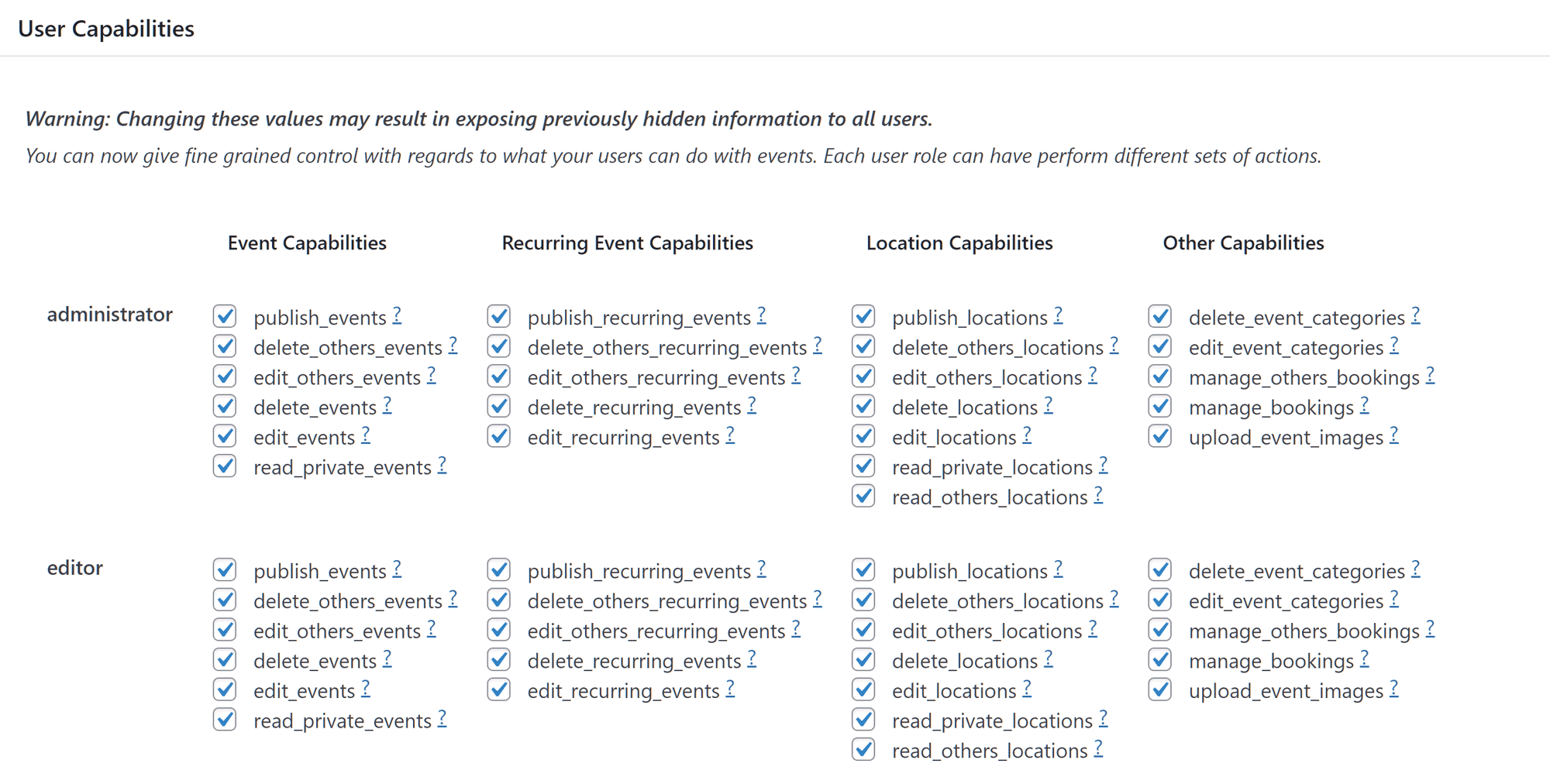
To make your event listing pages more informative, you can integrate the plugin with Google Maps to display interactive maps to your visitors. You also give your visitors the ability to submit events to your site through frontend submission forms.
Events Manager is highly configurable. Thanks to this, it should appeal to power users and those who’d like a high level of control over how their events manager works and how those events are displayed to their audience. For example, you can edit the formatting of the events pages through the plugin settings pages.

Adding events is easy, however, like The Events Calendar plugin, Events Manager uses the old-style WordPress editor for event creation.
Events can be organized with their own categories and tags. Event locations can be stored for reuse. However, unlike The Events Calendar, there’s no option for saving event organizers for reuse.
Events Manager pros and cons
Pros
- Built-in user capabilities manager
- Booking and ticketing functionality
- Google Maps integration
- User event submissions
Cons
- Low-quality event and calendar presentation
- Admin user interface uses the old WordPress editor
- No option for creating and storing event organizers
The free version of the Events Manager plugin has a very competitive set of features. If you choose to upgrade, you get access to all of the pro features for one price, rather than having to purchase individual add-ons.
5. EventON (premium)
EventON is the best-selling events and calendar plugin at the CodeCanyon WordPress plugin marketplace. It’s regularly updated, too.

One of the best aspects of EventON is how your calendar and events are displayed on the frontend of your site. As well as looking good, the events calendar can also be displayed in many different ways.
If flexibility and visual aesthetics are important to you, then the cost of EventON should be easy to justify.

Not only do the published calendars look good, but the system for adding events to the calendar has been well implemented, too.
Unlike the free events calendar plugins, EventON does use the latest version of the WordPress editor. Thanks to this, you can use the new features of the block editor to create your event pages.

All the features of the popular free events calendar plugins are available in EventON. However, you can also collect payments for event attendance, create hybrid online and in-person events, and display live event progress bars, to name just a few of the many premium features of EventON.

As well as the different layouts and presentation options for publishing calendars, you can also add them to your site in many ways. Some of the options include widgets, shortcodes, and blocks.
EventON pros and cons
Pros
- Many options for displaying events calendars on your site
- Well-designed calendar templates
- Support for collecting payments via PayPal
- Optional Google Maps integration
- Ability to hide events and event fields
- Backend demo and limited free version available
Cons
- Extra features only available as paid add-ons
- The non-minimal design style might not appeal to everyone
If you’re looking for a very powerful event calendar plugin at a reasonable price, EventON is hard to beat. While the published calendars and events look good, their overall style might not be to everyone’s taste.
6. Amelia
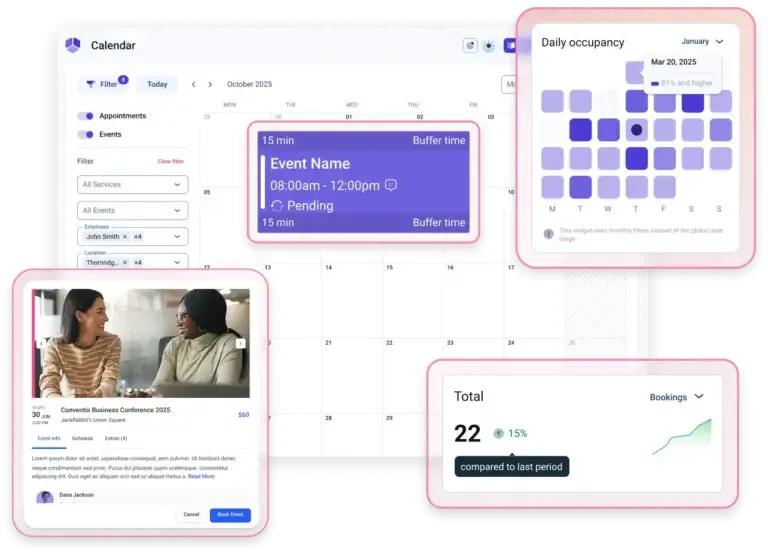
Amelia is the booking-first option on this list. Where most calendar plugins focus on displaying events, Amelia is built around the appointment, the class, and the customer paying for it. If your site needs to handle bookings (consultations, classes, fitness sessions, salon slots), this is the plugin to look at first.
You get a full booking flow out of the box: services, employees, locations, customer accounts, automated email and SMS reminders, and payment processing through Stripe, PayPal, Mollie, and Razorpay. The free version on WordPress.org is generous enough to test the workflow, and the front-end booking forms work without any custom code.
Key features
- Appointment, event, and class booking flows
- Built-in payment processing with Stripe, PayPal, Mollie, and Razorpay
- Customer accounts with booking history
- Automated email and SMS notifications
- Google Calendar, Outlook, and Apple Calendar two-way sync
- Multi-employee and multi-location support
- WooCommerce integration for paid bookings
- Custom fields and coupon codes
Pricing
Amelia Lite is free on the WordPress plugin repository. Paid plans start at $49/year for a single site and scale up based on the number of sites and feature tier.
Pros and cons
- ✅ Built specifically for bookings, not retrofitted
- ✅ Multiple payment gateways supported natively
- ✅ Front-end booking forms work without custom code
- ✅ Free version on WordPress.org for basic use
- ❌ Overkill if you only need to display events without bookings
- ❌ Front-end booking forms have a fairly opinionated design that takes work to fully customize
Best for
Amelia is the right pick for service businesses, course providers, fitness studios, and any site where the calendar exists to take bookings rather than just display events. If your visitors need to book a slot and pay for it, this is the cleanest path.
7. My Calendar (freemium)
My Calendar is another highly rated free WordPress event calendar plugin.

While the published calendar design doesn’t look as good as some of the other plugins here, such as The Events Calendar and Events Manager, you do get a lot of options for how the events are displayed.
Some examples include publishing a simple list of events, displaying separate calendars for events assigned to specific categories, and events taking place at certain locations.
My Calendar even has a shortcode generator that lets you create shortcodes that will display the events in the way you want.

All of this makes My Calendar an appealing choice for anyone who wants to display their events in separate calendars, perhaps on different parts of their site, depending on custom criteria.
If you do want to change the appearance of the published calendar, you can access the underlying CSS through the plugin settings pages.

Unlike Events Manager, the user submissions functionality is a paid feature. The Pro version has some other potentially useful features, including the ability to import events in CSV format, upgrade the search tool, and the ability to share events between sites.
Also unlike Events Manager, My Calendar doesn’t have ticketing and booking functionality. However, you can use the free My Tickets plugin from the same developers to add this functionality to your site.
When it comes to adding events to your website, My Calendar has a custom user interface that isn’t quite as visually appealing as the default WordPress one. However, apart from the admin widgets encouraging you to upgrade or make a donation to support the plugin, it’s still user-friendly.

One of the nice features of My Calendar is that it comes preloaded with tags for letting your visitors know how accessible an event is.

My Calendar pros and cons
Pros
- Lots of setting and customization options
- Comes with sample data
- Accessibility tags
- Optional Google Maps integration
- Built-in user capabilities manager
- Shortcode generator
Cons
- Published calendars don’t look as good as other options
- No support for adding event organizers
- The user interface looks a bit dated
- No event tags (just categories)
My Calendar is slightly lacking in some areas compared to the completion. However, the accessibility tags, CSS-editing capabilities, and customization options could help this plugin appeal to some readers.
8. Stachethemes Event Calendar (premium)
Statchethemes Event Calendar is another premium option from CodeCanyon. It's priced between EventON and Modern Events Calendar and doesn’t have any paid add-ons. Due to this, you get access to all of the Stachethemes Event Calendar features for one price.

In addition to the main calendar display templates, you can also use the Stachethemes Event Calendar widgets to display a list of upcoming events in the sidebar of your website. As it has been built to integrate with the Elementor page builder plugin, you can also easily add calendar elements to your custom page designs.
Stachethemes Event Calendar integrates with many of the most popular payment gateways, processors, and eCommerce services to enable event payments through your website.

The backend user experience is as well-designed as the frontend, making it easy to add and manage your events and calendar in your WordPress dashboard. Despite not using the default WordPress user interface, the process still works well.

Stachethemes Event Calendar pros and cons
Pros
- Support for event booking and ticketing
- A library of tutorial videos
- Many payment collection options
- Frontend event creation and submission
- Integrates with Google Maps and OSM (OpenStreetMap)
- No need for paid add-ons
Cons
- Custom backend user interface might put some people off
- Lacking any truly clean and minimal calendar templates
Stachethemes Event Calendar has everything most people will need from a premium event calendar plugin, without the need to pay for premium add-ons.
9. Events Schedule (premium)
Events Schedule has a good selection of event calendar templates. The plugin also has its own builder tool that lets you design custom calendar displays.

The Events Schedule visual builder has over 120 configuration options that allow you to present calendars on your website in many different ways.
However, if you don’t want to spend time customizing your calendars, there are multiple pre-built templates that are ready to go.

Thanks to WooCommerce support, you can sell tickets for your events and manage bookings all through your WordPress dashboard.
Events Schedule is also compatible with WPBakery Page Builder should you wish to integrate the calendars into your custom page designs.
Events Schedule pros and cons
Pros
- Well-designed and varied calendar template options
- Timetable and daily schedule templates
- WooCommerce-integration and payment collection support
- Affordable price with no premium add-ons
Cons
- Slightly fewer features than other premium plugins
- Not as many calendar templates as other premium plugins
Compared to some of the other premium options, Events Schedule is a more competitively priced event calendar plugin. It doesn’t have as many templates and features as the other paid plugins, but if you like the look of Events Schedule, it’s a solid option.
FAQs about WordPress calendar plugins
Does WordPress have a built-in event calendar?
No. WordPress doesn't ship with a calendar or event management feature out of the box. To add events, bookings, or a calendar to your site, you need a plugin. Sugar Calendar and The Events Calendar are the two most popular options.
What's the best free WordPress calendar plugin?
Sugar Calendar Lite is the best free option for most sites. It's lightweight, easy to set up, and covers the basics without slowing your site down. The Events Calendar's free version is the strongest alternative if you need more event-management depth.
Can I sell event tickets with a WordPress calendar plugin?
Yes. Sugar Calendar, The Events Calendar, EventON, and Amelia all support paid ticket sales, either built in or through a paid add-on. Sugar Calendar handles Stripe and WooCommerce natively. The Events Calendar offers a separate Event Tickets plugin. Amelia includes payment processing in its booking flow.
How do I add a calendar to my WordPress site?
Install a calendar plugin from the WordPress repository or from the plugin's website, activate it, then create your first event. Most plugins on this list, including Sugar Calendar and The Events Calendar, give you a block or shortcode you drop onto any page to display the calendar. Setup takes about five minutes for the basic plugins.

Related Posts


One comment
To be honest I think the Modern Tribe Event Calendar is overrated.
It is hard to use and difficult to customize.
The support docs are poorly documented (try finding out how to use shortcode, there are like 30 docs on it. I can never find what I want).
And the overall design is just not that good looking.
I don’t know why everyone thinks this plugin is so great. It is expensive, clunky, ugly and hard to use. There are so many better plugins out there.
Just my opinion.