To hide prices in WooCommerce you have four working routes, and which one you want depends on a single question, meaning who should stop seeing them. You can disable purchasing storewide with a free plugin, hide the price display itself with three lines of code, hide it for specific products only, or show prices to logged-in customers alone.
This guide walks all four, and everything in it was tested on a live WooCommerce install while writing, with the screenshots to prove it.
Table of Contents
- Why store owners hide prices
- Which method should you use?
- Method 1: Disable purchasing storewide, keep prices visible
- Method 2: Hide the price display from everyone
- Method 3: Hide prices on specific products only
- Method 4: Show prices only to logged-in customers
- What hiding prices can do to your SEO
- FAQs about hiding prices in WooCommerce
- Final thoughts on hiding prices in WooCommerce
Why store owners hide prices
The reasons are more ordinary than the feature's obscurity suggests. Wholesale and B2B stores show prices only to approved buyers. Service businesses and made-to-order sellers want a conversation before a number. Some stores in regulated niches cannot display prices publicly at all, and pre-launch catalogs want interest without transactions.
Whatever the reason, one rule holds across all of them. Hiding the price without deciding what happens to the Add to cart button leaves a store that looks broken, because a buy button with no price reads as an error rather than a policy, so every method below handles both together.
Which method should you use?
| Your situation | Use | Cost |
|---|---|---|
| Stop all purchasing, keep prices visible (catalog site) | Method 1 | Free plugin |
| Hide prices from everyone, storewide | Method 2 | Free snippet |
| Hide prices on specific products only | Method 3 | Free snippet |
| Show prices to logged-in customers only (wholesale, B2B) | Method 4 | Free snippet |
| Replace prices with a quote form, per user role, per country | A premium plugin | Paid |
The premium row is there for honesty rather than avoidance. Plugins like YITH Catalog Mode Premium bundle all four behaviors behind checkboxes with support included, and for a client site that budget line can be worth it, but everything below gets you there without it.
Method 1: Disable purchasing storewide, keep prices visible
Use this when you want a catalog site, meaning visitors browse products and see prices but nothing can be bought.
This is the one case a free plugin covers completely. We used YITH WooCommerce Catalog Mode, which reports 60,000+ active installs on WordPress.org and was updated within the last month at the time of this check.
In your dashboard, go to Plugins » Add New and search for “catalog mode woocommerce”.
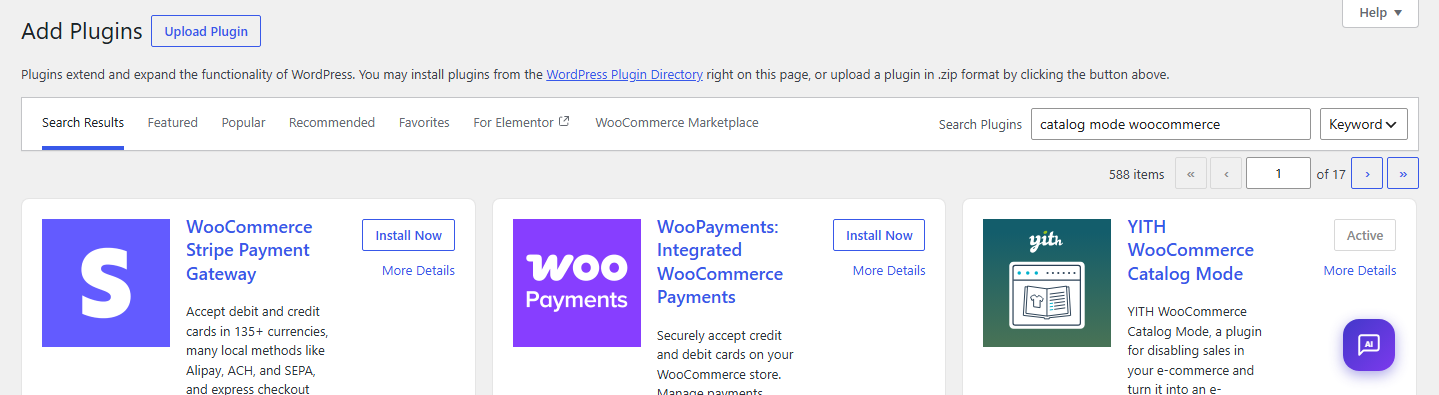
Click Install Now, then Activate. A new YITH » Catalog Mode menu item appears. Open it and you get the free version's four settings, meaning catalog mode for administrators, Disable shop, where to hide Add to cart, and whether to hide product variations.
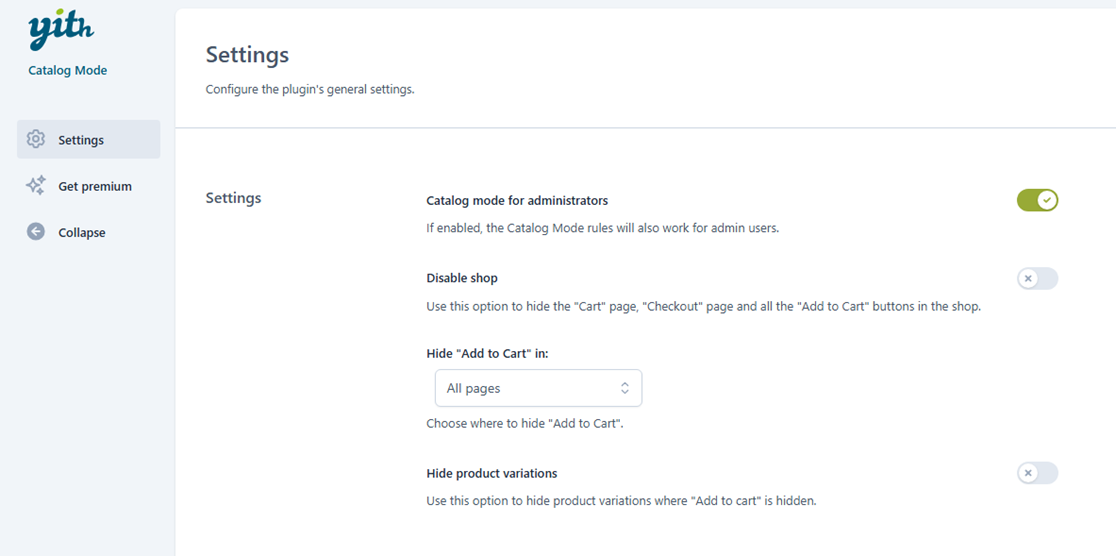
Turn on Disable shop and click Save Options. This hides the Cart page, the Checkout page, and every Add to cart button in one move.
Method 2: Hide the price display from everyone
Use this when no visitor should see any price, storewide.
This takes one filter, added as the snippet below to your child theme's functions.php, or to a code snippets plugin if you prefer not to edit theme files, which is the safer habit on a live store.
add_filter( 'woocommerce_get_price_html', function ( $price, $product ) {
	return '<a href="/contact/">Contact us for pricing</a>';
}, 10, 2 );
Every product price on the shop grid, product pages, and widgets is replaced with your text or link. Swap the contact link for plain text if you prefer, and pair it with Method 1's plugin so the buy buttons disappear too, since a working Add to cart next to “Contact us for pricing” would sell products nobody priced.
Method 3: Hide prices on specific products only
Use this when most of the store shows prices normally and a handful of products should not, like made-to-order items.
Same filter, with an ID check. Replace the numbers with your product IDs, which you can read from the URL when editing a product.
add_filter( 'woocommerce_get_price_html', function ( $price, $product ) {
	$hidden = array( 1013, 1015 );
	if ( in_array( $product->get_id(), $hidden, true ) ) {
		return 'Price on request';
	}
	return $price;
}, 10, 2 );
Products in the list show “Price on request” and everything else is untouched. For per-product buy-button control on top of this, the free YITH plugin from Method 1 can hide Add to cart on product pages specifically.
Method 4: Show prices only to logged-in customers
Use this when approved customers should see prices and guests should not, which is the classic wholesale and B2B setup.
This is the version we ran on our test store, and the pair of screenshots below is that store, not a mockup. The snippet checks login state and swaps the price for a login link.
add_filter( 'woocommerce_get_price_html', function ( $price, $product ) {
	if ( ! is_user_logged_in() ) {
		return '<a href="' . esc_url( wp_login_url() ) . '">Log in to see prices</a>';
	}
	return $price;
}, 10, 2 );
For a full wholesale setup you would pair this with a registration flow that approves accounts before they can log in, and hide the buy buttons for guests with Method 1's plugin so the storefront stays coherent in both states.
What hiding prices can do to your SEO
This is the part none of the vendor tutorials mention, and it deserves a plain warning.
WooCommerce publishes structured data for your products, and price is part of what search engines read from it. When you hide the displayed price, you create a possible mismatch, meaning Google may still see a price in the page's structured data while shoppers see none on screen, and pages without visible purchasable prices can lose eligibility for price-carrying rich results and shopping surfaces.
The practical advice comes in two parts. The first is that when hidden prices are a business requirement, accept that price rich results are not part of your SEO story and move on, since a wholesale store was never going to win a public price carousel anyway. Second, after applying any method here, run one of your product pages through Google's Rich Results Test and check what price data, if any, the page still exposes, so the decision is informed rather than accidental. If you are working on your store's search visibility more broadly, our WooCommerce SEO guide covers the parts that still apply when prices are private, and good store design matters even more when the price is not doing the selling. A fast store theme is the other half of that equation.
FAQs about hiding prices in WooCommerce
Direct answers to the questions that come up every time this gets set up.
Can I hide prices in WooCommerce without a plugin?
Yes. The woocommerce_get_price_html filter replaces the price display with any text or link you choose, and the three-line snippet in this guide does it storewide, per product, or per login state. A plugin is only required for hiding the purchase buttons without code.
Does WooCommerce have a built-in hide price option?
No. A clean WooCommerce install has no hide-price setting, and the Product data Advanced tab contains only Purchase note, Menu order, and Enable reviews. Tutorials showing a “Hide Price?” checkbox there are showing a field added by a plugin on their own install.
How do I hide prices until a customer logs in?
Use the login-gated snippet from Method 4, which swaps every price for a login link when the visitor is logged out. We tested it live for this guide, and the before and after screenshots in Method 4 show the result on a real store.
Will hiding prices hurt my SEO?
It can affect price-based rich results, because hiding the display can leave structured data and the visible page out of sync. Run a product page through Google's Rich Results Test after making changes, and treat price-carrying search features as out of scope if hidden pricing is a business requirement.
How do I hide the Add to cart button along with the price?
The free YITH WooCommerce Catalog Mode plugin hides Add to cart buttons storewide or per page type and can disable the cart and checkout entirely. Pair it with any of the price snippets so the price and the button disappear together rather than leaving one orphaned.
Final thoughts on hiding prices in WooCommerce
The decision comes down to who should stop seeing prices, and the honest cost is lower than the tutorial landscape suggests. Gating purchases is a free plugin, hiding the display is three lines, and wholesale-style login gating is the same three lines with one condition. The premium plugins earn their money on the combinations, meaning roles, quote forms, and per-country rules, not on the basics.
Whichever method you pick, check the page as a guest before calling it done, and make the price and the buy button disappear together.
Which setup are you building, a catalog site or a wholesale store? Tell us in the comments, especially if your use case did not fit the table above.

Related Posts