You found a WooCommerce shortcode in a tutorial, pasted it into a page, and now you are wondering whether you have just built something on a path that WordPress is quietly walking away from. It is a fair question, and most shortcode guides do not answer it.
The reason they do not is that they list every WooCommerce shortcode as though all of them carry the same status, when the statuses are genuinely different. Some are still the fastest tool for the job and always will be, some work fine but have a block that has replaced them for new builds, and a couple have no replacement at all. The distinction matters, because the cart and checkout shortcodes are the ones people copy most and they are exactly the ones WooCommerce has moved on from.
This guide sorts them by status first, verified against WooCommerce's own documentation on 20 September 2026, and then gets into the ones you will actually use.
Table of Contents
Which WooCommerce shortcodes still matter in 2026
The short version is that the product shortcodes are still current and worth learning, while the cart and checkout shortcodes have block replacements that WooCommerce now uses by default on new stores. Nothing has been removed from WooCommerce in the process, so every page you have already built on a shortcode keeps working.
Here is every WooCommerce shortcode with its current status and its block equivalent, taken from WooCommerce's own shortcode documentation.
| Shortcode | What it does | Block alternative | Status |
|---|---|---|---|
[products] | Displays products by parameters, with attributes | Product Collection block and others | Current, still the quickest route inside a post |
[product_page] | Displays a full single product page by ID or SKU | Custom product page templates in the site editor | Current |
[product_category] | Displays products in a category, with attributes | Product Collection block | Current |
[product_categories] | Displays product categories, with attributes | None yet | Current, and the only option |
[add_to_cart] | Displays an add-to-cart button for a product | Available on single product page templates | Current |
[add_to_cart_url] | Returns the add-to-cart URL for a product | None | Current, and the only option |
[shop_messages] | Shows shop notices on non-WooCommerce pages | Store Notices block | Current |
[woocommerce_cart] | Displays the cart page | Cart block | Legacy, works, replaced for new stores |
[woocommerce_checkout] | Displays the checkout page | Checkout block | Legacy, works, replaced for new stores |
[woocommerce_my_account] | Displays the account page | None yet | Current, and the only option |
[woocommerce_order_tracking] | Displays the order tracking form | None | Current, and the only option |
Read the last column carefully, because it is the part no other guide separates out. Four of these shortcodes have no block equivalent at all, which makes them permanent rather than legacy. Only two have actually been superseded, and both of those still function.
Blocks or shortcodes: how to choose
The rule is short enough to remember. New store, use the blocks. Existing store already running on shortcodes, leave it alone until you have a reason. Dropping products into a post or a landing page, the shortcode is still faster than the block.
That last case is the one people underestimate. A shortcode is a single line you can type, template, or generate programmatically. The equivalent block takes several clicks and cannot be pasted into a text field, which matters when you are building thirty category pages rather than one.
The cart and checkout deserve more thought than the rest, because the block versions are where the new features land. Express payment areas and the newer field controls arrive there first, so a store built on the shortcode versions gradually falls behind on functionality rather than breaking. If you are deliberately going the other way and want the classic shortcode experience back, our documentation on switching cart and checkout blocks to the classic shortcodes walks through it.
Your theme is part of this decision too, and it is worth checking before you change anything. Block themes expect block templates, while a classic theme is generally happier with the shortcode pages. Botiga supports both routes, and our fastest WooCommerce themes comparison covers how the other options handle it.
The product shortcodes worth knowing
These are the ones you will reach for regularly, because they put products inside ordinary posts and pages, which is something the shop templates cannot do on their own.
Show a grid of products
[products] is the workhorse of the set, and on its own it simply lists your products. Its attributes are where the real control lives.
The ones worth memorising are limit for how many products to show, columns for how wide the grid runs, orderby for the sort field, order for the direction, and paginate to turn pagination on when you are showing a long list. The orderby attribute accepts title, date, id, menu_order, popularity, rand and rating, so most sorting you would want is already built in.
A four-column grid of your twelve newest products looks like this.
[products limit="12" columns="4" orderby="date" order="DESC"]
You can also target exact products with ids or skus, both of which take a comma-separated list, and add a class attribute when you want to style one grid differently from the others.
Filter by category, sale or rating
The same shortcode filters as well as lists, and the filtering attributes are the ones worth learning properly. category and tag both take comma-separated slugs, so one line gives you every product in a category without touching a template.
[products category="hoodies,t-shirts" limit="8" columns="4"]
Three attributes act as filters on their own. on_sale pulls products currently on sale, best_selling pulls by number of purchases, and top_rated pulls by average rating. WooCommerce's documentation notes that these three should not be combined with each other, so pick one per shortcode.
[product_category] does the same job scoped to a single category and is worth using when that is all you need, because the intent is clearer to whoever edits the page after you.
A single product, and a bare add-to-cart button
[product_page id="99"] renders a complete product page inside any post or page, images and add-to-cart button included. It is the right tool for a landing page built around one product, and our best single product WordPress themes roundup covers the theme side of that same build.
When you only want the button, [add_to_cart id="99"] gives you the price and the button without the rest of the product page. [add_to_cart_url id="99"] goes one step further and returns just the URL, which is what you want when the button is a design element you are building yourself or a link inside an email.
The page shortcodes, and what replaced them
These four build the store's functional pages, and WooCommerce creates them for you at install time. It records which page is which in its own settings, so they are usually in place before you think about them.
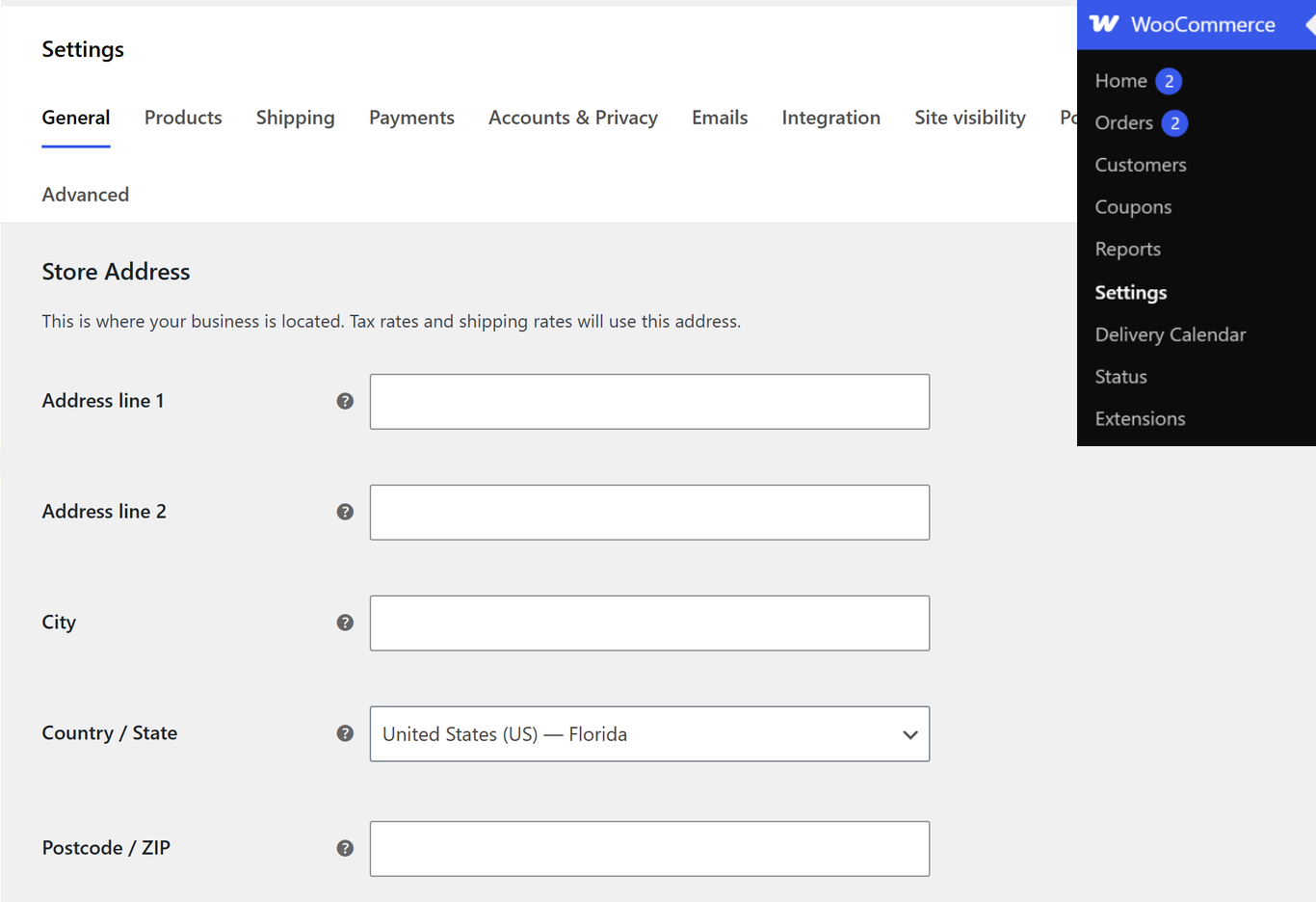
[woocommerce_cart] and [woocommerce_checkout] are the two shortcodes with genuine block replacements behind them. The Cart block and the Checkout block are what a new WooCommerce install now uses, and they are where new checkout features land first. Your shortcode pages keep working either way, so nothing is at risk. What the blocks offer is enough to be worth planning a migration around eventually.
[woocommerce_my_account] and [woocommerce_order_tracking] have no block equivalent at the time of writing, which puts them a long way from legacy. WooCommerce's own documentation lists the account page as “None yet” and the order tracking form as “None”, so these shortcodes are the only way to build those pages.
[shop_messages] is the odd one out and the most useful shortcode most people have never used. WooCommerce notices, the ones that say a product was added to the cart or a coupon was applied, only render on WooCommerce pages by default. Drop [shop_messages] onto a custom landing page with an add-to-cart button on it and the notices start appearing there too.
Why a shortcode you copied has stopped working
Four causes account for almost every broken WooCommerce shortcode, and they are easy to tell apart.
- It came from an old tutorial: WooCommerce replaced several older shortcodes such as
[featured_products]and[sale_products]with attributes on[products], so a snippet from an old blog post can be calling something that no longer exists - The attribute name changed:
limitandcolumnsare the current names, and older guides sometimes use attribute names that WooCommerce no longer accepts - Your store moved to the cart and checkout blocks: if the checkout page now holds a Checkout block, adding
[woocommerce_checkout]to a second page will not behave the way the tutorial expects - The shortcode is in the wrong kind of field: shortcodes run in post content, so one pasted into a widget, a theme option or a block that does not process shortcodes will simply print as text
When a shortcode prints as literal text on the front end, that last cause is almost always the answer. Move it into a Shortcode block in the post content and it will render. If it renders but returns nothing, the problem is the query rather than the shortcode, so check that the category slug is spelled correctly and that the products you expect are actually published and in stock.
When a shortcode genuinely cannot do the job, a plugin usually can, and our guide to the best WooCommerce plugins covers the ones worth having.
FAQs about WooCommerce shortcodes
Shortcode questions come up constantly, especially now that blocks have entered the picture. Here are direct answers to the most common ones.
What are WooCommerce shortcodes?
WooCommerce shortcodes are short pieces of text in square brackets that render store content inside any post or page. [products] outputs a product grid, [woocommerce_cart] outputs the cart, and each one accepts attributes that control what appears.
Are WooCommerce shortcodes deprecated?
Most of them are not deprecated in any sense, and none of them have been removed. Only the cart and checkout shortcodes have block replacements, and four shortcodes including the account page and order tracking have no block equivalent at all, which makes them the only option. Nothing has been removed, so existing pages keep working.
How do I add products to a page in WooCommerce?
Add a Shortcode block to the page and enter [products limit="8" columns="4"], adjusting the numbers to suit your layout. Add a category attribute to narrow it to one category, or use the Product Collection block if you prefer to configure it visually.
What is the difference between WooCommerce blocks and shortcodes?
Blocks are configured visually in the editor and receive new WooCommerce features first, while shortcodes are typed as text and can be generated programmatically or dropped into templates. For cart and checkout the blocks are now the default, and for putting products inside a post the shortcode is usually quicker.
Why has my WooCommerce shortcode stopped working?
The usual cause is the shortcode sitting somewhere that does not process shortcodes, such as a widget or a theme option field, which makes it print as plain text. The other common causes are an attribute name from an outdated tutorial, or a shortcode that WooCommerce has folded into [products] as an attribute.
Final thoughts on WooCommerce shortcodes
Shortcodes are not on the way out, and the guides that imply otherwise are generalising from the cart and checkout to everything else. Four of them have no block equivalent, the product shortcodes remain the fastest way to put products inside a post, and every one of them still runs.
The decision rule is worth keeping somewhere you will see it again, because it settles most of these questions on its own. Build new cart and checkout pages with the blocks, leave working shortcode pages alone until you want what the blocks offer, and reach for [products] whenever you need store content somewhere the shop templates do not go.
Which WooCommerce shortcode do you use most, and is there one you wish had a block version? Tell me in the comments below.

Related Posts