WooCommerce local pickup lets a customer collect an order from your store, and that is where it stops. It can't ask when they will collect, cap orders per time slot, or know that your kitchen closes at nine.
This guide sets up real pickup and delivery with the Delivery & Pickup module in Merchant Pro, our own WooCommerce plugin, using a restaurant and an auto repair shop as the two examples.
Table of Contents
- What WooCommerce local pickup does out of the box
- How the Delivery & Pickup module is organized
- Activate the Delivery & Pickup module
- Example 1: Scheduled pickup and delivery for a restaurant
- Example 2: Drop-off bookings for an auto repair shop
- Add collection points with pickup rules
- Run the day from the calendar and emails
- FAQs about WooCommerce local pickup and delivery
- Final thoughts on WooCommerce local pickup and delivery
What WooCommerce local pickup does out of the box
WooCommerce ships two versions of local pickup, and neither one knows what time it is. The classic Local Pickup shipping method lives inside a shipping zone, with a name, a tax status and one cost for the whole cart. The newer Local Pickup for the Checkout block adds several pickup locations, each with an address and a details field for directions, and the customer no longer has to type a shipping address.
Neither version handles time, and delivery is no different. WooCommerce can charge for shipping, but it can't let a customer choose the day or time the order arrives.
So core pickup covers the basics, meaning one or more addresses and a details field for directions on the block checkout. What you don't get is a date or time for the customer to pick, a limit on orders per slot or per day, different options for specific products, delivery days, or a reminder before the slot. Those are the gaps the Delivery & Pickup module fills.
This matters at checkout. According to the Baymard Institute, 40% of abandoned carts happen because extra costs like shipping were too high. Offering pickup removes the shipping cost, and a booked slot turns “slow” into a day the customer chose.
How the Delivery & Pickup module is organized
The module lives in Merchant Pro, our WooCommerce plugin. While building it, we kept hearing from store owners who lost hours calling customers to agree on a pickup time, so the module exists to take that phone call out of the process. It needs WooCommerce 6.4 or newer and works with both the classic checkout and the Checkout block. The launch announcement has the full feature list. This guide sticks to setting it up.
The module is built on two pieces, and it helps to know them before you start.
Pickup locations are the places customers collect from, such as your shop, a second branch, a counter or a kiosk. Each has its own address, open days and hours, preparation time, daily limit, closed dates and collection notes.
Schedules are the services you offer, such as “Evening delivery” or “Workshop drop-off”. They all live under Delivery Schedules, pickup ones included. Each schedule is either a delivery or a pickup, and it decides the days, the slot length, the limits, the fee and which products it applies to.
At checkout, the customer chooses how each item is fulfilled, meaning the service, the location, the day and the time.
Activate the Delivery & Pickup module
Go to Merchant » Modules, find Delivery & Pickup in the Convert More section, and switch it on.
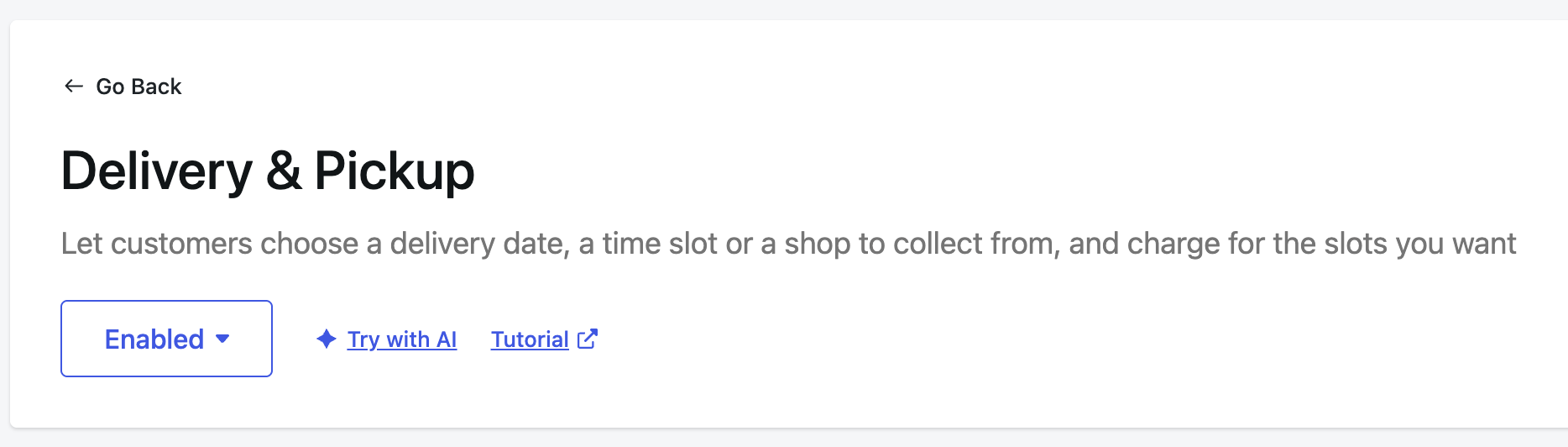
Everything below happens in two places, the pickup locations and the delivery schedules. Set up the location first, then the schedule that runs at it.
Example 1: Scheduled pickup and delivery for a restaurant
Use this when customers order ahead and collect or get food delivered in a time window, such as weekend pre-orders and evening catering. It isn't built for “as fast as possible” delivery with live driver tracking.
Add the restaurant as a pickup location
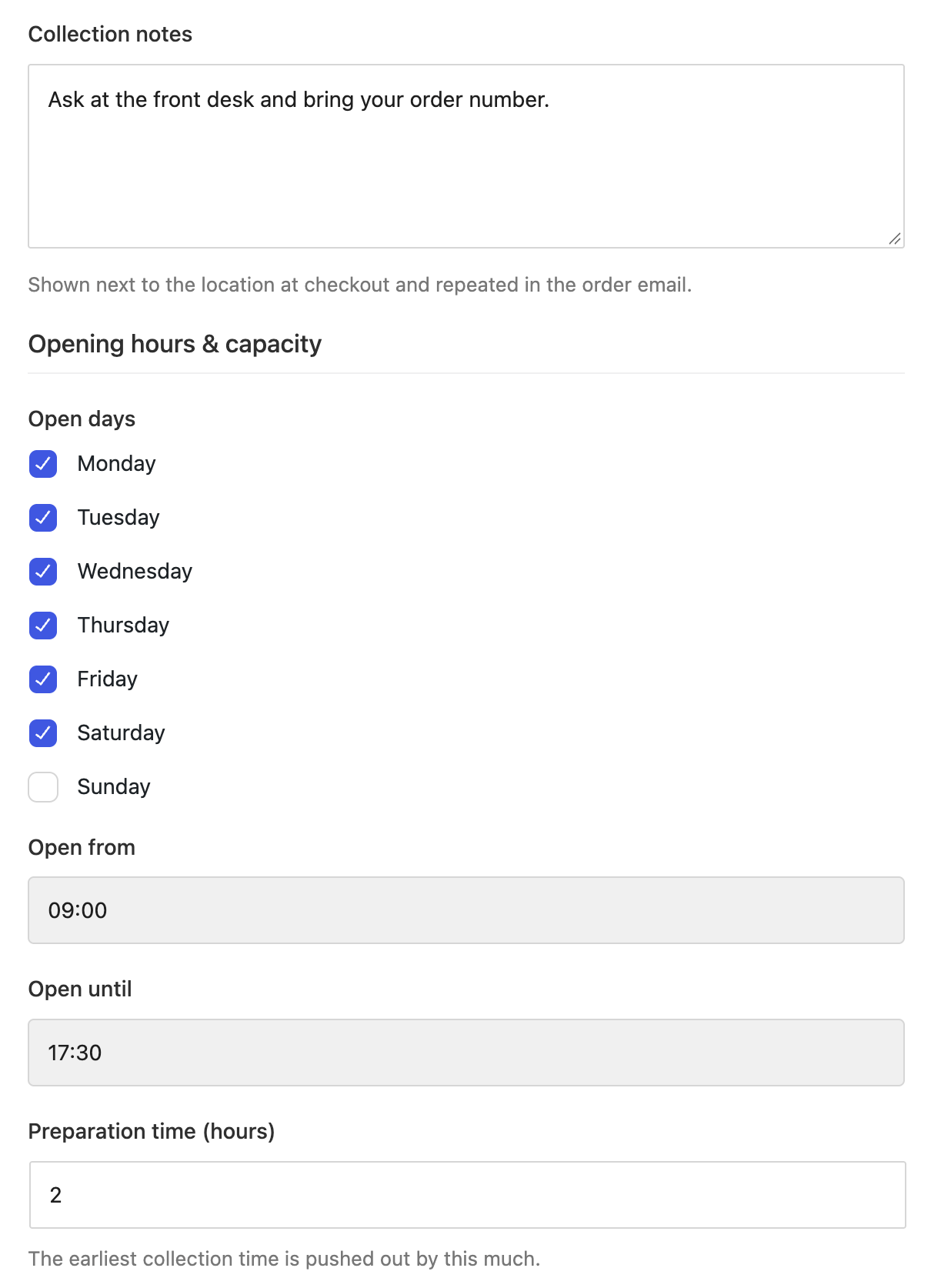
Add one location for the restaurant. Set the open days and hours to match your takeaway window, for example 5 pm to 10 pm. Tick Saturday and Sunday if you take weekend orders, since the default is Monday to Saturday. Pickup slots never fall outside these hours.
In Collection notes, write what the customer needs to know when they arrive, for example “Collect from the side counter. Tell us your order number.” The notes show next to the location at checkout and in the order emails.
Under Notify these users or Notify these addresses, add the kitchen or front-of-house email so staff hear about each new pickup order.
Create an evening pickup schedule
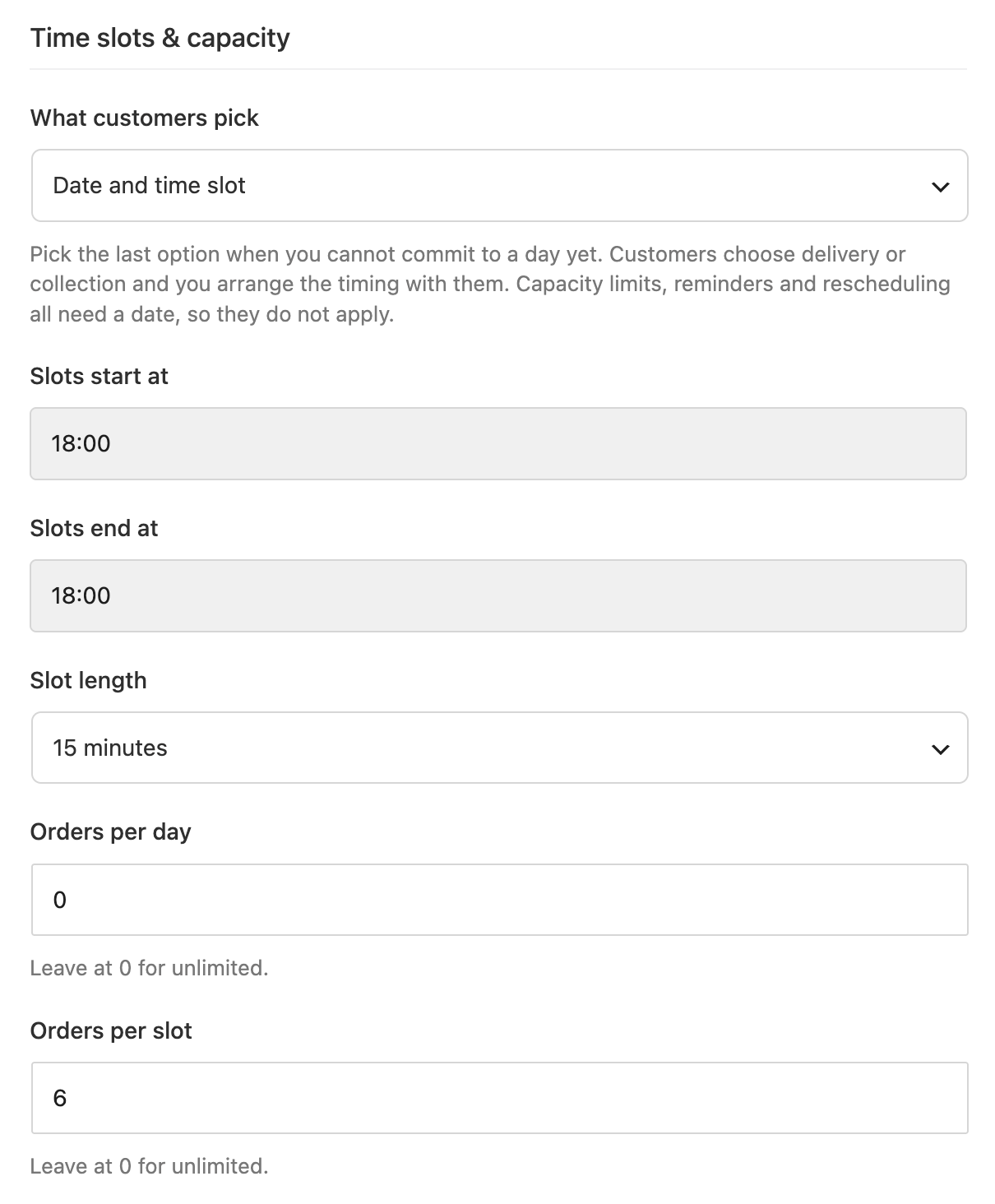
Add a schedule called “Evening pickup” and set the fulfilment type to Pickup, with the customer picking a date and time slot.
Set Slots start to 5 pm and Slots end to 10 pm to match the takeaway hours. Use a slot length of 15 minutes so pickups spread across the evening instead of piling up at seven. Under Available days, add Saturday and Sunday, because a new schedule starts on Monday to Friday.
Orders per slot is the number that protects the kitchen. Set it to what your team can really finish in 15 minutes, for example 6.
Switch on Allow same-day so customers can order for tonight. Then move Daily cut-off time from its 2 pm default to the last time you can still take an order for tonight, for example 9 pm. Without that change, anyone ordering after 2 pm only sees tomorrow.
There is one thing to know about how the timing settings interact. Lead time and preparation time push back the first day customers can book, but they don't hide tonight's slots that start soon. A customer ordering at five past five can still choose the quarter past slot. If the kitchen needs more notice than that, keep Orders per slot low for the first slots of the evening, or set the cut-off earlier.
A bookable window of 7 days is enough for weekend pre-orders. Add your holidays under Blackout dates and switch on Repeat blackout dates every year so they stay closed without touching the settings again.
When a slot fills up, customers can't choose it, and a small “2 left” style badge can show when a slot is nearly full.
Add local delivery with a fee
Add a second schedule called “Local delivery” and set the fulfilment type to Delivery. Use longer slots, for example 30 minutes, and a lower limit per slot to match your drivers.
Switch on Charge for this schedule and choose a fixed fee, a percentage of the cart or an amount per item. Use Free when the cart reaches to waive the fee on bigger orders. Limit the schedule to the Shipping zones you actually deliver to. The zone is checked at checkout from the customer's shipping address, and the fee appears as its own line in the order totals.
If some dishes shouldn't travel, restrict the schedule to specific products or categories, or exclude the ones you only sell for pickup.
Example 2: Drop-off bookings for an auto repair shop
Use this when you sell fixed-price service packages or parts as WooCommerce products. A pickup schedule then works as a drop-off booking. The customer buys the package and picks the day and time they'll bring the car in, and your limit per slot matches the number of bays you have.
Set up the workshop location
Add the workshop as a pickup location with your opening days and hours. Use Closed dates for days the workshop is shut, and set Collections per day to the number of cars you can take in a day.
Collection notes carry the drop-off instructions, for example “Park in the bays marked Service and bring your keys to reception.”
If the workshop also has a parts counter at another address, add it as a second location. Every pickup schedule is offered at every location, so use Only stocks these categories on each one, with service packages at the workshop and parts at the counter. That keeps drop-off slots away from the parts counter.
Create a drop-off schedule for service packages
Add a schedule called “Workshop drop-off” and set it up as a Pickup where the customer picks a date and time slot, since they are the ones coming to you.
Set Slots start to 8 am and Slots end to 4 pm to leave room to finish the last job of the day. Two-hour slots give each car a clear start.
Then match Orders per slot to your bays. A three-bay shop would set 3, so a fourth car can't book the same window. A lead time of 1 day gives you time to order parts, and limiting the schedule to your “Service packages” category means only service products ask for a drop-off slot.
For parts orders, add a separate “Parts collection” schedule limited to the parts category, with Date only so customers choose a day without a fixed time.
Add collection points with pickup rules
A pickup location doesn't have to be your own shop. It can be a counter in a partner store, a market stall or a staffed kiosk, and some of those places come with rules, such as bringing photo ID. Pharmacies are the clearest case of a collection point with rules. A CDC review of laws enacted up to 2013 found 25 states that require or allow pharmacists to ask for ID before dispensing certain prescriptions.
To run a collection point with rules, set it up like this.
- Add it as its own location with its address, hours and closed dates.
- Write the rule in Collection notes, for example “Bring a photo ID that matches the name on the order.” It shows at checkout, is saved with the order and appears in the order emails. If you turn on the calendar link, it goes into the calendar event too.
- Limit what can be collected there. Use Only stocks these categories so the kiosk is offered only for products it holds.
- Limit who sees it. Use Offer to these shipping zones so it only appears to customers whose shipping address is nearby.
- Tell the staff there. Add the kiosk's email under Notify these addresses so they get each new order for that location.
You can also set a collection fee per location, or enter a negative amount to give a discount for collecting from that point.
Checking the ID stays your staff's job, not the plugin's. The module tells the customer what to bring, but it can't verify it, and no plugin replaces your local rules for prescriptions or alcohol.
Run the day from the calendar and emails
Once orders come in, you manage them from three places.
- Delivery Calendar, under the WooCommerce menu, shows bookings by month, week or day, with filters by type, schedule and location. Print the day view for the kitchen or the workshop, or export it to CSV.
- The order screen has a Delivery & Pickup box where staff can change the type, the delivery service or pickup location, the date and the time. A “ready to collect” order action emails the customer when the order is ready.
- Emails. Delivery details are added to WooCommerce's own order emails. You can also switch on a reminder email a set number of hours before the slot, and let logged-in customers reschedule from My Account up to a deadline you choose.
Every setting is covered in the Delivery & Pickup documentation. If delivery is a big part of your business, it also helps to add Google address autocomplete to your WooCommerce checkout, so the delivery address is spelled right. If you are also working on how the store looks and sells, our guide to WooCommerce web design is a good next read, and our WooCommerce SEO guide covers how local customers find you in the first place.
That is the whole setup. One location and one schedule get a store taking booked pickups tonight.
FAQs about WooCommerce local pickup and delivery
Store owners setting up WooCommerce pickup and delivery scheduling tend to ask the same questions. Here are the short answers.
Does WooCommerce have built-in local pickup?
Yes, WooCommerce includes a Local Pickup shipping method, and the Checkout block version supports several pickup locations with an address and instructions for each. It doesn't include scheduling, so customers can't choose a pickup date or time, and there is no limit on orders per time slot.
How do I add a pickup date and time in WooCommerce?
You need an extension, because core has no date or time fields for pickup. With the Delivery & Pickup module in Merchant Pro, you create a pickup schedule, set your slot length and hours, and customers choose a location, day and time at checkout.
Can I limit how many orders come in per time slot?
Not with core WooCommerce, which has no per-slot limit at all. With the Delivery & Pickup module, you set a limit per slot and per day for each schedule, and a limit per day for each pickup location. Once a slot is full, customers can't choose it.
Does the Delivery & Pickup module work with the WooCommerce Checkout block?
Yes, with both the classic checkout and the Checkout block. The block just needs to be on the page set as your checkout page under WooCommerce » Settings » Advanced.
Can customers reschedule a pickup themselves?
Yes, if you turn on Let customers reschedule from My Account. Logged-in customers pick a new day and time from their order page, up to a deadline you set.
Can a pickup location ask customers to bring ID?
Yes, as an instruction. Write the rule in the location's collection notes and it appears at checkout and in the order emails. Checking the ID is still up to your staff.
Final thoughts on WooCommerce local pickup and delivery
WooCommerce local pickup tells the customer where to collect, and for a parcel store that is often enough. A restaurant or a repair shop also has to agree on when, because the kitchen or the bays can only handle so many orders an hour. Start with one location and one schedule, set a limit per slot that matches what your team can really do, and add delivery or extra collection points once the first one runs smoothly.
Which would you set up first, scheduled pickup or local delivery? Tell us in the comments, especially if your pickup point has rules we haven't covered.

Related Posts